Jira Integration for Noibu
Last updated: June 4, 2026
Noibu's Jira integration creates a direct link between issues in Noibu and tickets in Jira. After triaging an issue, you can sync it to Jira to automatically create a ticket with all the information your developers need.
Supported versions: Jira Cloud V3, Cloud V2, and Server V2.
The integration uses a webhook that listens to issue_updated and issue_deleted events. Status changes sync in both directions, so closing or reopening a ticket in Jira will close or reopen the corresponding issue in Noibu, and vice versa.
Before you begin
You'll need the following before setting up the integration:
1. Jira Admin account email
The account used for the integration must have Administer Jira global permissions. This is required to create webhooks automatically.
If your company has security concerns about using an existing admin account, create a dedicated service account and grant it Admin permissions on the relevant projects.
The account should have multi-factor authentication enabled.
2. Jira API token
Generate a Personal API Token from your Jira Admin account. See Atlassian's guide to managing API tokens.
The token must be generated while logged into the same Admin account you'll use for the integration.
Use a Personal API Token, not the Atlassian API Key.
3. Jira domain
Log into Jira and copy the hostname from your browser's URL bar.
Important: Use only the hostname. Do not include a path.
✅ Correct | ❌ Incorrect |
|---|---|
|
|
Including /jira or any other path will cause a 404 error during setup.
4. Jira project names
Go to View All Projects in Jira and note the Name (not the Key) of each project you want to connect to Noibu.
5. Jira version
Check your Jira footer or Billing Details in your Admin account. Noibu supports Jira Cloud V3, Cloud V2, and Server V2.
Setting up the integration
Step 1: Configure Jira credentials in Noibu
The integration is configured per domain. If you use multiple domains in Noibu, you'll need to set up a separate integration for each one.
Open the Domains module in Noibu.
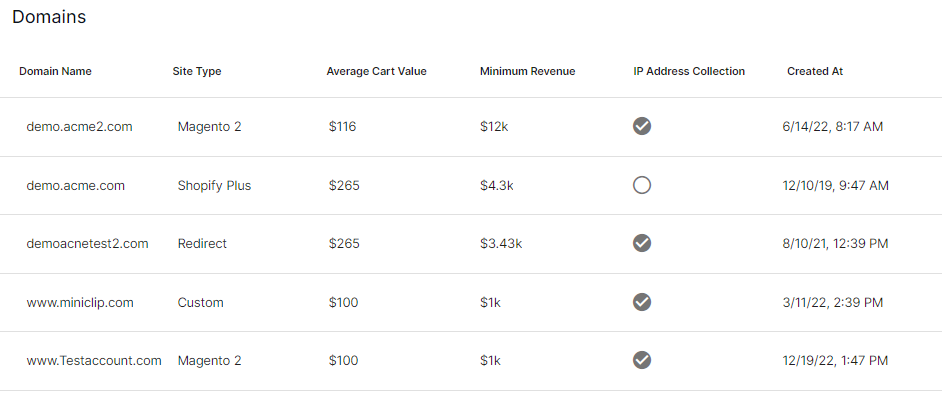
Select the domain you want to integrate.
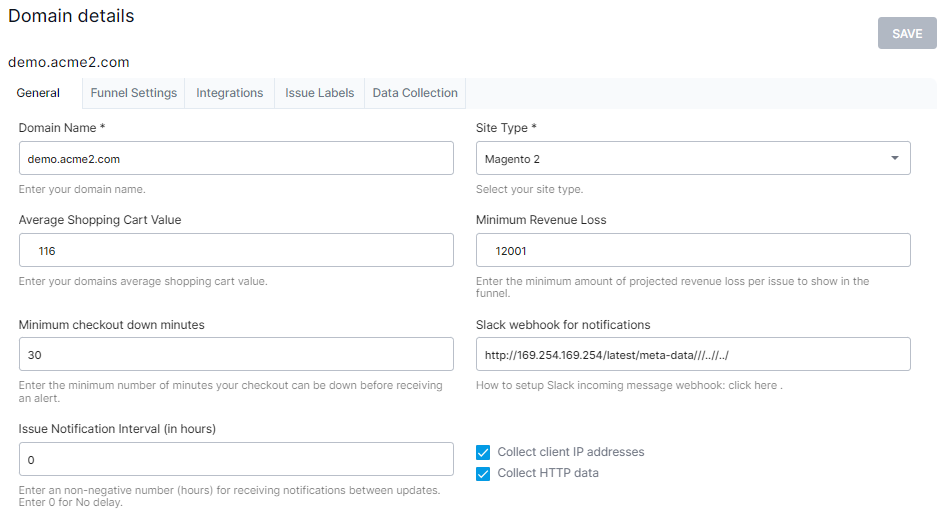
Open the Integrations tab.
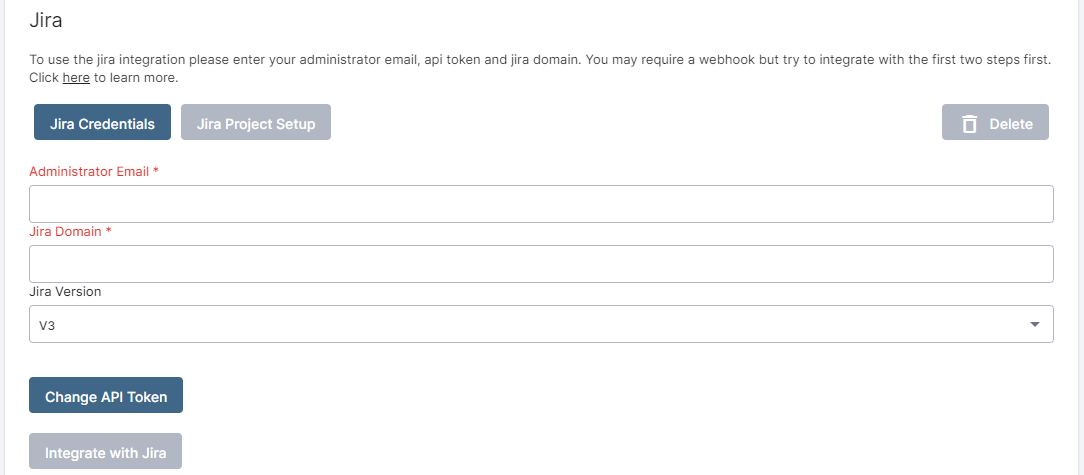
Fill in the fields with your Jira Admin email, API token, domain, and Jira version.
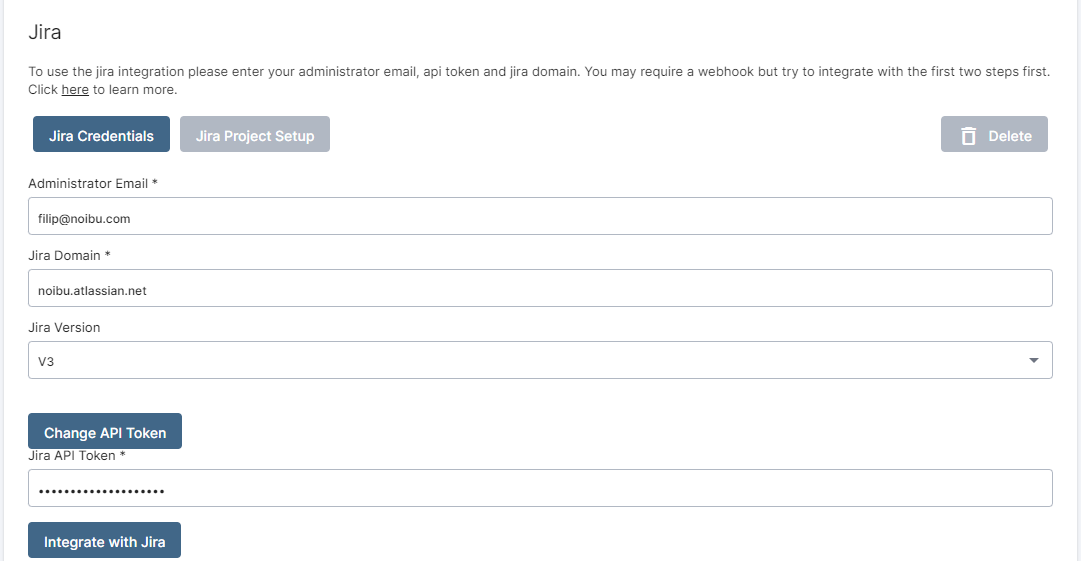
Click Integrate with JIRA. You'll see a confirmation message once the webhook is created.
Step 2: Add Jira projects
Open the Jira Project Setup tab.
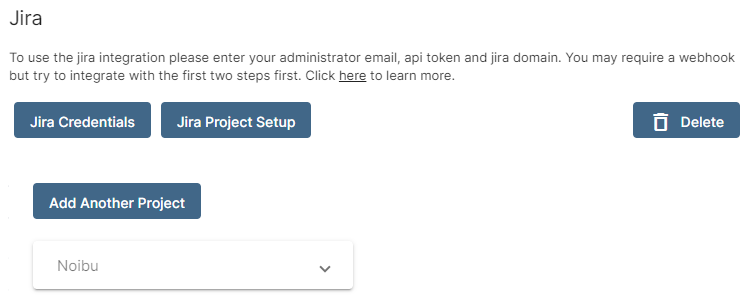
Click Add JIRA Project.
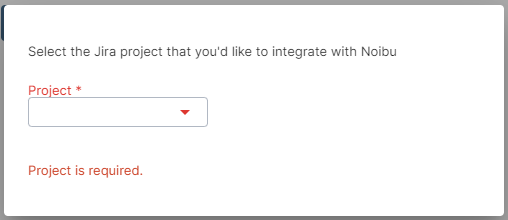
Select a project from the dropdown and fill in the required fields:
Issue Type: the type assigned to tickets created by Noibu (e.g., Bug)
Open State: the Jira status that corresponds to an open issue in Noibu
Closed State: the Jira status that corresponds to a closed issue in Noibu
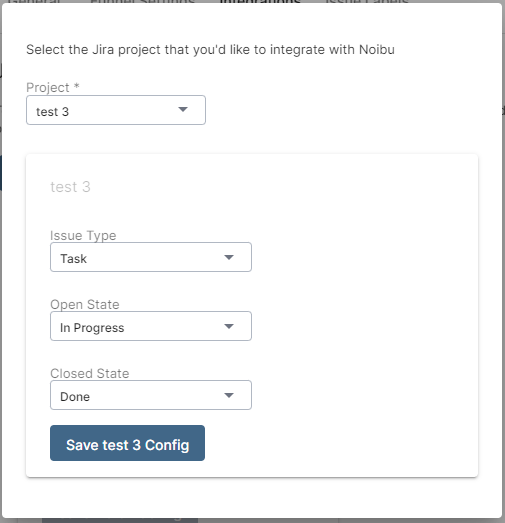
Click Save [project] Config.
Repeat for any additional projects.
Custom fields (optional)
If your Jira project requires custom field metadata on issues, you can configure:
Custom Field ID: the Jira field identifier (e.g.,
customfield_12345)Custom Field Value: the value to pre-fill when an issue is created
Note: If you set a Custom Field ID, you must also set a Custom Field Value. Leaving the value empty will cause a validation error when syncing issues.
Example configuration:
Field | Value |
|---|---|
Issue Type | Bug |
Open State | Open |
Closed State | Pushed To Production |
Custom Field ID |
|
Custom Field Value |
|
Manual integration (when automated setup isn't possible)
If the Jira account being used doesn't have System Administrator privileges, the automated webhook creation will fail. In this case, a Jira System Administrator at your company will need to create the webhook manually, and then Noibu can be pointed to it.
Step 1: Create the Jira webhook (done by your Jira Admin)
Go to Jira Administration > System > Webhooks (under Advanced). You can also press
.to open quick search and type "webhooks".Click Create a webhook.
Name the webhook Noibu.
Set the URL to:
https://webhook.noibu.com/jira_webhook/<domain_id>Replace
<domain_id>with your Noibu domain ID. How to find your domain ID.
Under Issue Related Events, check Updated and Deleted under the Issues subheading.
Click Create.
Step 2: Find the webhook ID
Run the following to retrieve the webhook ID from Jira's API:
Mac/Linux:
bash
curl --user username:api_token -X GET \ -H "Content-Type: application/json" \ "https://your-jira-domain.atlassian.net/rest/webhooks/1.0/webhook"Windows (PowerShell):
powershell
$email = "you@example.com"$apiToken = "YOUR_API_TOKEN"$pair = "$email`:$apiToken"$auth = [Convert]::ToBase64String([Text.Encoding]::UTF8.GetBytes($pair))$headers = @{ Authorization = "Basic $auth"; Accept = "application/json" }$uri = "https://your-jira-domain.atlassian.net/rest/webhooks/1.0/webhook"Invoke-RestMethod -Uri $uri -Headers $headers -Method GetIn the response, find the webhook named Noibu and look for the self field. The ID is the number at the end of that URL (e.g., https://example.atlassian.net/rest/webhooks/1.0/webhook/1 means the ID is 1).
Step 3: Send details to Noibu
Email support@noibu.com or contact your CSM with the following:
Webhook ID
Jira domain (e.g.,
yourcompany.atlassian.net)Admin email
API token
Jira API version (V2, V3, or Server V2)
Verifying credentials
If the integration isn't connecting, you can test your credentials directly against the Jira API.
Mac/Linux:
bash
# Step 1: Encode credentialsecho -n "your@email.com:your_api_token" | base64
# Step 2: Test API accesscurl -X GET "https://your-jira-domain.atlassian.net/rest/api/3/project" \  -H "Authorization: Basic <base64_value_from_step_1>"
A list of projects means credentials are working. A 401 or empty array means the email, token, or permissions are incorrect.
Windows (PowerShell):
powershell
$email    = "you@example.com"$apiToken = "YOUR_API_TOKEN"$auth     = [Convert]::ToBase64String([Text.Encoding]::UTF8.GetBytes("$email`:$apiToken"))$headers  = @{ Authorization = "Basic $auth"; Accept = "application/json" }$uri      = "https://your-jira-domain.atlassian.net/rest/api/3/project/search"try {    $response = Invoke-RestMethod -Uri $uri -Headers $headers -Method Get
    $response.values | Select-Object id, key, name | Format-Table} catch {    Write-Host "Failed: $($_.Exception.Message)"}
FAQ
Does Noibu support both Jira Service Projects and Software Projects?
Yes. Both project types use the same API calls. The integration is unidirectional, so help desk tickets won't stream into Noibu, but status (open/closed) will sync in both directions.
When a ticket is created from Noibu, where does it appear in Jira?
In whichever project you configured during the Jira Project Setup step.
What information does Noibu send to Jira when syncing an issue?
Noibu passes the issue description, issue type, open state, closed state, and assignee. The webhook then keeps statuses in sync via issue_updated and issue_deleted events.
Can I connect one Noibu domain to multiple Jira projects?
Yes. Add as many projects as needed in the Jira Project Setup tab. This is useful if different teams own different parts of the customer journey.
Having trouble with the integration? See the Jira Integration Troubleshooting Guide or contact support@noibu.com.