Page Lifecycle Events
Last updated: March 20, 2026
The NoibuJS script captures and displays page lifecycle events to lend additional context to what’s happening on the browser during a user’s session. During the debugging process, a developer can assess what the page was doing during a session when an issue occurred, which may uncover the source of the issue and expedite its resolution.
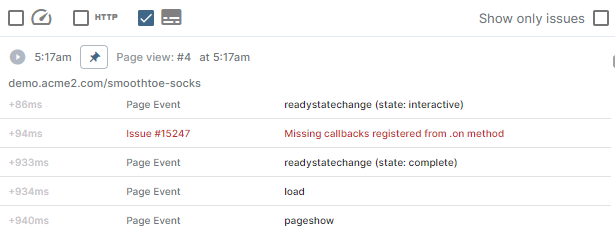
Page events are displayed alongside user clicks and other actions in the session timeline. However, they do not display by default. To enable page events in a session timeline, check the Show Page Lifecycle Events box, signified by a keyboard icon.
[session-timeline-settings]
What are Page Lifecycle Events?
During the lifecycle of a web page, events are fired to indicate the state the page is in and track transitions between states. Page states are mutually exclusive–a browser cannot run a page in multiple states simultaneously. These states include, but are not limited to:
State | Definition |
Active | Page is visible and has input focus. |
Passive | Page is visible but does not have input focus. |
Hidden | Page is not visible and has not been frozen. |
Frozen | Page is frozen. Browser has temporarily suspended execution of freezable tasks. Tasks that are already running can usually finish, but with limited capacity. |
Terminated | Page is being unloaded and cleared from browser memory. New tasks cannot start, and in-progress tasks may be cancelled. |
Discarded | Page has been unloaded by the browser. No tasks or events can run in this state. |
Page events may indicate the state the page is in, or other details about the page’s lifecycle. Events include, but are not limited to:
Event | Definition |
focus | A DOM element has received focus. |
blur | A DOM element has lost focus. |
visibilitychange | The user has opened a new page, switched tabs, closed a tab, minimized the browser, closed the browser, or switched apps. |
freeze | The page has been frozen. |
resume | The browser has resumed a frozen page. |
pageshow | The user is opening a new page or navigating to a page through the back-forward cache. |
pagehide | The user is navigating to a new page and the browser has added the current the page to the back-forward cache. |
storage | Data is read from or written to local storage. |
popstate | The active history event has changed while while the user navigates the session history. |
online | Network connectivity has been restored. |
offline | Network connectivity has been lost. |
messageerror | Custom error message. |
message | Custom message. |
languagechange | The user has changed their preferred language. |
hashchange | The fragment identifier of the URL–part of the URL that follows the # symbol–has changed. |
beforeprint | The associated document is about to be printed or previewed for print. |
afterprint | The associated document has started printing, or the user has exited the print preview. |
load | Page has loaded. |
resize | The window has been resized. |
readystatechange | The page state is about to change. |
copy | The user has copied an object. |
paste | The user has pasted an object. |
Visit this External Guide to learn more about page lifecycle states and events.
How do Page Lifecycle Events Help with Debugging?
By examining page lifecycle events, a developer can better understand what the page was doing when an issue occurred. This information is valuable to the debugging process. Did the issue occur while the page was hidden? Did the user go offline or navigate to and from another tab before the issue occurred? Did the issue occur after the page froze and resumed multiple times? These insights are especially useful when diagnosing Phantom Errors, wherein the problem isn’t obvious through the video playback.
A developer can also collect session insights by assessing Web Vitals.