Orders detail page
Last updated: September 16, 2026
The Total Orders detail page in Noibu's Site Health tracks the volume of completed orders on your ecommerce site over time. Order count is one of the most direct signals of site health: a drop in orders can indicate a checkout failure, a payment gateway issue, or a broader degradation in the customer experience. Surfacing order trends alongside session and error data gives teams a faster path from detection to root cause.
Note: This feature is currently in beta. Beta features are still in development as we test and evaluate. They may have limited functionality and can change without notice.
Configuring Orders data collection
In order to capture important data about your site's orders, your site must send key ecommerce events (e.g. add to cart, checkout, purchase) and details to Noibu. For Shopify and BigCommerce deployments, ecommerce event collection is enabled automatically. For all other platforms, use the track() function via Noibu's SDK. Learn more here.
How it works
Orders chart
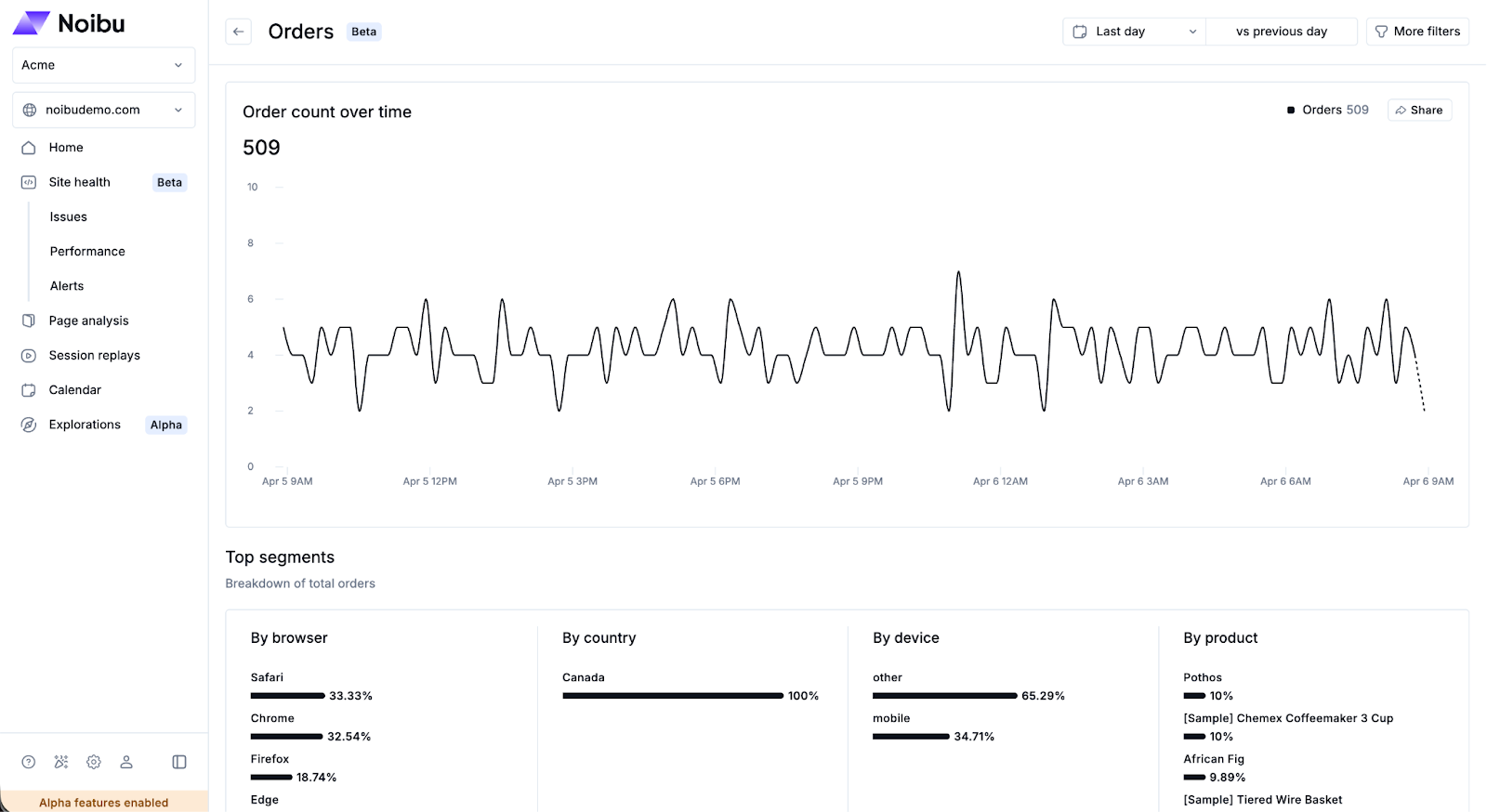
The detail page displays a trend chart showing total order volume over the selected time range. Use the time range selector to adjust the period under review. Monitoring this chart regularly helps teams detect drops in order activity.
Breakdowns
Order data is broken down across several dimensions to help you isolate where changes in order volume are occurring:
Browser: Identify whether an issue with orders is isolated to a specific browser.
Countries: Assess whether an order change is geographically concentrated.
Device: Determine whether bounce is elevated on mobile, desktop, or a specific device type.
Product: Review which products are associated with the highest order volume during the period.
Filters
Use the Filters panel to narrow the data by time range, device type, and geography.
Recent Orders
See sessions of recent completed orders along with their order values, cart items, and additional details.
Connecting orders to other metrics
Total Orders provides context for interpreting other Site Health metrics. If orders drop while Total Sessions remain stable, the problem may lie in the checkout experience rather than overall traffic. Review Endpoint Health for payment or shipping API degradation, and check Front-End Errors for checkout-related exceptions. To investigate specific checkout sessions in depth, navigate to the Sessions page and filter by funnel stage.