Correlating VOC platform responses to session recordings in Noibu
Last updated: March 26, 2026
Overview
Noibu integrates with Voice of Customer (VOC) platforms used by eCommerce teams to gather feedback on various aspects of the customer journey, including customer satisfaction and usability issues via surveys. By pulling survey IDs from VOC platforms into Noibu, customers can gain deeper insights into the user experience tied to specific customer feedback.
Data Collected from VOC Surveys
When a website visitor submits a VOC survey, Noibu collects the unique identifier for the response and stores it as a custom attribute. Noibu customers can search for the session recording associated with a survey to see how a specific user’s feedback was reflected in the user experience, and if there were any associated technical issues.
Medallia Integration for Noibu
For customers using Medallia, the following data is automatically collected as custom attributes:
Custom ID name | Definition |
medallia_form_id | Medallia’s Survey ID, to differentiate between multiple surveys if applicable |
medallia_feedback_uuid | Unique feedback ID associated with each Medallia survey submission |
Qualtrics Integration for Noibu
For customers using Qualtrics, the following data is automatically collected as custom attributes:
Custom ID name | Definition |
qualtrics_survey_completed | This attribute indicates that a survey was successfully submitted. Its value is always set to true |
qualtrics_survey_id | Qualtrics’ Survey ID which distinguishes multiple surveys within a Qualtrics account. |
qualtrics_session_id | Unique session ID assigned to each Qualtrics survey submission ** note: the session ID is not exactly the same as the response ID. Replacing the beginning “R_” in the survey response ID with “FS_” will allow you to search by session ID. |
Hotjar Integration for Noibu
For customers using Hotjar, the following data is automatically collected as custom attributes:
Custom ID name | Definition |
hotjar_feedback_id | Hotjar's Survey ID, to differentiate between multiple surveys if applicable |
hotjar_feedback_response_id | Unique feedback ID associated with each Hotjar survey submission |
Searching for sessions tied to VOC feedback
From the Sessions page, click the Add filter button and select Custom. Select the relevant custom attribute from the list.
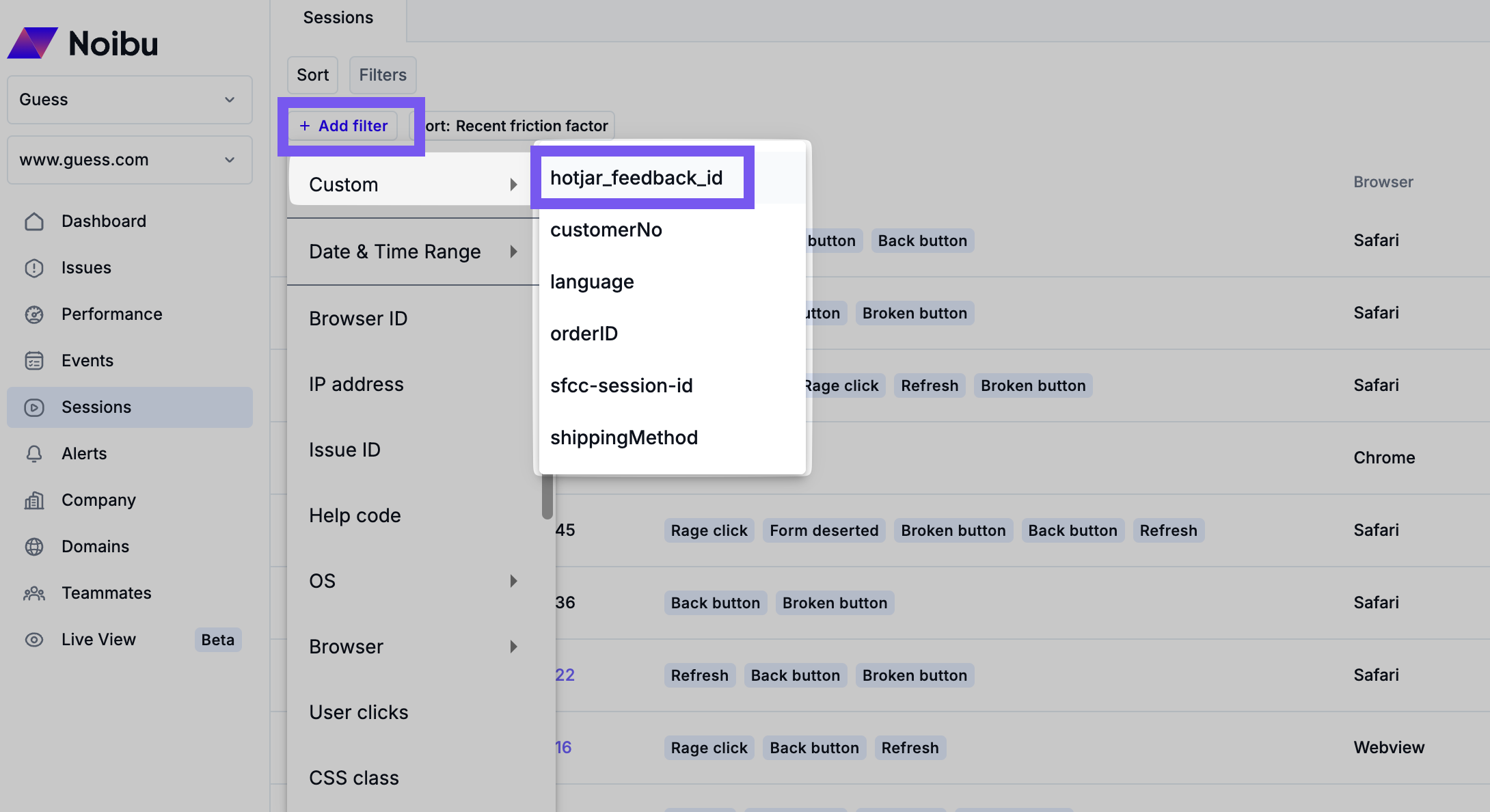
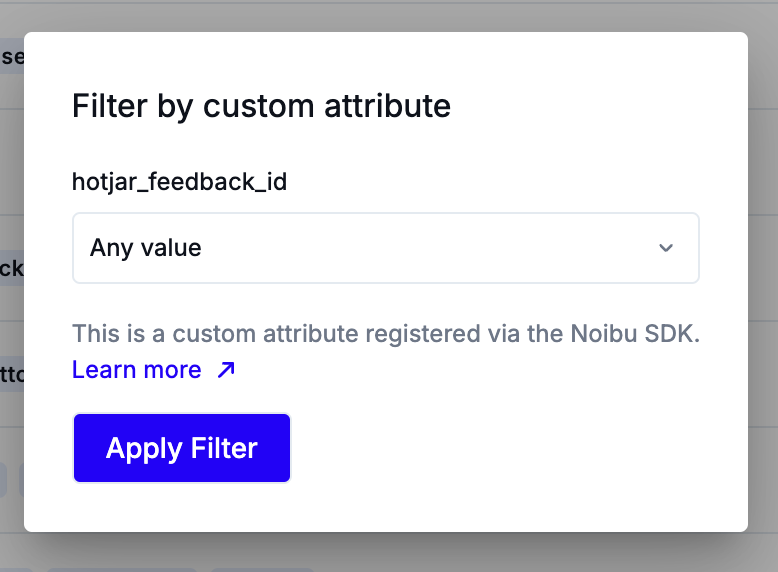
To find all sessions associated with any survey submission, select the custom ID for “survey form ID” (e.g. hotjar_feedback_id). Set the filter criteria to Any value, and click Apply Filter. The Sessions table will update to show all session recordings associated with any survey submission.
To find all sessions associated with a specific survey, select the custom ID for “survey form ID” (e.g. hotjar_feedback_id). Set the filter criteria to Is, enter the ID of the specific survey you're interested in, and click Apply Filter. The Sessions table will update to show all session recordings associated with the specific survey.
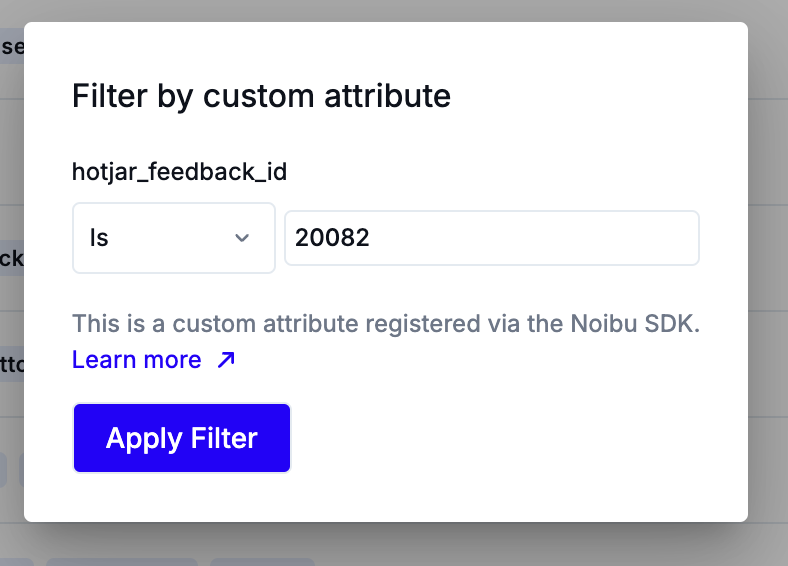
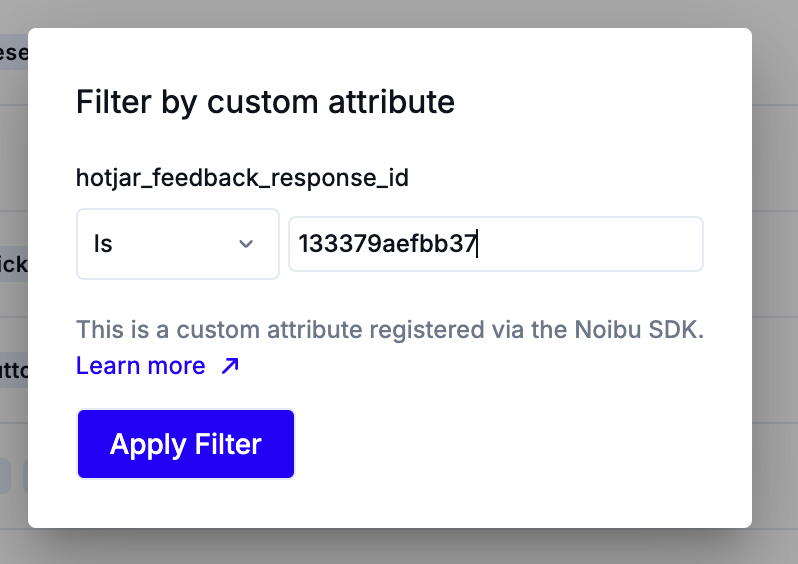
To find one session associated with a specific survey submission, select the custom ID for “survey submission ID” (e.g. hotjar_feedback_response_id). Set the filter criteria to Is, enter the ID of the specific survey response you're interested in, and click Apply Filter. The Sessions table will update to show the session recording(s) associated with the specific survey response.
Note that when investigating a Qualtrics survey response, you must replace the “R_” prefix of the Qualtrics response ID with “FS_” to search by unique session ID. E.g. if the response ID in Qualtrics is R_12345, you would search for FS_12345 in Noibu.
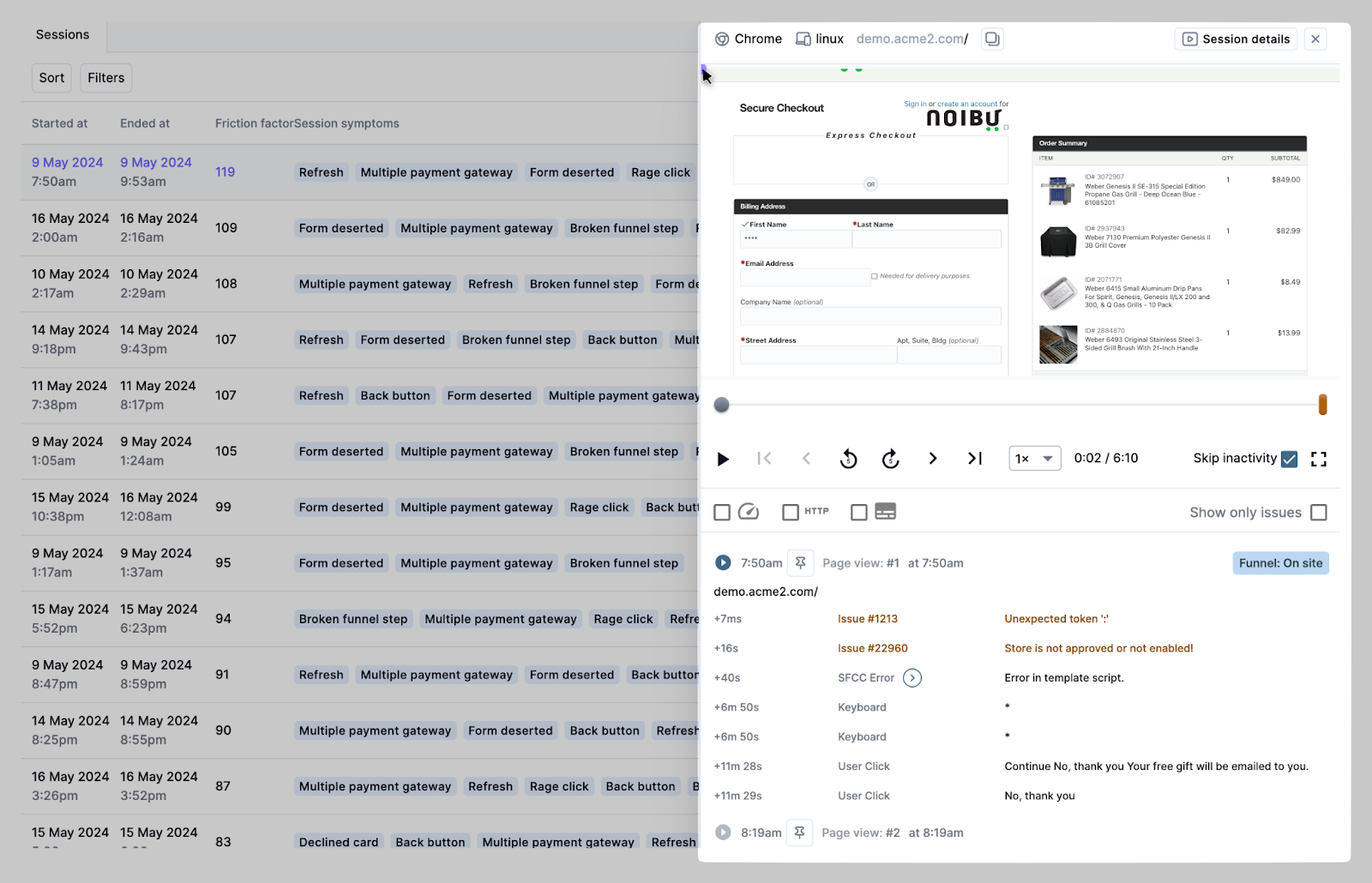
Reviewing Session Playback
Clicking on any Session in the table will pull up a side panel where the session recording plays back. Learn more about Session Playback.