Performance Resolution: Debugging Loading Speed (LCP) Degradation
Last updated: March 19, 2026
Largest Contentful Paint (LCP) is a Core Web Vital metric that measures the time it takes for the largest visible content on the page (e.g., an image, text block, or video) to render. Optimizing LCP can positively impact user experience and SEO for your ecommerce site.
When possible, Noibu presents top opportunities for loading speed optimization on your site, and an estimated revenue impact of slow loading speeds.

This article covers how to diagnose problems in each of the four metrics that contribute to the overall LCP score for your domain
Time to First Byte (TTFB)
Load Delay
Load Duration
Render Delay
Time to First Byte (TTFB)
Time to First Byte (TTFB) measures the time between a browser sending a request and receiving the first byte of the page structure (HTML). Optimizing TTFB ensures the browser can start rendering the page sooner.

How to Optimize TTFB
Improve Server Response Time
Improving server response time to reduce TTFB involves identifying and addressing bottlenecks in server-side processes. It requires you to have access to server-side code to analyze how requests are processed as a page loads.
Improving server response times may entail:
Identifying request processing steps
Measuring execution times for each step in the request. This may require adding performance logging to server processes to identify bottlenecks.
Optimizing the most time-consuming parts of the request. This could entail optimizing database queries and server-side logic to reduce processing times.
For example, improving TTFB on product pages may involve:
Loading product information from the database
Loading stock availability
Generating the HTML output
Optimizing TTFB without server-side access
Some platforms may restrict access to the server source code. In such cases, consider comparing performance across pages or page groups to identify differences in configuration that might contribute to slow loading speeds. If all pages are performing poorly, contact your platform’s support team for assistance to access request processing details.
Load Delay
Resource load delay is the time between the browser identifying that a resource is needed (e.g. images or fonts) and starting the process to load it. This delay can be influenced by both discovery (when the browser becomes aware of the required resource) and queuing (when the browser decides to load it)

Steps to Reduce Resource Load Delay
1. Identify the LCP Image URL
To determine the URL of the Largest Contentful Paint (LCP) image, follow these steps:
Open the target webpage in Google Chrome.
Right-click anywhere on the page and select Inspect to open DevTools.
Navigate to the Performance tab.
Locate the LCP element in the LCP section. If it is not immediately visible, try reloading the page.
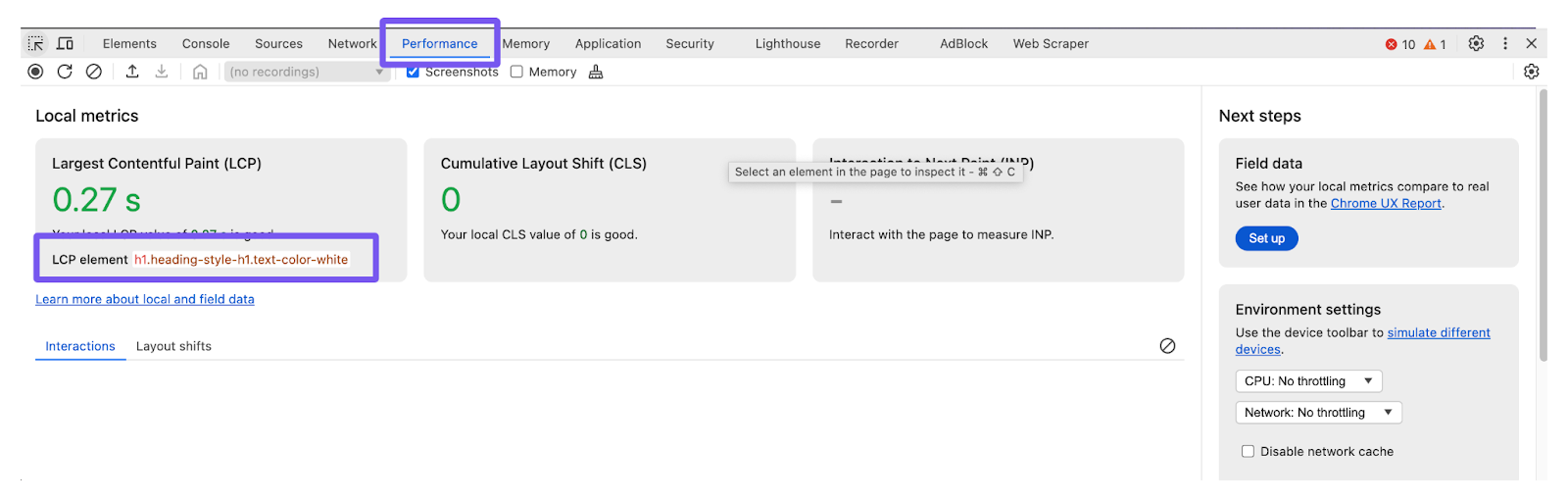
Click on the LCP element to highlight it in the Elements tab.
Copy the image URL from the corresponding HTML element.
2. Check for Image References in the Original HTML Response
Since the browser's earliest opportunity to discover the image is within the initial HTML response, you should verify if the image is referenced in the HTML via an IMG tag:
Open the webpage source code by prefixing the URL with view-source: in the browser's address bar.

Use the search function (Ctrl + F or Cmd + F) to find the image URL within the source code. This will allow you to determine whether the HTML response includes a direct reference to the image.
3. Optimize Image Discovery
3.1. If the HTML Contains an Image Reference
Ensure the image URL is included in a valid attribute that the browser natively recognizes for downloading, such as src (for <img> tags) or srcset (for <source> or <img> supporting multiple resolutions).
Example:
<img src="https://example.com/image.jpg" alt="Example Image"><source srcset="https://example.com/image.webp" type="image/webp">If the image URL is stored in a non-standard attribute such as data-src or data-srcset, it is likely managed by JavaScript. This approach can introduce delays, as the browser must first load and execute the JavaScript before initiating image downloads.
To enhance performance, use standard src or srcset attributes so the browser can detect and download the image as soon as the HTML is parsed, without waiting for JavaScript execution.
3.2. If the HTML Does Not Contain an Image Reference
If the image reference is not found in the HTML as an IMG tag, it is likely being added dynamically via JavaScript. This often necessitates an additional request to the server, which can delay image rendering. To ensure the image loads as quickly as possible, follow these steps to identify and optimize the image loading path.
Determine which JavaScript files initiate the request and prioritize their loading.
Identify the HTTP requests that deliver the image URL and ensure they are executed as early as possible.
3.2.1. Identify LCP Image Loading Path
Right-click on the page and select Inspect.
Navigate to the Performance tab in DevTools.
Click Record and reload to generate a performance report.
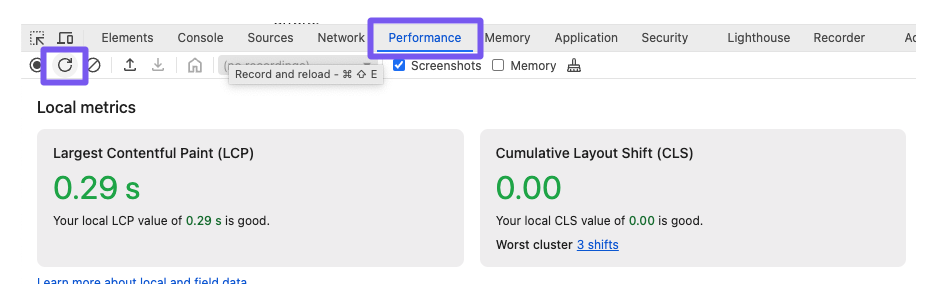
Open the sidebar.
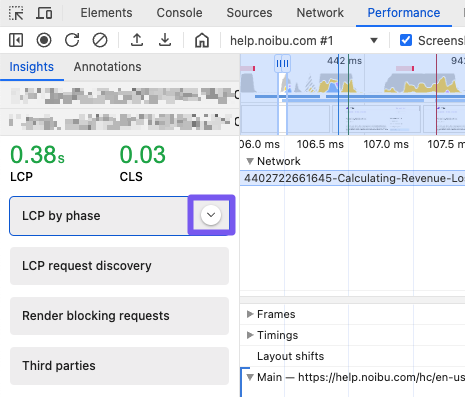
Expand the LCP by phase section.
Click Resource load delay to display the load delay time indicator. This period marks when the image is being loaded.
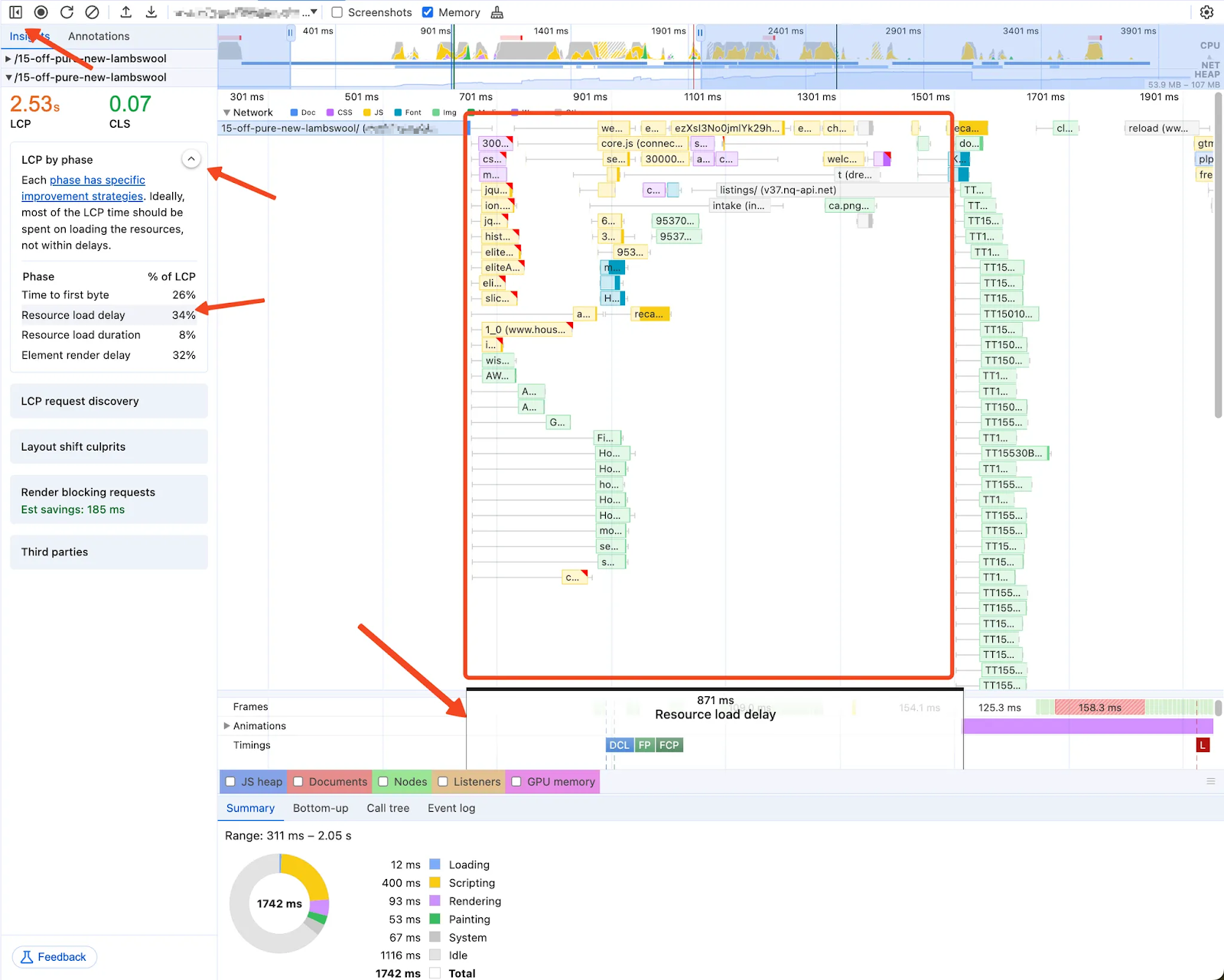
Identify which requests were completed during the resource load delay phase.
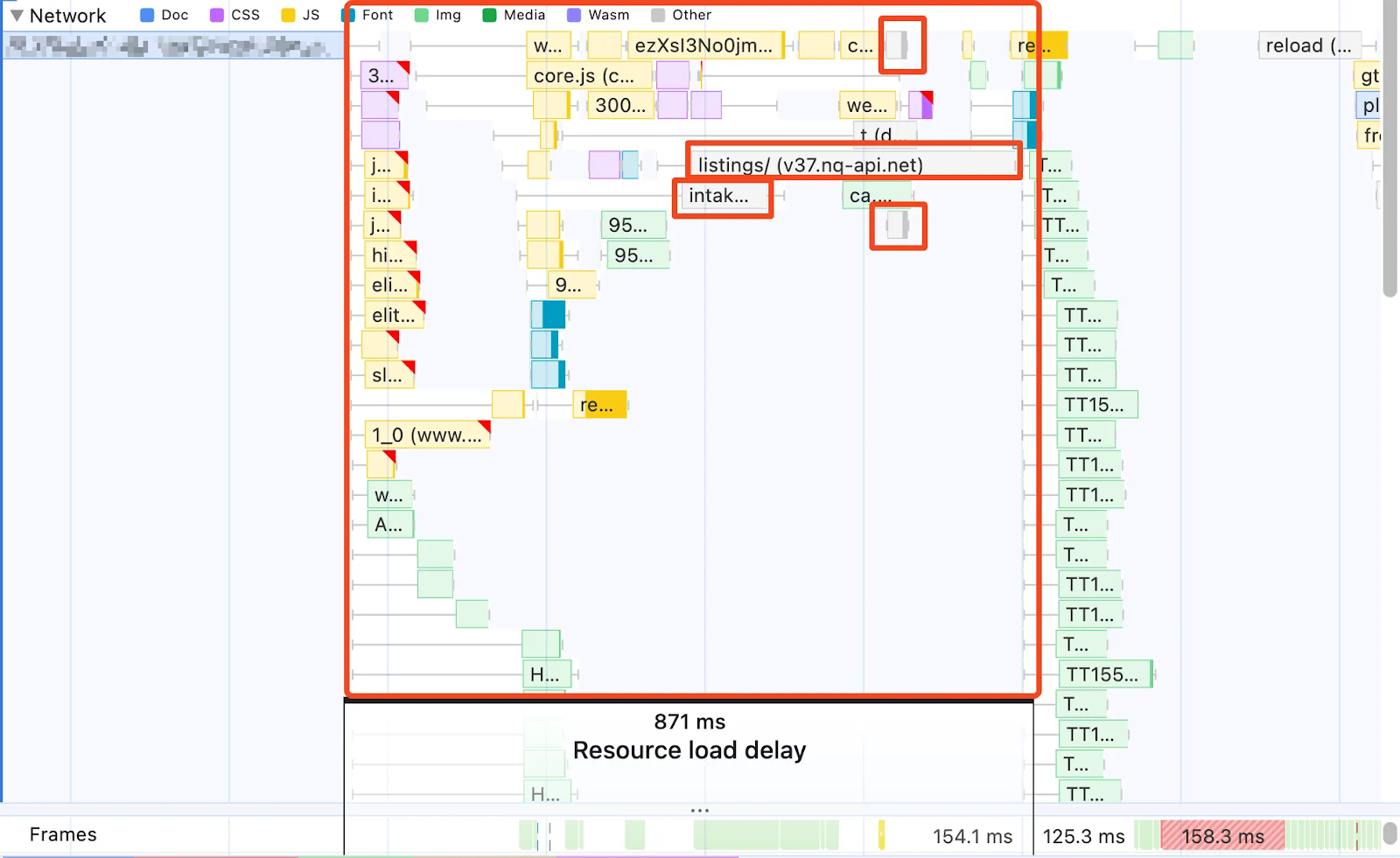
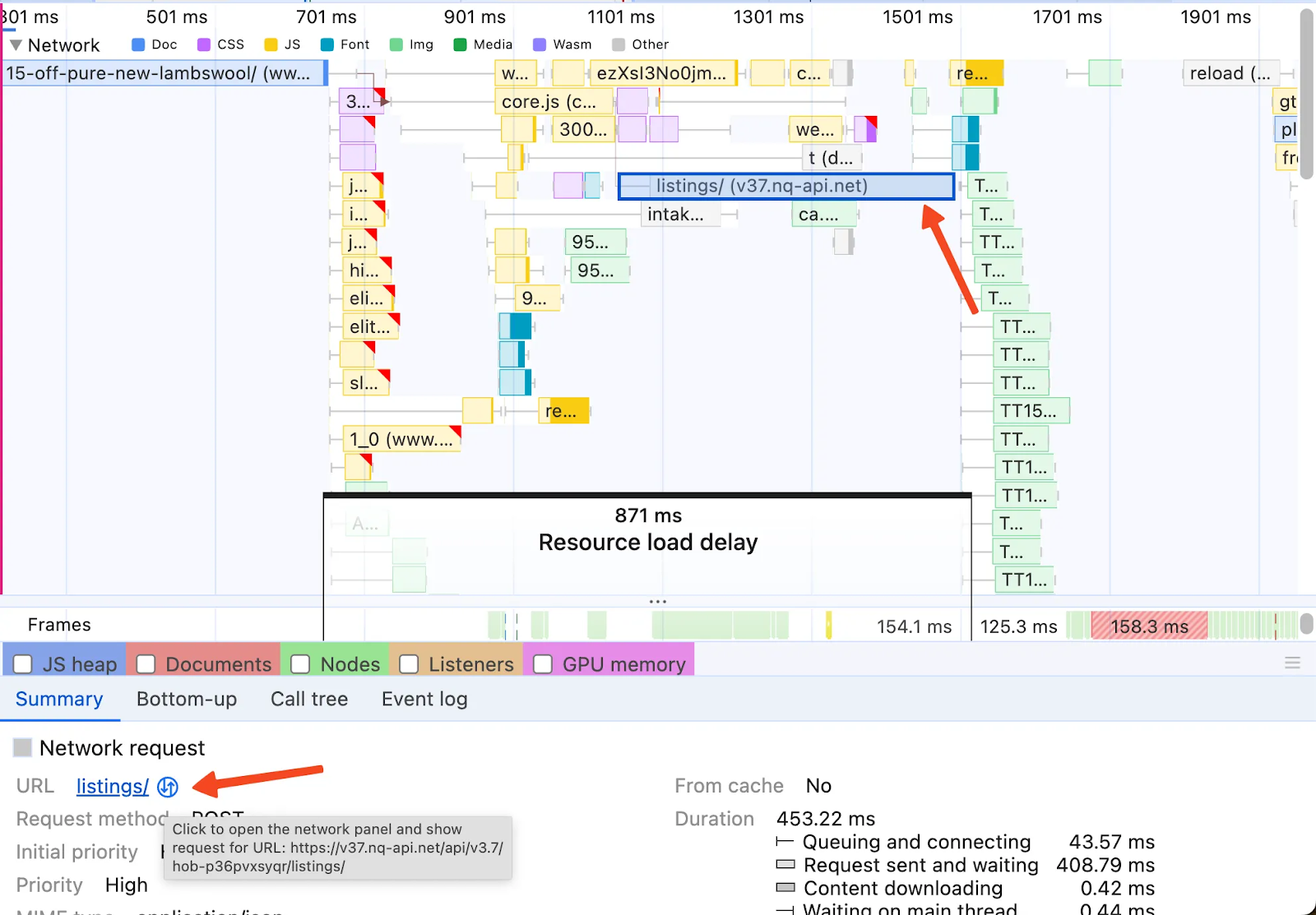
Prioritizing those requests that completed closest to the end of the resource load delay, click on the request, click on the Examine request button, and navigate to the Response tab.
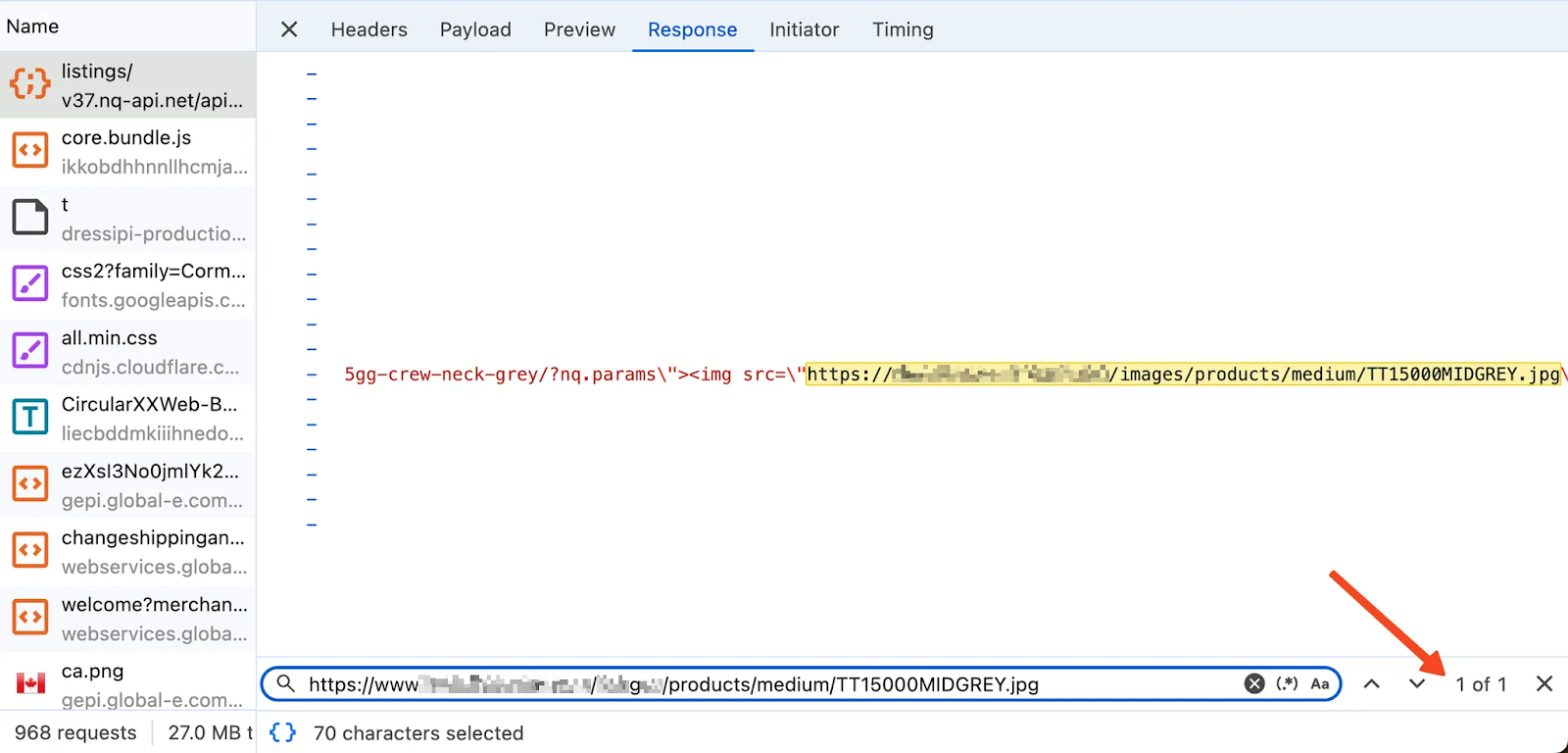
Search for the image URL in the response. The first request containing the image URL typically provides the data needed to render the image element.
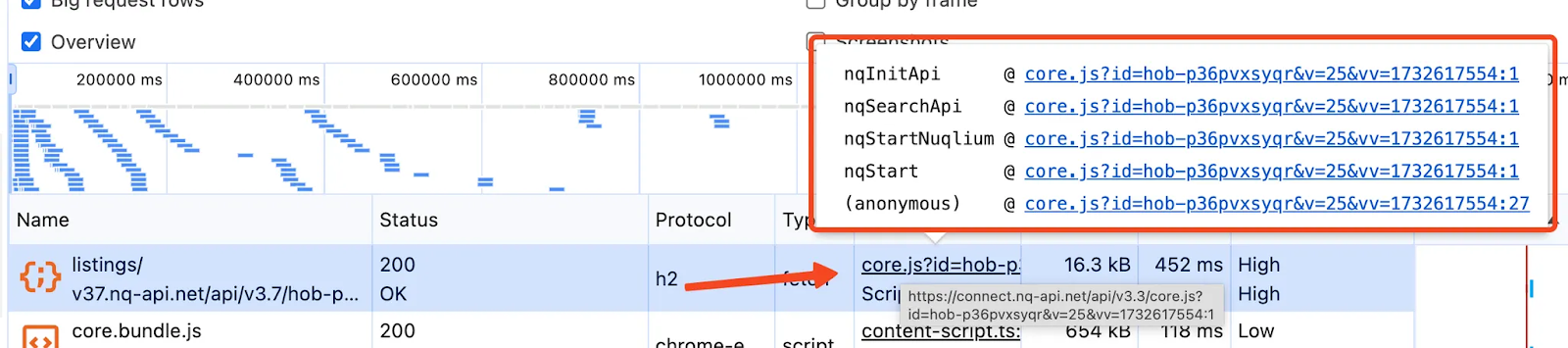
3.2.2. Determine JavaScript file initiating the request
Once you know which request loads the image URL, you can identify which JS files make this request. Close the Request Details from the previous step. Hover over the Initiator column to view the request trace. Identify and list all unique JavaScript files involved in making the request.
3.2.3. Optimize Image Loading Path
To ensure efficient loading, prioritize the JavaScript file that triggers the image request:
Open the Performance report in DevTools and locate the JS request.
Optimize the time between the Time to First Byte (TTFB) and the request start.
If delays are present, consider:
Moving the
<script>tag for critical JS resources higher in the HTML.Using
fetchpriority="high"for the critical request to signal its importance to the browser.Deferring non-essential JavaScript to avoid blocking execution.
Learn more about optimizing resource loading
3.2.4. Optimizing data load timing
To eliminate unnecessary delays, the browser must initiate the request as early as possible, minimize the connection time, and minimize the loading duration. By aligning the end of the JS file load with the start of the data request, you can reduce unnecessary LCP delays.
The most common causes of delay include waiting for dependencies (e.g., jQuery) to load before making the request, and waiting for DOMContentLoaded or load events before executing the request.
To investigate possible delays:
Open the Network tab in DevTools and locate the data request.
Hover over the Initiator column to identify the functions responsible for triggering the request.
Examine each function to determine potential sources of delay. Often this will come through as for
loadoronloadevent listeners.
For example, if a request is delayed due to waiting for jQuery to load, optimize performance by loading both jQuery and the data request in parallel.
4. Preload the LCP Image
Regardless of whether the image is included in server-rendered or dynamically generated HTML, preloading can improve early discovery and rendering. The browser typically discovers resources while parsing HTML. However, this process can be delayed by render-blocking JavaScript or large HTML documents where the <img> tag appears later in the markup.
To mitigate these delays, include a preload directive in the <head> section:
<link rel="preload" as="image" href="https://example.com/lcp-image.jpg" />For further details on preloading critical assets, refer to this documentation.
5. Optimize the Queuing Phase
Modern pages request a large number of assets. But, browsers cannot start loading all of them at once, and need to prioritize some resources over others. Since most webpages will function without images, most browsers render the page as soon as the HTML, CSS, and JS are ready without waiting for the images to load. This means images are assigned lower priority and loaded after critical resources, which can be problematic when the LCP element is a deprioritized image.
Using the fetchpriority attribute can help the browser understand the priority of a particular image.
Assign
fetchpriority="high"to the LCP image to ensure it is prioritized over other assets.
Assign
fetchpriority="low"to other, non-critical assets on the page.
Learn more about fetchpriority here.
Load Duration
Resource load duration measures the time required to fully download an image. It consists of four stages, each of which can add to delays and slow down website performance.

Optimizing load duration entails making sure each of the following steps is operating effectively:
Network Queue: The browser waits to process the request.
Connection: The browser establishes a connection with the server.
Server Response: The server processes the request and starts transmitting a response.
Content Download: The resource is transferred to the browser.
Steps to Reduce Resource Load Duration
1. Identify the LCP Image URL
To determine the URL of the Largest Contentful Paint (LCP) image, follow these steps:
Open the target webpage in Google Chrome.
Right-click anywhere on the page and select Inspect to open DevTools.
Navigate to the Performance tab.
Locate the LCP element in the LCP section. If it is not immediately visible, try reloading the page.
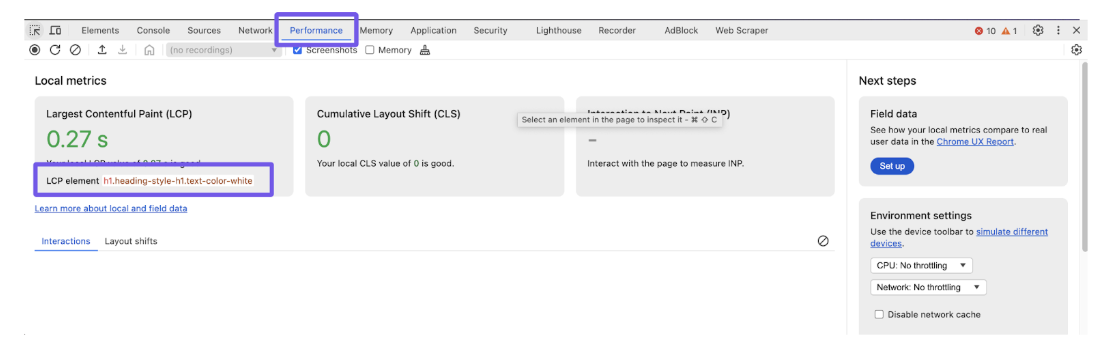
Click on the LCP element to highlight it in the Elements tab.
Copy the image URL from the corresponding HTML element.
2. Find the LCP Element Request
In Chrome DevTools and navigate to the Network tab.
Locate the LCP resource in the list of requests, using the URL that was identified in the previous section.
Click on the resource and view the Timing tab for a detailed breakdown.
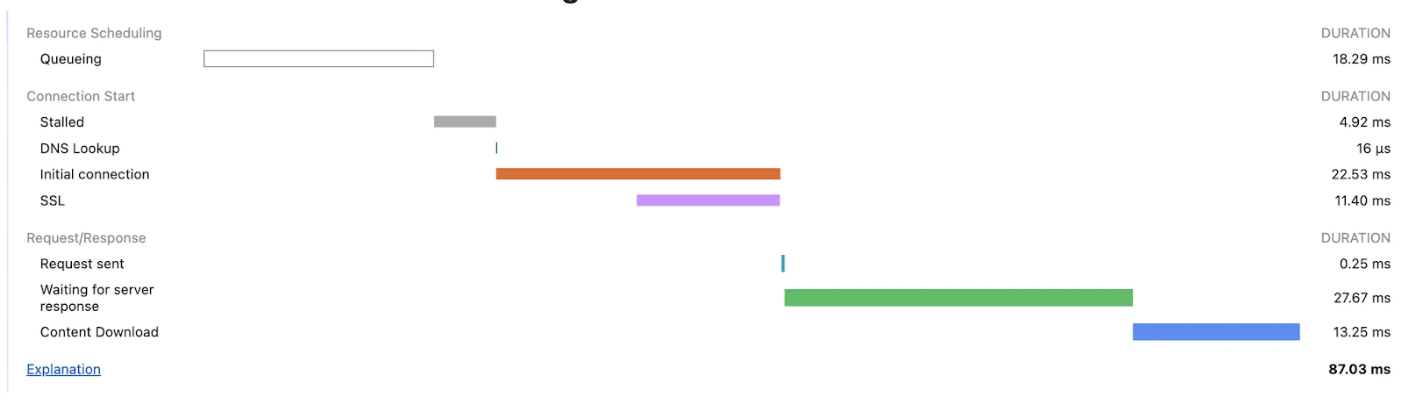
3. Optimize Each Stage to Reduce Bottlenecks
1. Optimize the Network Queue:
Use HTTP/2 or HTTP/3 to enable multiplexing and reduce request queuing.
Assign the highest priority to critical resources (e.g., using
<link rel="preload">).
2. Reduce Connection Time:
Use a Content Delivery Network (CDN) to cache assets closer to users.
Enable DNS prefetching and preconnect for domains used in critical requests.
3. Improve Server Response Time:
Optimize server-side processing and database queries.
Cache static resources on the server or CDN.
4. Optimize Content Download:
Use modern formats like WebP or AVIF for images.
Compress resources using Gzip or Brotli.
Render Delay
Element render delay measures the time between the browser downloading the resource for the Largest Contentful Paint (LCP) element (e.g., an image or block of text) and rendering it on the screen. Delays in this step can significantly slow down perceived page load speed.

Steps to Diagnose and Resolve Render Delays
1. Check if the page renders before the image downloads
In some cases, the browser may still be waiting for render-blocking CSS or JavaScript to load before it can render the page. If critical assets are not yet available, the page remains unrendered.
Identify assets that are slow to load.
Separate assets into two categories: critical for initial render, and important for full-page render
Prioritize loading critical assets first.
Defer non-essential assets until after the initial paint.
2. Investigate how the LCP element is added
Typically, the browser downloads an image when an <img> or <picture> element is encountered. However, if the image is added dynamically—such as through <link rel="preload"> or a script—it may not be available when the browser expects to fetch it.
To troubleshoot:
Identify the process or script responsible for adding the image.
Ensure the request for the image is prioritized.
If prioritization does not resolve the issue, break the resource into smaller parts and ensure the relevant chunk is loaded first.
3. Address main thread blocking
If the main thread is occupied with long tasks, rendering work must wait until those tasks complete. This can delay page rendering and negatively impact performance. Learn more about diagnosing long tasks in DevTools.