Deploying Noibu to Salesforce Commerce Cloud (Storefront Next)
Last updated: September 11, 2026
Running SFRA or SiteGenesis? You'll want the Noibu cartridge instead. See Deploying Noibu to Salesforce Commerce Cloud (SFRA & SiteGenesis).
Noibu watches your storefront for errors that cost you revenue. It also tracks the main ecommerce events (product views, add to cart, checkout steps, and completed orders) so you can see where conversion is breaking down.
If your storefront runs on Storefront Next, you can install Noibu straight from Business Manager using the Noibu Commerce App. There's no custom integration work involved. Set aside about half an hour.
Before you start
You'll need:
A Noibu account with your storefront domain registered. If you don't have one yet, talk to your Noibu Customer Success representative.
A Salesforce B2C Commerce instance running a Storefront Next storefront.
Business Manager access, with permission to manage Commerce Apps.
Access to your storefront's front-end Git repository — the one containing your Storefront Next (React) application that deploys to Managed Runtime, not your SFCC back-end code. The install sends you code as a pull request, and you'll need to merge it.
A way to deploy your storefront, either through CI/CD or by running
pnpm pushyourself.
Step 1: Install the app from Business Manager
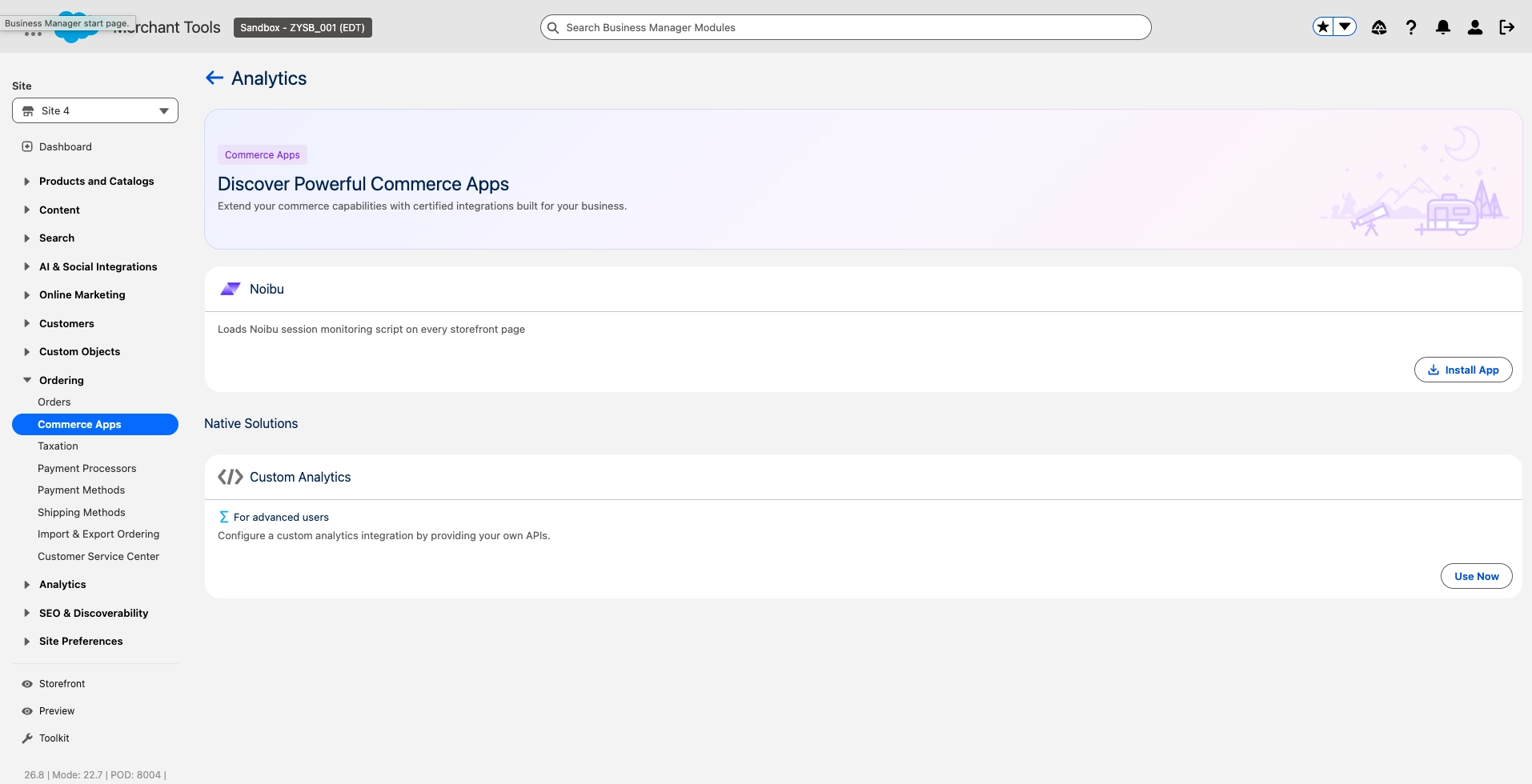
In Business Manager, go to Merchant Tools > Ordering > Commerce Apps.
Look for Noibu under the Analytics category.
Click Install and pick the site or sites you want to monitor.
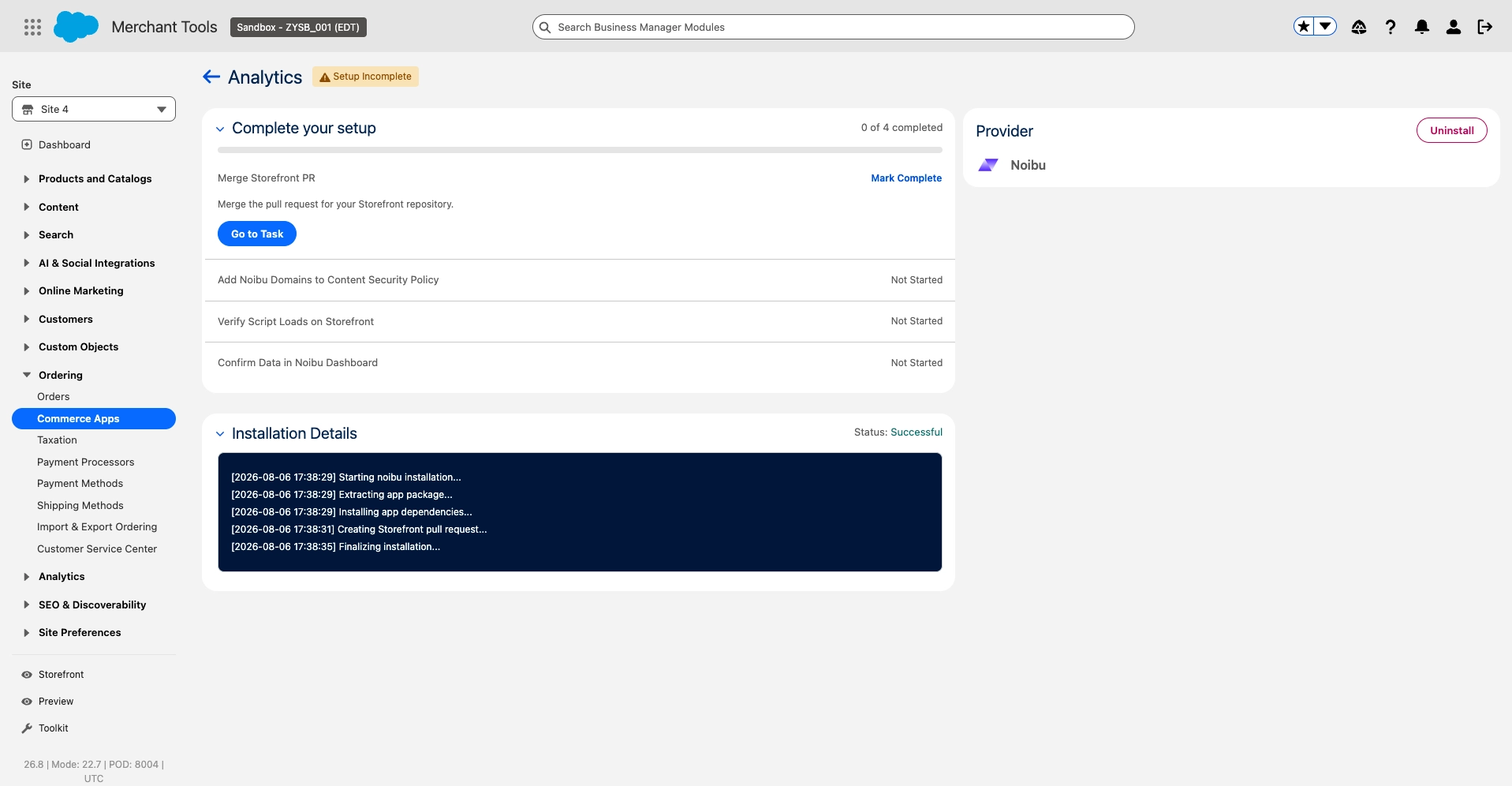
Once the install finishes, Noibu shows up in your installed apps list with the status Setup Incomplete. Don't worry about that. It just means you still have a few configuration steps to work through.
Step 2: Work through the setup checklist
Open the Noibu app in Business Manager and you'll see a setup checklist. Go through it in order and tick off each step as you finish it. The app status updates once everything is done.
Business Manager gives you instructions for each step. Here's what to expect.
Merge the storefront pull request
The install opens a pull request in your storefront's front-end repository called [Commerce App] Add noibu 1.0.0 storefront UI. It drops a self-contained Noibu extension into src/extensions/noibu/ and leaves the rest of your code alone.
Review it, merge it into your deployment branch, and deploy the way you normally would. If you're on CI/CD this probably happens on merge. If not, run pnpm push from your storefront project.
Add Noibu to your Content Security Policy
If your storefront has a Content Security Policy, it will block the Noibu script until you allow our domains.
Add these two to the script-src, connect-src, and worker-src directives, then redeploy:
https://*.noibu.com
wss://*.noibu.com
This is the one part of the install you have to do by hand. Salesforce is working on a change that will let Commerce Apps declare their own Content Security Policy requirements, and once that lands you won't need this step at all.
Running a CDN, eCDN, or web application firewall in front of your storefront? Check Whitelisting/Allowlisting Noibu on your CDN for the full list of domains, IP addresses, and user agents to allow.
Check that the script loads
Noibu only loads after a shopper agrees to the analytics consent category, so you'll need to accept the banner yourself to see it.
Open your storefront in an incognito window, or in a browser session where you haven't answered the consent banner yet.
Accept tracking.
Open your browser's developer tools and go to the Network tab.
Look for
collect-core.jsloading fromcdn.noibu.com.
Confirm the data is arriving
Go shopping on your own store. View a product, add it to your cart, and place a test order.
Then open your Noibu dashboard and find the session. It should include the ecommerce events: product viewed, added to cart, the checkout steps, and checkout completed with the order ID attached.
If you can see all of that, you're done.
Viewing SFCC logs
Noibu's SFCC Logs integration isn't available on Storefront Next. It depends on the SFCC session ID, which isn't present in logs from headless storefronts — the same reason it isn't available on PWA Kit.
If you need server-side log visibility, talk to your Customer Success representative.
What shoppers see
Noibu doesn't load at all until a shopper grants consent. If they decline, or haven't answered the banner yet, none of our code runs on the page.
The integration also switches itself off in browsers where local storage isn't available, such as Safari private browsing.
Troubleshooting
What you're seeing | Why | What to do |
|---|---|---|
| Consent hasn't been granted | Accept the tracking banner. If that doesn't help, check that your consent configuration includes the |
| The Content Security Policy step isn't finished | Add Noibu's domains to your policy and redeploy |
The script loads, but no sessions show up in Noibu | Your domain isn't registered with Noibu | Get in touch with your Customer Success representative |
Sessions show up, but without ecommerce events | An older bundle is still cached | Check that the deployment finished, then hard refresh the storefront |
Nothing loads in Safari private browsing | Local storage isn't available | Nothing to fix. The integration disables itself on purpose |
Removing Noibu
In Business Manager, go to Merchant Tools > Ordering > Commerce Apps, find Noibu, and choose Uninstall.
Delete
src/extensions/noibu/from your storefront repository and deploy.If you want, roll back the Content Security Policy change too.