How to Create an OAuth2 Credential in Okta
Last updated: March 20, 2026
In Okta, setting up a Single-Page App Integration generates an OAuth2 Client ID. You can use this credential, coupled with your Okta account's OAuth2 Issuer Domain, to configure SSO in Noibu.
To proceed, you must have an admin profile in your company's Okta account.
From the Okta dashboard, select Applications > Applications.
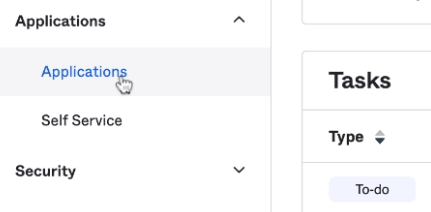
From the Applications menu, click Create App Integration. This opens a modal.
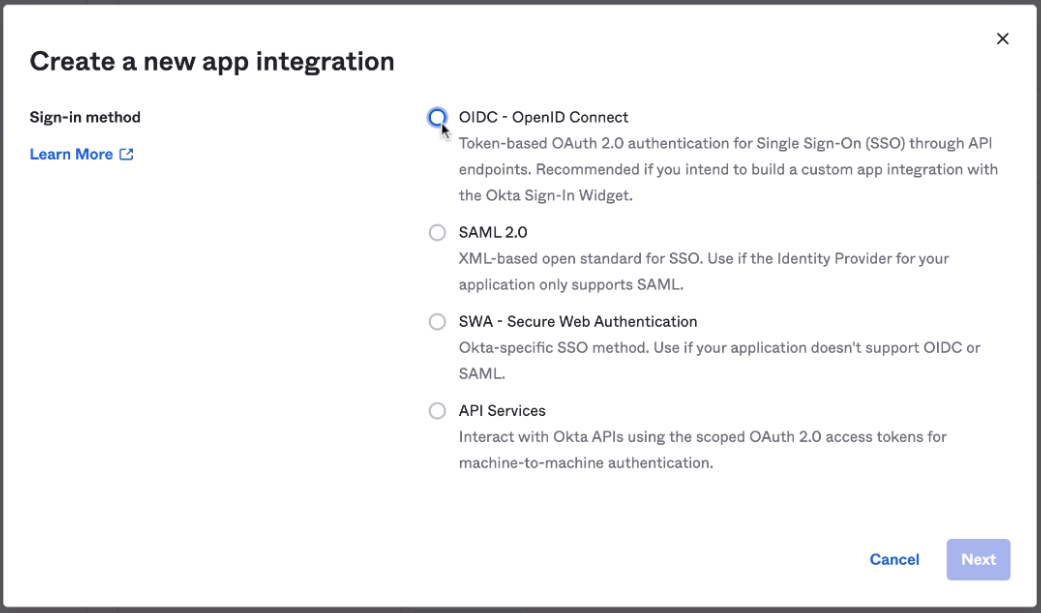
Configure the integration's basic details as follows:
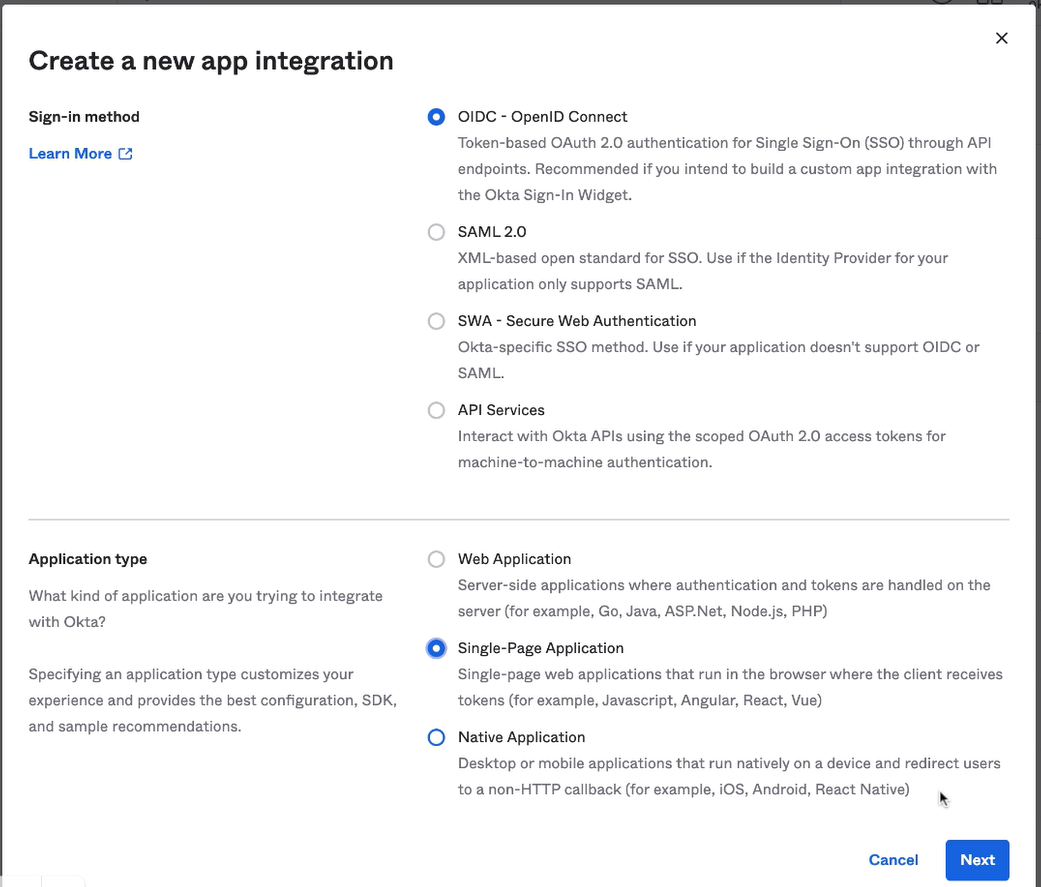
Sign-in method: OIDC - OpenID Connect
Application type: Single-Page Application
Click Next. This opens a blank form to configure the new single-page app integration.
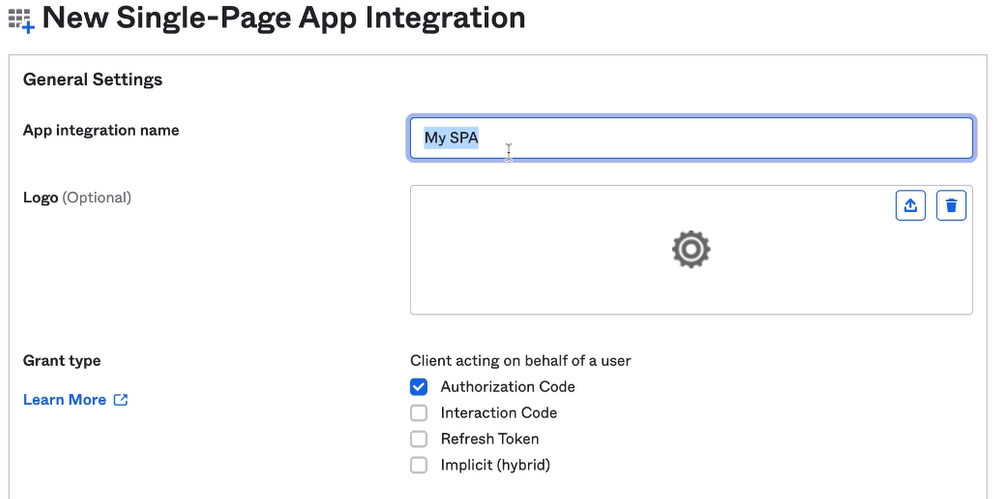
Configure the integration details as follows. Any fields omitted from this list are optional:
App integration name: Noibu, or a simliar descriptive name
Grant type: Ensure Authorization Code, Refresh Token, and Implicit (hybrid) are all enabled.
Sign-in redirect URIs: https://console.noibu.com/auth/login/redirect
This refers to the URL the OAuth2 provider calls once user authentication is complete.
Sign-out redirect URIs: Leave this value blank. Remove the default string.
If you must complete this field, enter
console.noibu.com.
Controlled access: This is up to company preferences. You may allow access to everyone in your organization, or limit access to select groups.
To learn more about assigning the app integration to individual groups and users, visit Okta's Help Documentation.
Click Save to create the app integration.
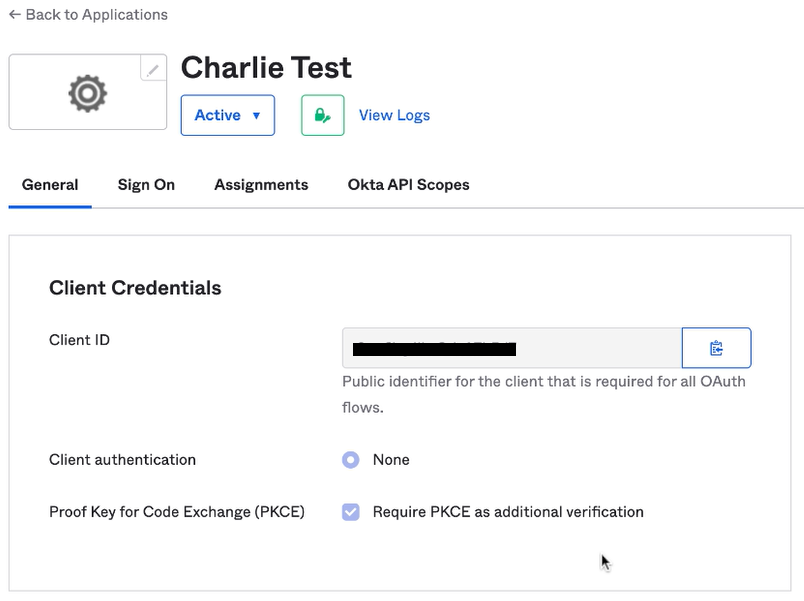
Ensure the Email, OpenID, and Profile scopes are enabled in the Okta API Scopes tab. You must also enable the Email claim. In most cases, these settings should be enabled by default.
To Configure OAuth2 Authentication in Noibu, you'll need two data points:
Your OAuth2 Issuer
Your OAuth2 ClientID
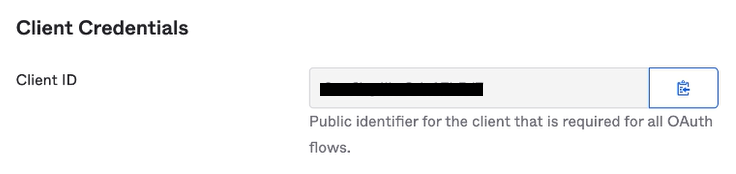
Once your app integration is configured in Okta, you can retrieve the Client ID from the integration's General tab.
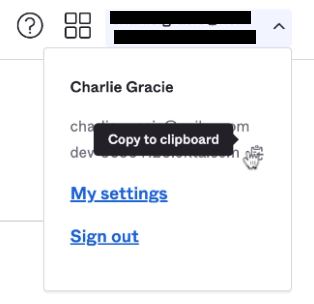
Retrieve your OAuth2 Issuer domain by expanding the dropdown menu in the top-right corner.
If your company uses a different provider for OAuth2 credentials, review Noibu's SSO Configuration Details.