Connecting GitHub to Claude
Last updated: October 19, 2026
When Claude finds a fix for something in your codebase, it can do more than recommend the change: it can open a pull request with the fix already written, ready for you to review and merge. A pull request is GitHub's standard way to propose a code change and have it reviewed before it goes live.
For that, Claude needs access to the GitHub repository that holds your code. This guide walks you through connecting it with Claude's built-in GitHub Integration, which now handles the whole setup for you. The custom MCP setup is only a fallback for a few cases, covered further down.
You stay in control of every change. Claude proposes fixes as a pull request, you review it in GitHub, and nothing ships to your live site until you merge it yourself.
Estimated time: about 10 minutes.
Before you start
You'll need:
A GitHub account with access to the repository you want Claude to work on
A Claude plan that includes connectors
On Team or Enterprise plans, GitHub turned on for your organization. If your workspace is managed by an organization, an Owner or Primary Owner may need to turn it on first.
If the repository belongs to a GitHub organization, an organization admin may need to approve the Claude GitHub App
How the connection works
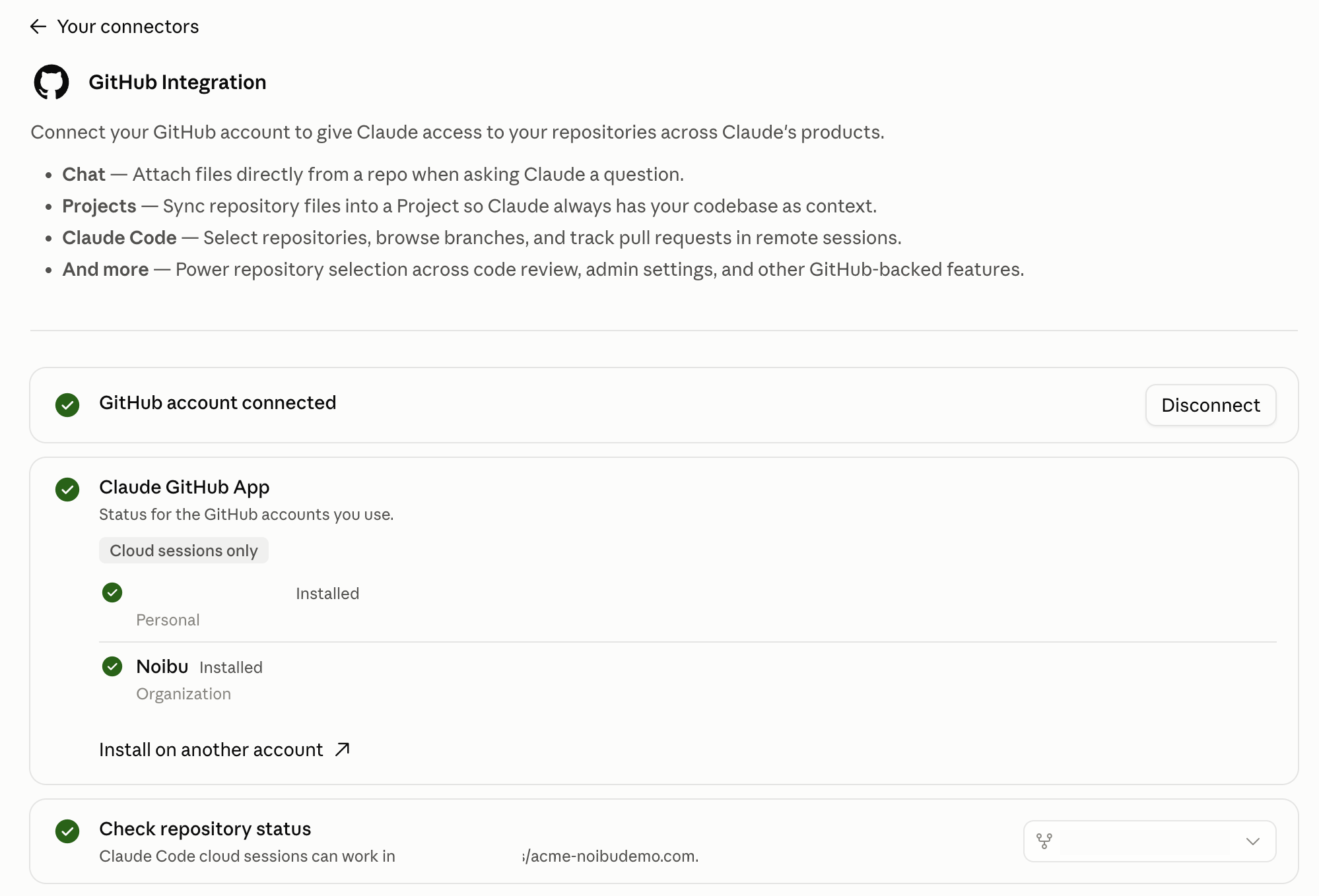
The GitHub Integration panel in Claude shows 3 checks. Claude is ready to work in your repository once all 3 are complete:
GitHub account connected: proves your identity and links your GitHub account to Claude.
Claude GitHub App: installed on the GitHub account or organization that owns the repository. This is what lets Claude push changes, open pull requests and work in private repositories.
Check repository status: confirms Claude can reach the specific repository you want it to use.
Connecting your account alone is not enough. Without the Claude GitHub App, Claude can read public repositories but can't make code updates.
Step 1: Connect your GitHub account
In Claude, go to Customize → Connectors.
Select GitHub Integration.
Click Connect and sign in with the GitHub account that owns, or has access to, the repository Claude should use.
Back in Claude, check that GitHub account connected shows a green check mark.
Step 2: Install the Claude GitHub App
In the GitHub Integration panel, click Install on GitHub next to Claude GitHub App.
On GitHub, choose the account or organization that owns the repository.
Grant access to the specific repository you want Claude to work with. You can grant access to all repositories if that is your team's preference.
If the repository belongs to a GitHub organization you don't administer, choose Request access instead. The organization's admins get an email from GitHub and need to approve the request.
Important: Don't skip this step. If the Claude GitHub App isn't installed with your repository selected, Claude can't push changes or open pull requests.
Step 3: Check repository status
In the GitHub Integration panel, open the repository list next to Check repository status.
Choose the repository Claude should work in. Claude checks whether it has access.
Confirm all 3 checks are complete: GitHub account connected, Claude GitHub App and Check repository status. If one isn't, go back to the step for it.
Optionally, double-check from a Claude session by asking it to open the repository, for example
check you can see owner/repo-name.
With GitHub connected, Claude can package a fix as a pull request instead of just describing it. You review the proposed change in GitHub and merge it when you're satisfied.
If more than one person needs this
Each person who wants Claude to work in the repository connects their own Claude account to their own GitHub account (Step 1). The Claude GitHub App only needs to be installed once on the account or organization that owns the repository, but each person still completes Step 1 and Step 3 themselves.
When to use the custom MCP setup
For most teams, the built-in GitHub Integration is the best approach. Use the custom MCP setup only if:
The built-in GitHub Integration isn't available on your Claude plan or workspace
Your organization specifically requires a custom MCP configuration
Noibu Support asks you to use it for a particular troubleshooting scenario
If you do need it, add a custom connector with the remote MCP server URL https://api.githubcopilot.com/mcp and follow your Claude workspace's custom connector flow. On Team or Enterprise plans, an Owner or Primary Owner typically needs to add the custom connector at the organization level before individual members can connect to it.
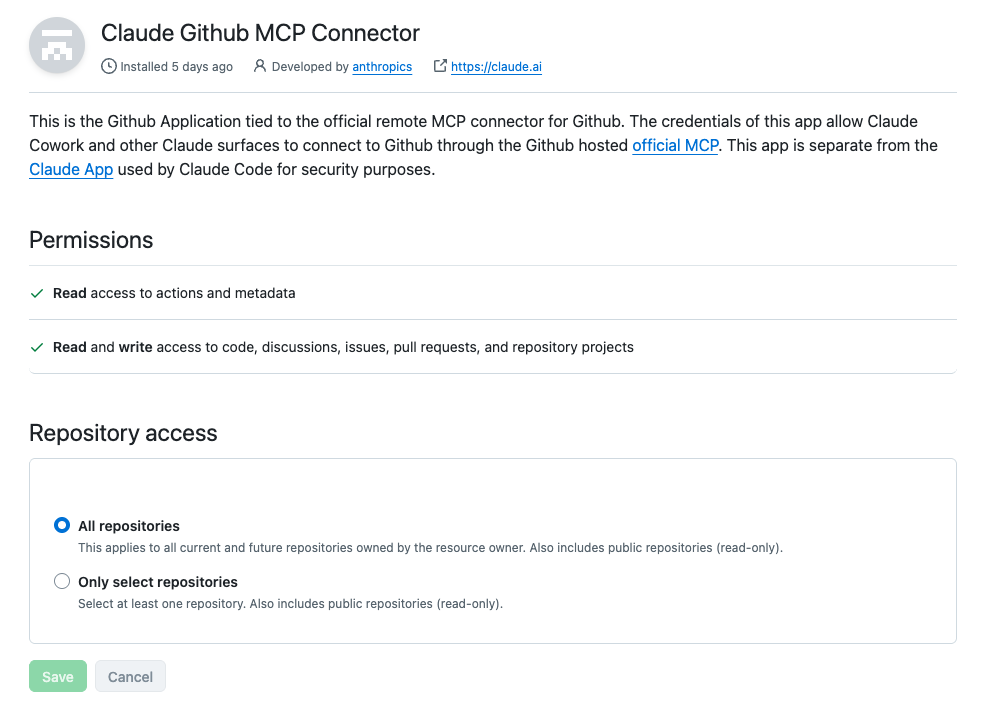
This path uses its own GitHub app, the Claude GitHub MCP Connector, which is separate from the Claude GitHub App above. Install it from github.com/apps/claude-github-mcp-connector on the account or organization that owns the repository, and grant access to the repository on the installation screen.
Troubleshooting
GitHub Integration isn't listed under Customize → Connectors. On Team and Enterprise plans, it only appears while GitHub is turned on for your organization. Ask an Owner or Primary Owner to turn it on in Organization settings → Connectors.
Claude can read the repository but can't push changes or open a pull request. The Claude GitHub App isn't installed, or your repository isn't included in it. Click Install on GitHub in the GitHub Integration panel and select the repository.
Claude reports a 404 Not Found on a private repository, or repository search returns nothing. A 404, rather than a "permission denied" error, usually means the repository hasn't been granted to Claude, or the integration was connected with the wrong GitHub account. Check the Claude GitHub App's repository access in GitHub and confirm the repository is included.
GitHub shows as connected, but your organization's private repositories are missing. If the organization requires SSO, each person has to authorize Claude for it. In GitHub, open
github.com/settings/applications, select the Claude entry, and click Grant next to the organization under Organization access. If the button says Request, an organization admin needs to approve it. Disconnecting and reconnecting won't fix this.You use different email addresses across tools. This isn't a problem. GitHub authenticates by account, not by email. Make sure you connect with the GitHub account that has access to the repository.
You granted access, but Claude still can't see the repository. Disconnect and reconnect the GitHub Integration in Claude to refresh its access. Access changes sometimes don't take effect until you reconnect, and it can take a second attempt.
The repository is owned by an organization. The Claude GitHub App must be installed on the organization, not just your personal account, and a GitHub organization admin may need to approve it.
If you're still stuck, reach out to your Noibu contact.