Fixing "Cowork is disabled" on Windows (Missing HCS services)
Last updated: October 13, 2026
If Cowork shows as disabled in the Claude desktop app on a Windows computer, with the error "Missing HCS services: HNS, vmcompute, vfpext", follow the steps below to fix it. Once Cowork is working, continue with Connecting Noibu to Claude Cowork.
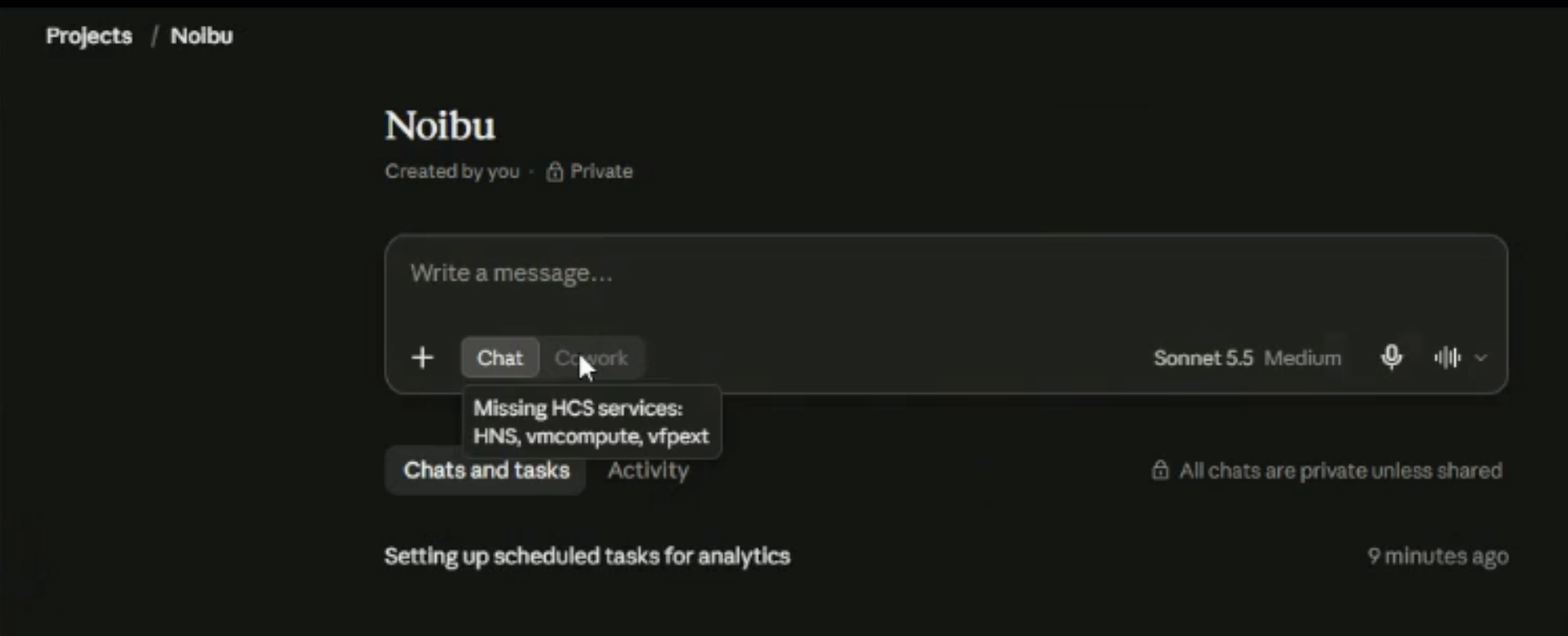
Why this happens
The Claude desktop app runs its workspace in a small, isolated virtual machine on your computer. On Windows, that virtual machine relies on Windows' built-in virtualization features (Hyper-V, Virtual Machine Platform and Containers). This error means one or more of those features isn't turned on.
This error only happens on Windows. Macs use Apple's own virtualization framework and aren't affected.
Before you start
You need administrator rights on the computer.
The computer must run Windows Pro, Enterprise or Education. Windows Home doesn't include Hyper-V or Containers, so this fix won't work on Home.
If you use a company-managed laptop, your IT team may need to run these steps for you. You can share this article with them.
How to fix it
Open PowerShell as Administrator: open the Start menu, type PowerShell, right-click it and select Run as administrator.
Paste and run these three lines. If Windows asks whether to paste multiple lines, click Paste anyway.
Enable-WindowsOptionalFeature -Online -FeatureName Microsoft-Hyper-V -All -NoRestart
Enable-WindowsOptionalFeature -Online -FeatureName VirtualMachinePlatform -All -NoRestart
Enable-WindowsOptionalFeature -Online -FeatureName Containers -All -NoRestart
Each line can take 30 to 60 seconds. RestartNeeded : True means the line worked. If one line shows a red error, the others still run.
Restart your computer once all three lines finish.
Check that it worked
After the restart, open PowerShell as Administrator again and run:
Get-Service hns, vmcompute
sc.exe query vfpext
All three services (HNS, vmcompute and vfpext) should be listed. Reopen the Claude desktop app and check that Cowork is available.
If it still doesn't work
Check your Windows edition. Go to Settings > System > About and look at Edition. If it says Windows Home, you'll need to upgrade to Pro, Enterprise or Education, or use a different computer.
Check hardware virtualization. Open Task Manager > Performance > CPU and look for Virtualization: Enabled. If it says Disabled, turn on Intel VT-x or AMD-V in your computer's BIOS/UEFI settings. Your IT team or the computer manufacturer's support pages can help with this.
Check with your IT team. On company-managed laptops, IT policy sometimes blocks these features. Your IT team will need to allow them.
Still stuck? Reach out to support@noibu.com or your CSM. Include a screenshot of the error and the output of the check commands above, and we'll take a look.