HelpCode™ Overview
Last updated: November 16, 2026
A HelpCode™ is a six-digit number that acts as a diagnostic tool for customer support teams helping shoppers on an eCommerce site. If a shopper contacts customer support with an issue, the agent can ask the customer to retrieve their HelpCode™, which can be used to identify their specific session in Noibu for investigation. Product and technical teams can use this code to find the customer’s session and investigate the underlying problem.
Enabling customers to retrieve a HelpCode™
Generating a HelpCode™ manually
When a customer calls in to report an issue on a website where Noibu is deployed, a customer support rep can follow the process below:
Instruct the shopper to enter #helpcode at the end of the URL on which they're experiencing the error.

Instruct the shopper to hit Enter. The shopper will see a modal that lists a unique HelpCode™ that identifies their session.
Record the shopper's HelpCode™ in a support ticket along with the details of their issue.
Programmatic methods of generating a HelpCode™
In addition to manually adding #helpcode to a URL, it’s also possible to generate helpcodes programatically — either displaying them inline on a page for each customer session, and/or by creating a button that requests them when clicked.
Using HelpCode™ to Diagnose Issues
After a shopper generates a HelpCode™, support and technical teams can use it to find the shopper's session in Noibu. Where you look depends on whether the shopper is still on your site.
Co-browsing with a shopper in real time
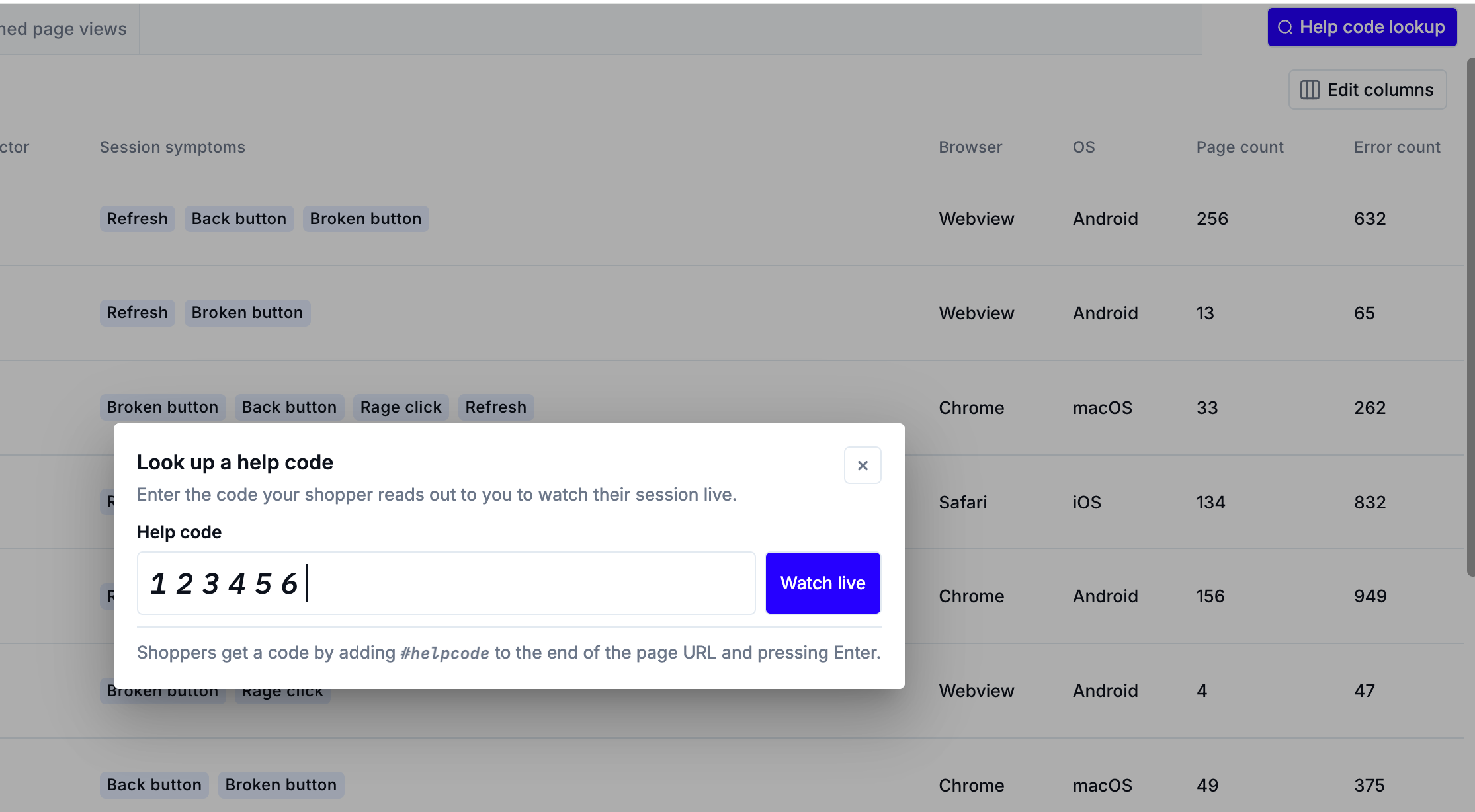
If the shopper is still on your site, click Help code lookup at the top right of the Session replays page and enter their six-digit HelpCode™. You can also click Watch live on the shopper's row in the Live sessions tab. Noibu opens the session for live co-browsing, so you can see the shopper's screen and cursor movements in real time.
Co-browsing connects when the HelpCode™ was generated in the last couple of minutes. If the shopper generated it earlier, ask them to generate a new one. Learn more about co-browsing live sessions using Help Codes.
Finding the session after it ends
Once the session ends and finishes processing, it appears on the Completed sessions tab. Click the Filters toggle, click Add Filters, and select Help Code to find the session.
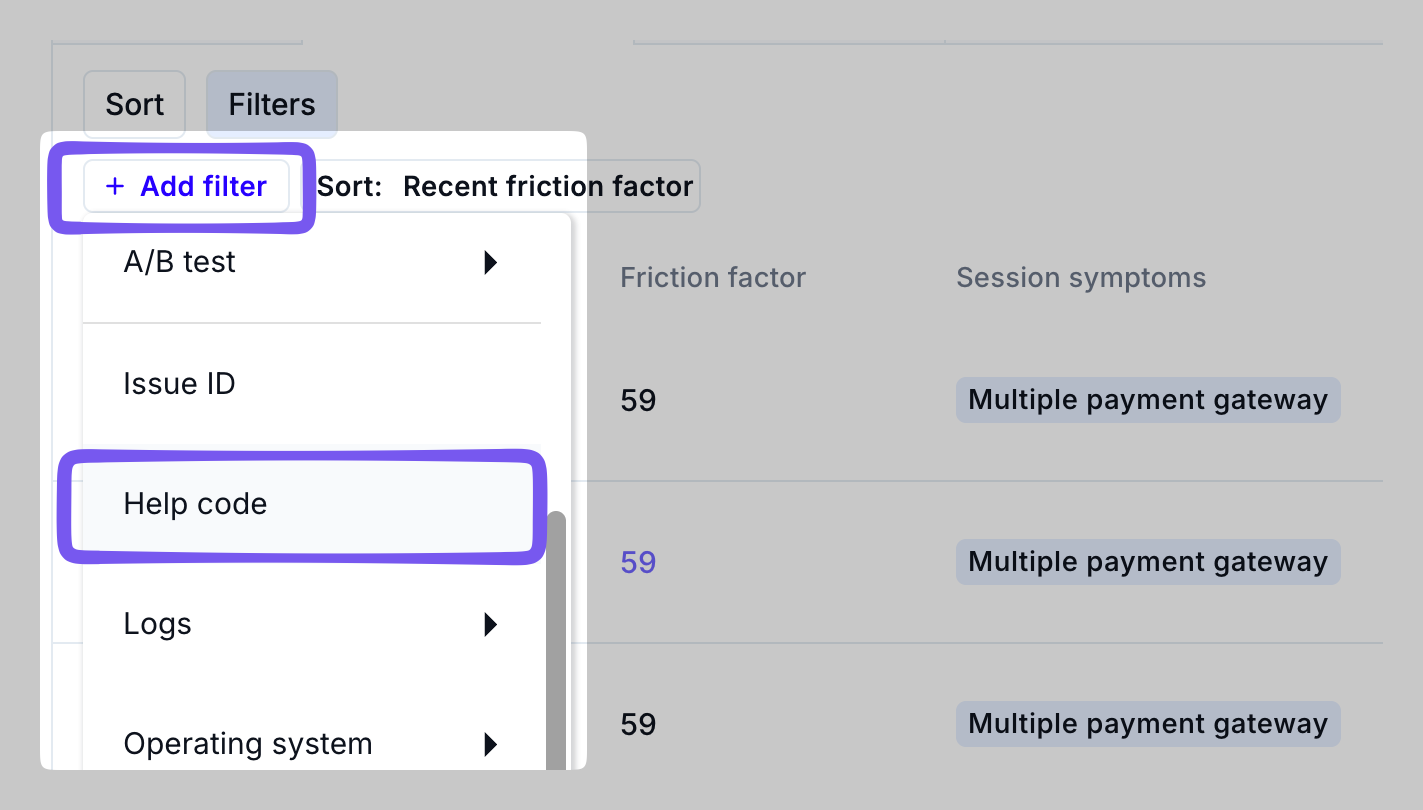
You can also filter by several HelpCode™s by entering codes separated by commas, or enter * to show all sessions with a HelpCode™. Click a session to investigate in more detail. Learn more about searching sessions by Help Code.