Co-browsing live sessions using Help Codes
Last updated: November 16, 2026
Help Codes let customer support agents watch a shopper’s session in real time, mirroring the shopper’s screen and cursor movements in the Noibu console while Noibu’s PII blocking keeps their personal information private. Use it when a shopper contacts support about a problem they’re having right now, so you can see what they see instead of asking for screenshots.
Before you start
Co-browsing opens from a shopper’s Help Code, a six-digit code that identifies their session. The shopper generates it by adding #helpcode to the URL of the page they’re on, or your site generates it through the Noibu SDK, for example with a Help Code button. Learn how shoppers generate a Help Code.
Starting a co-browsing session
You can start co-browsing from the Session replays page in two ways.
Option 1: Look up a Help Code
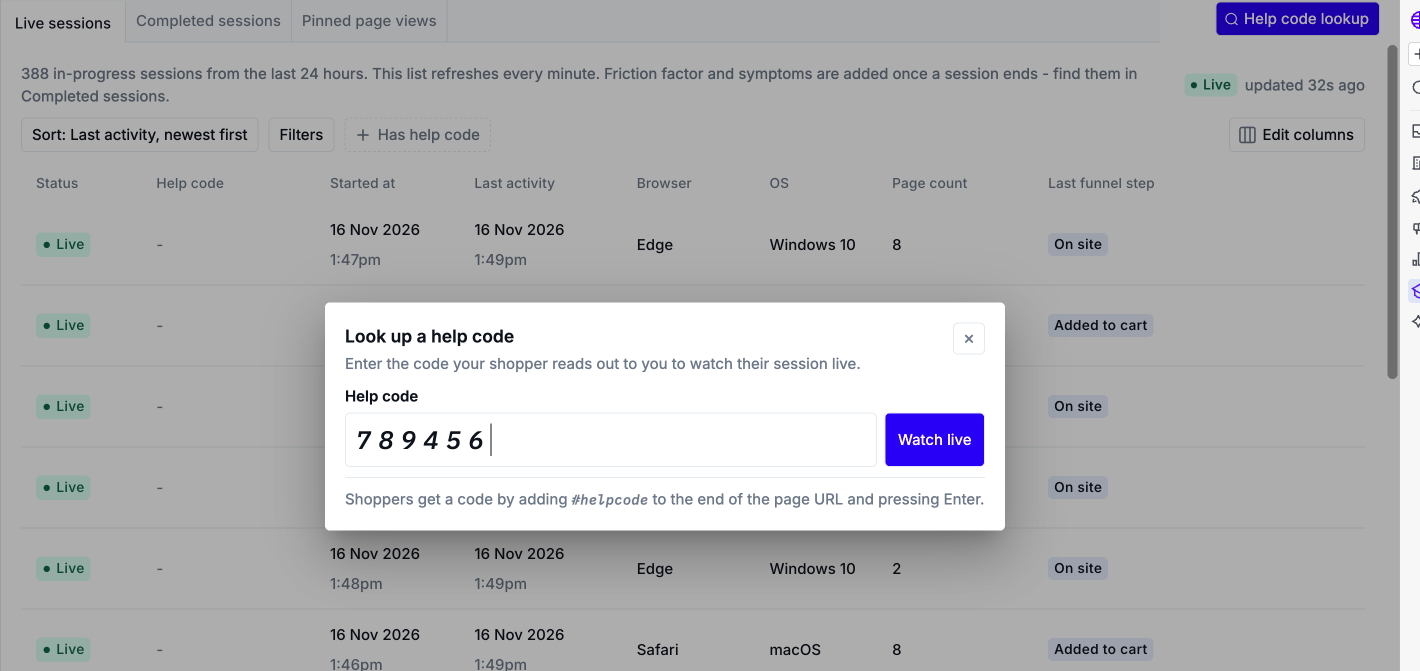
Use this option when a shopper has read their Help Code to you.
Click Session replays in the left-hand navigation.
Click Help code lookup at the top right of the page.
Enter the shopper’s six-digit Help Code.
Noibu opens the shopper’s session for co-browsing.
Option 2: Watch from the Live sessions tab
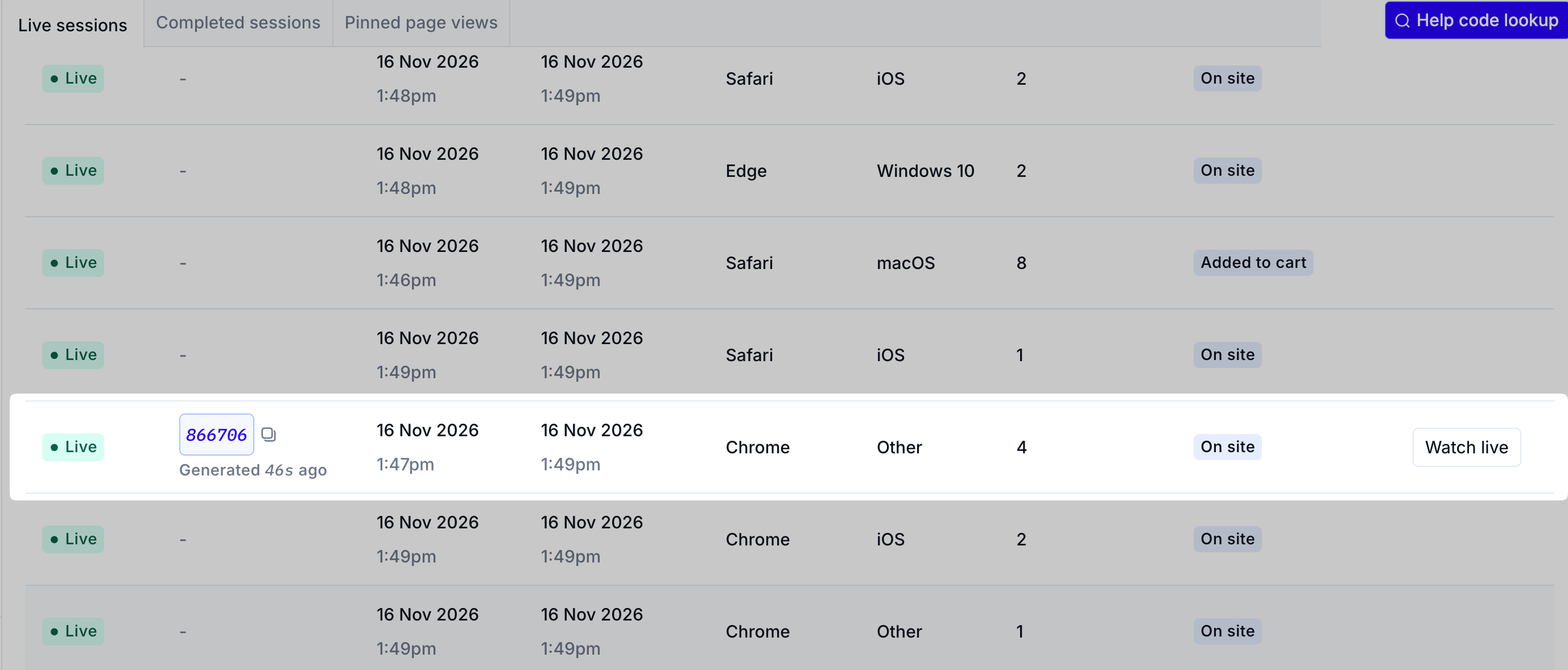
Use this option to find a shopper who has generated a Help Code without looking it up. The Watch live button is available when the shopper generated their Help Code in the last couple of minutes.
Click Session replays in the left-hand navigation.
Click the Live sessions tab. Live sessions with a Help Code show it in the Help Code column.
Click the Help Code or the Watch live button on the shopper’s row.
Co-browsing with a shopper
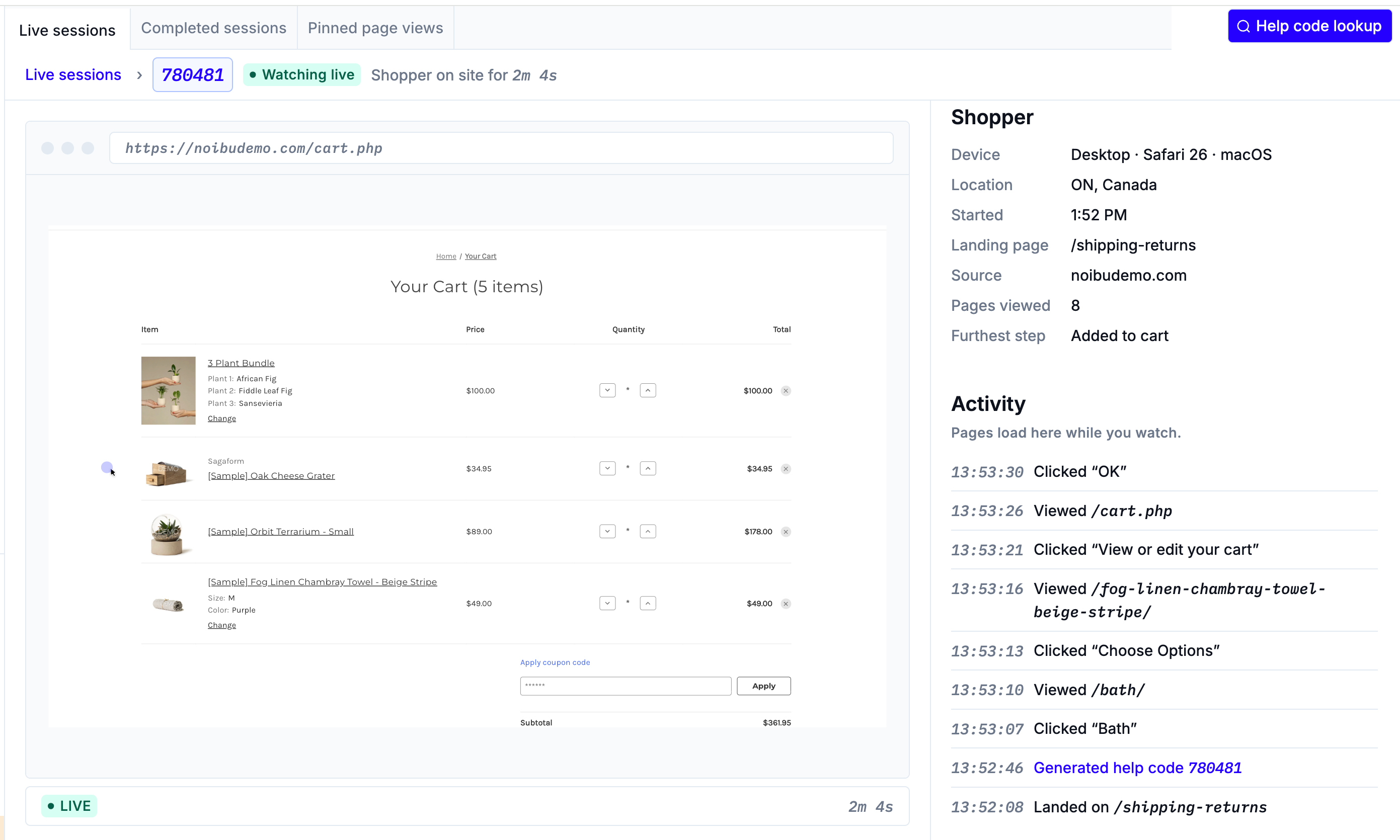
While co-browsing, you see the shopper’s screen as they use your site, with the path of their cursor traced in red. Follow along as they reproduce the problem, and walk them through a solution while they’re still on the page. You can see what the shopper sees, but you can’t control their screen.
To review the session’s event timeline, linked issues, and technical details, open the session from the Live sessions tab, or from the Completed sessions tab after it ends.
When a co-browsing session ends
A co-browsing session ends when the shopper:
Closes their browser tab or window
Navigates to a different website or subdomain
Loses internet connectivity
The connection to a live session also expires if no support agent has started watching it within 2 minutes. The shopper can start a new session at any time by generating a Help Code again.
Escalating after co-browsing
After the shopper’s session ends, it’s processed like any other and appears on the Completed sessions tab. If you can’t resolve the shopper’s problem in real time, add the Help Code to the support ticket when you escalate it. Technical teams can then find the completed session by Help Code and review it with friction factor, session symptoms, and technical details. Learn more about searching sessions by Help Code.
For a step-by-step escalation workflow, see Investigating user-reported incidents or complaints.