Alerts Overview
Last updated: April 7, 2026
The Alerts feature in Noibu helps ecommerce teams proactively identify and respond to issues that may impact conversions. By setting up custom alerts, teams can be notified when issues matching specific patterns occur.
This ensures that high-priority problems are detected early, minimizing disruption to the checkout or overall user experience.
Alerts Page
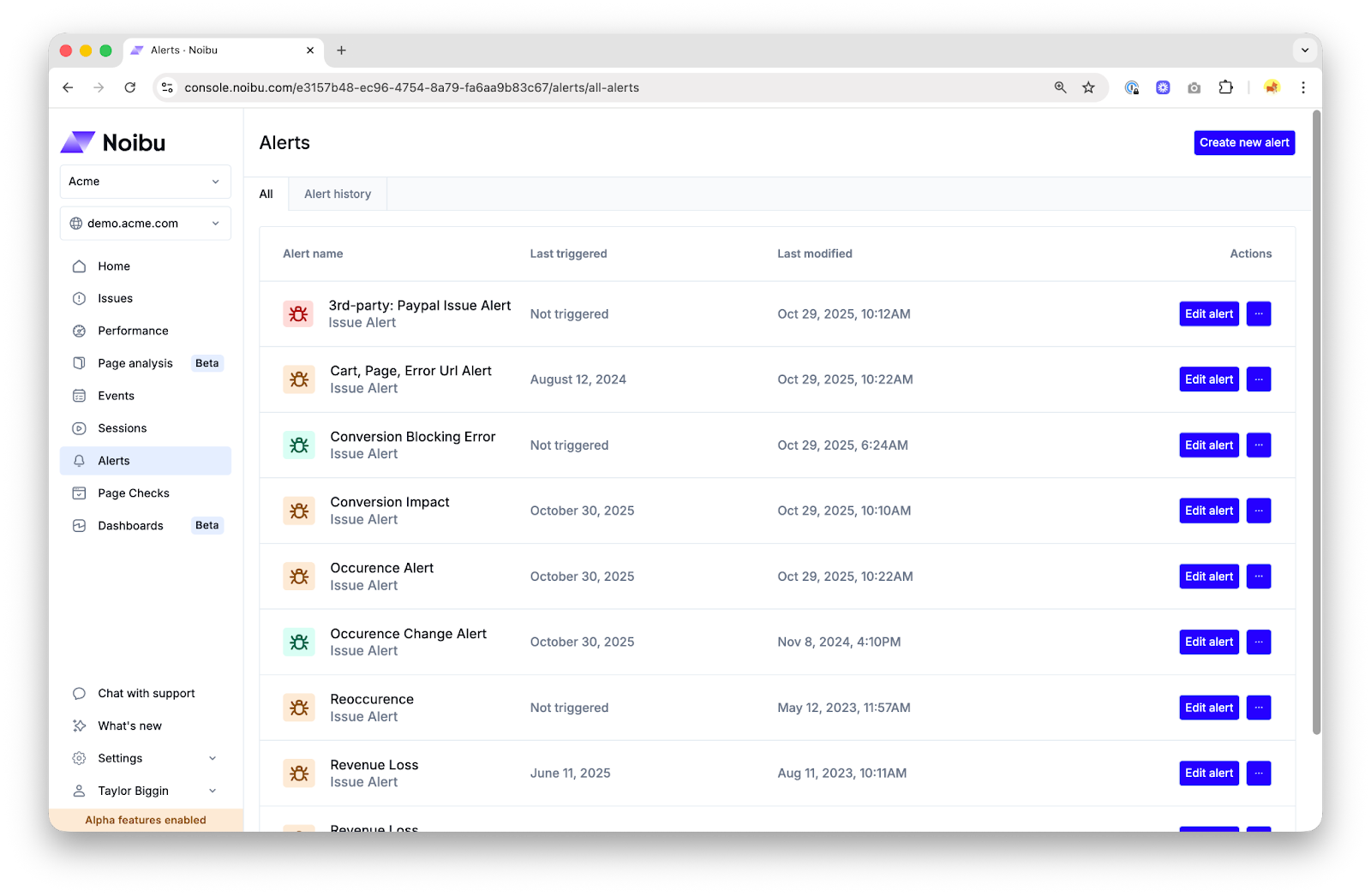
The All tab of the Alerts page lists all active alerts configured for your domain. Each alert displays:
Urgency level — indicated by color (red = high urgency, orange = medium urgency, green = low urgency)
Alert name
Last triggered date
From this page you can create a new alert or edit any existing alerts.You can also duplicate existing alerts or delete them by clicking the … button.
The Alert History tab shows recently triggered alerts in reverse chronological order. Click the View Alert button to see more details about which issues triggered the alert.
Alert Details
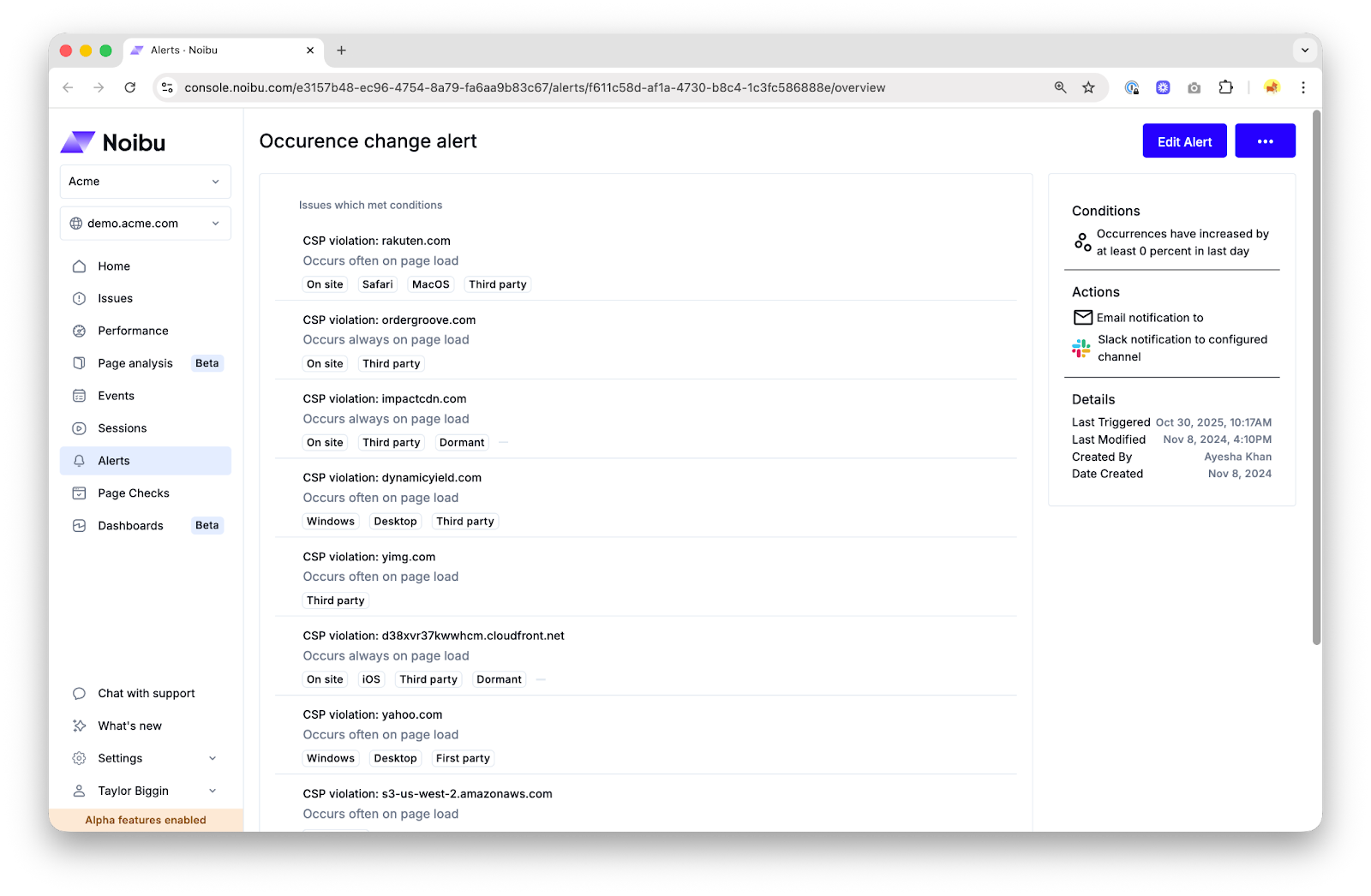
The Alert Details page provides a list of issues that have met the alerts conditions, with links to investigate each issue further. It also provides a summary of the alert conditions and metadata, such as when the alert was last triggered and last modified. You can delete or edit the alert directly from this page.
Anatomy of an Alert
Alerts can be configured to proactively notify your team of issues that meet any combination of the following conditions:
Issue states
Insight tags
Browser and operating system
Created and Last Seen dates
Occurrence rates
Sessions captured
Projected revenue impact
Error type
Error source
Page type
HTTP status code
Top URL
Error Signature
There’s no limit to the number of alerts you can create. You can specify which users receive email notifications when an alert’s conditions are met, or send updates to a designated Slack channel.
Learn more about creating alerts or see our Recommended Alerts.