Reviewing completed sessions
Last updated: November 16, 2026
The Completed sessions tab lists shopper sessions that have ended and been processed for on-demand playback. Completed sessions carry the most detail Noibu captures, including friction factor, session symptoms, and the full session timeline, so they’re the starting point for most investigations into errors, friction, and user-reported problems.
Note: The Completed sessions tab was previously named Sessions. Its contents and behaviour are unchanged.
Using the Completed Sessions table
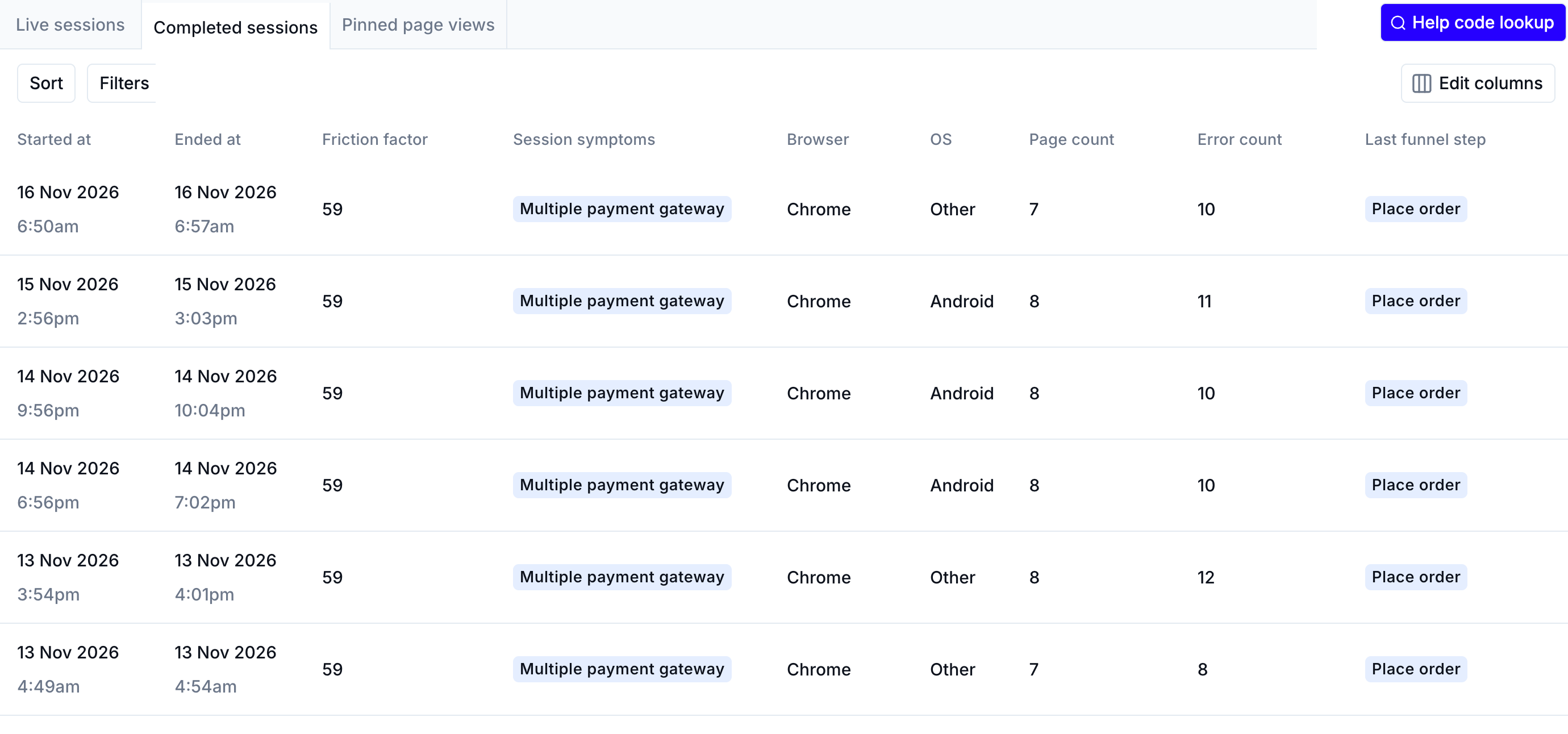
To open the table, click Session replays in the left-hand navigation, then click the Completed sessions tab.
Each row is one shopper session. The table is useful for matching customer support tickets to sessions: if a shopper reports a problem that stopped them from completing a purchase, collect as much information from them as you can, and use those details to find their session. Once you find it, you can diagnose the problem and decide whether it needs debugging work.
Sorting by friction
By default, the Completed sessions table is sorted by Recent Friction Factor, which surfaces the highest-friction sessions from the past 7 days. Click Sort to sort by session recency or overall friction factor instead.
Friction factor is a score Noibu uses to measure how much friction a shopper experienced during their visit. It’s based on session symptoms such as Rage Clicks, Refreshes, and Form Desertions. Each symptom has a friction value based on how much it affects the shopper’s journey. For example, a Broken Funnel Step has a high friction value, while a Refresh or a Back Button click has a low one.
Note: Friction factor and session symptoms are calculated after a session ends and finishes processing, so they’re available only on completed sessions.
Filtering the table
Noibu offers more than 50 filter criteria for narrowing the Completed sessions table to a specific shopper or a group of sessions, including Help Code, custom attributes, issue ID, session symptoms, and funnel steps. Learn more about filtering and sorting sessions.
Playing back a session
Click a row in the table to play back the session. The panel on the right shows the session player, with a timeline that lets you pause, skip ahead, and jump to other page views from the same session. Learn more about Session Playback.
Opening session details
Click Session details to open the session in a new browser tab with a larger playback pane. Additional tabs show metadata such as session duration, browser and operating system, pinned page visits, and links to other sessions from the same browser. Learn more about Session Details.