Filtering and sorting sessions
Last updated: November 16, 2026
Filtering and sorting help you find a specific shopper’s session, or a group of sessions that show friction, frustration, or user-impacting errors. Most filters work on both the Live sessions and Completed sessions tabs. Some rely on data Noibu calculates after a session ends and finishes processing, so they’re available on the Completed sessions tab only.
For more on each tab, see Live Sessions and Completed Sessions.
Filtering sessions
To show the filters on either tab, click the Filters button.
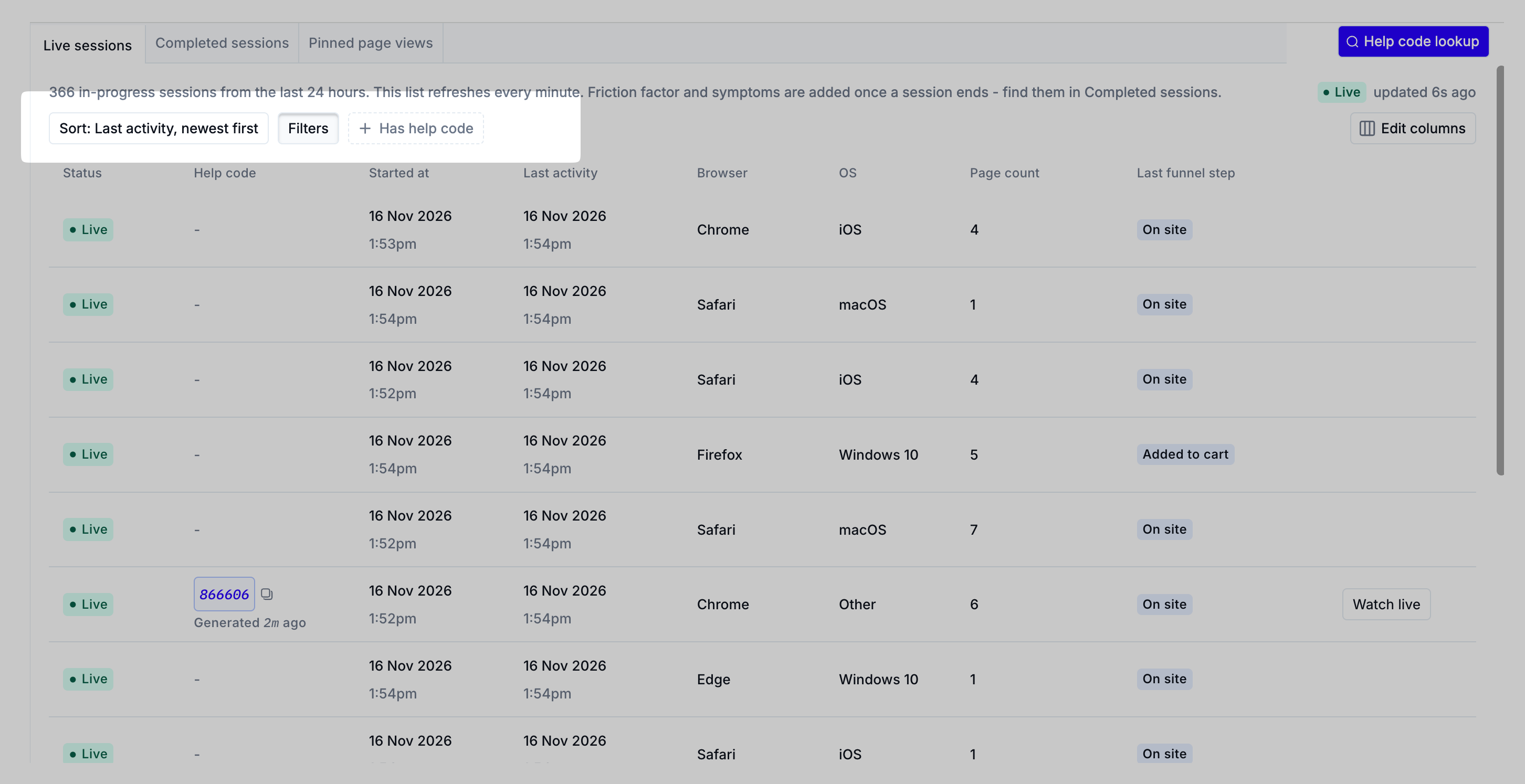
Available filter options
Filter | Description | Availability |
|---|---|---|
Live status | Shows sessions that are Live (the shopper is active on your site now) or Idle (no activity in the last 10 minutes). | Live Sessions only |
Browser | Sessions on a specific browser: Safari, Chrome, Firefox, Internet Explorer, Edge, or Webview. | Live & Completed Sessions |
Browser ID | A Noibu identifier for a shopper’s browser. Useful for tracking multiple sessions by the same shopper. For example, a shopper who hit an error at checkout might return a few days later to try again. | Live & Completed Sessions |
Contains Funnel Step | Sessions that include a specific funnel step: On Site, Added to Cart, Checkout Started, Place Order, or Checkout Completed. | Live & Completed Sessions |
CSS Class | Sessions where a shopper interacted with a specific CSS class, such as | Live & Completed Sessions |
Help Code | A six-digit code provided by a shopper to identify their session. Learn more about Help Codes. | Live & Completed Sessions |
Last Funnel Step | Sessions that end after a specific funnel step: On Site, Added to Cart, Checkout Started, Place Order, or Checkout Completed. On live sessions, this is the most recent funnel step the shopper has reached. | Live & Completed Sessions |
Location | Where the session took place. | Live & Completed Sessions |
Min Page Count | Sessions that include a minimum number of distinct pages visited. | Live & Completed Sessions |
OS | Operating system: Android, iPhone, MacOS/iPad, or Windows. | Live & Completed Sessions |
Session ID | A specific session’s ID. | Live & Completed Sessions |
URL | Sessions that include a URL containing the text you enter. For example, enter “checkout” to find sessions on any checkout URL. | Live & Completed Sessions |
UTM | Sessions with specific UTM (Urchin Tracking Module) campaign parameters. Useful for checking traffic from a promotion or email campaign. | Live & Completed Sessions |
Web Vitals | Sessions with Core Web Vitals rated Good, Needs Improvement, or Poor. Learn more about Web Vitals. | Live & Completed Sessions |
A/B Test Variant | Sessions where the shopper saw a specific A/B test variant. | Completed Sessions only |
Custom | Sessions that contain a specified custom attribute. | Completed Sessions only |
Date & Time | The date and time range in which a session took place. | Completed Sessions only |
Highlight | Sessions that include a specific session highlight. | Completed Sessions only |
IP Address | A shopper’s IP address. | Completed Sessions only |
Issue ID | Sessions that include a specific Noibu issue. Find an issue’s ID on the Issues page. | Completed Sessions only |
Last Repo Step | The last step a shopper took before encountering an error, such as Place Order. | Completed Sessions only |
Logs | Sessions with associated logs from your ecommerce platform. Learn more about viewing logs within session replays. | Completed Sessions only |
Min Error Count | Sessions that include a minimum number of errors. We recommend leaving this at 0, because shoppers sometimes run into problems that don’t involve technical errors, such as confusing page design. | Completed Sessions only |
Session Symptom | Sessions that include a specific session symptom. | Completed Sessions only |
User Clicks | Sessions where a shopper clicked a specific button, such as Add to Cart. | Completed Sessions only |
Sorting sessions
Each tab has its own default sort, suited to what you’re likely looking for.
Live sessions: sorted by last activity, newest first, so the most recently active shoppers appear at the top. You can also sort by session start (oldest or newest first) or by page count, to find shoppers with longer journeys.
Completed sessions: sorted by Recent Friction Factor, which surfaces the highest-friction sessions from the past 7 days. Click Sort to sort by session date or overall friction factor instead.
Next steps
To use these filters to trace a shopper’s complaint back to their session, see Investigating user-reported incidents or complaints.