Implementing A/B tests with the Shopify Theme Editor
Last updated: November 2, 2026
If your store runs on Shopify, you can build variations for an A/B test in the Shopify Theme Editor instead of in code. Noibu copies the template or theme you want to test once for each variation, you edit each copy in the Theme Editor, and Noibu shows each visitor the copy for their assigned variation. Merchandising, ecommerce, and design teams can run a test this way without a developer or a code deployment.
You set up the title, success metrics, targeting, and traffic split the same way as for any test. See Configuring an A/B test.
To build variations in code, or if your store is not on Shopify, see Implementing A/B tests in code.
Before you start
Shopify Theme Editor tests need two things:
An Online Store 2.0 theme. Noibu builds variations by copying your theme’s templates, which only works with the template format that Online Store 2.0 themes use. To check your theme’s version, see Determine your theme architecture version in Shopify’s help.
The latest version of the Noibu Shopify app. The app gives Noibu permission to read and copy your theme files. To install or update it, see Deploying Noibu to Shopify.
If either is missing, the Shopify Theme Editor option is unavailable when you create a test. You can still create the test with the Code option.
Note: Noibu does not change your live theme or your published templates. Each variation is a separate copy, and visitors who are not in the test see your store exactly as it is.
Choosing what to test
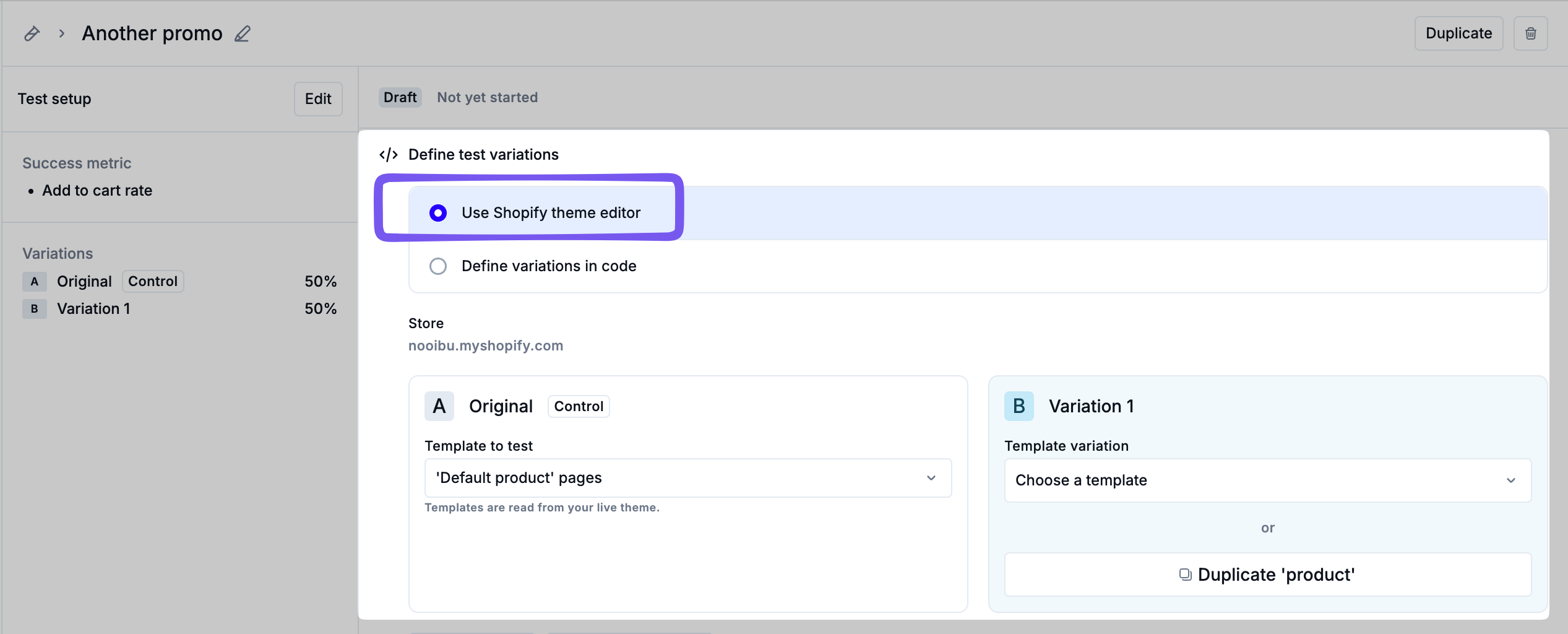
After you complete the initial setup (title, hypothesis, success metrics, targeting, and variations), Noibu opens the test in its Draft state. On the draft test page, you choose how to build the variations and which part of your store to test.
Under Define test variations, select Use Shopify theme editor to design your variations in Shopify. To have your developers implement them instead, select Define variations in code.
In the Test variations section, use the Template to test dropdown to choose which part of your store the variations will change. The list shows the templates in your published theme, grouped by type, plus an option to test the entire theme.
The Template to test options work as follows:
Products, Collections, Pages, Blogs, and Blog posts list the templates of each type, for example ‘Default product’ pages (product.json) or ‘bundle’ pages (product.bundle.json). Pick a template to test every page that uses it. A product page test changes only product pages: the header, footer, and cart stay the same in every variation.
Entire theme tests a complete copy of your published theme. Choose it to change global elements such as the header, footer, cart, or colour scheme, or to change several page types at once. Shopify’s Theme Editor cannot create alternate homepage templates, so to test your homepage, choose Entire theme.
Comparing template and entire-theme tests
Template test | Entire-theme test | |
|---|---|---|
What a variation copy is | A copy of one template, saved in your published theme | A complete, unpublished copy of your published theme |
What you can change | Anything on pages that use that template | Anything in the theme, including the header, footer, and cart |
Variations | Up to four, including the control (A/B/C/D) | Two: the control and one variation |
Runs alongside other tests | Yes, unless another test is running on the same template | No. It must be the only test running |
Shopify theme slots | Uses none | Uses one |
Test limits
Template tests. If another test is already running on the template you choose, Noibu shows a warning. You can still create and design the new test as a draft, but you must stop the other test before you start this one.
Entire-theme tests. Noibu warns you if you choose Entire theme while another test is running, and blocks any other test from starting while an entire-theme test runs.
Theme slots. Shopify limits how many themes a store can hold, and an entire-theme test needs one free slot for its variation copy. If your store has no free slot, remove an unused theme in Shopify (Online Store › Themes) before you create the test.
Important: Noibu checks for overlap between Shopify Theme Editor tests only. It cannot detect a code test that changes the same pages. Do not run a code test and a Theme Editor test on the same page element at the same time, because overlapping tests confound each other’s results.
Designing your variations
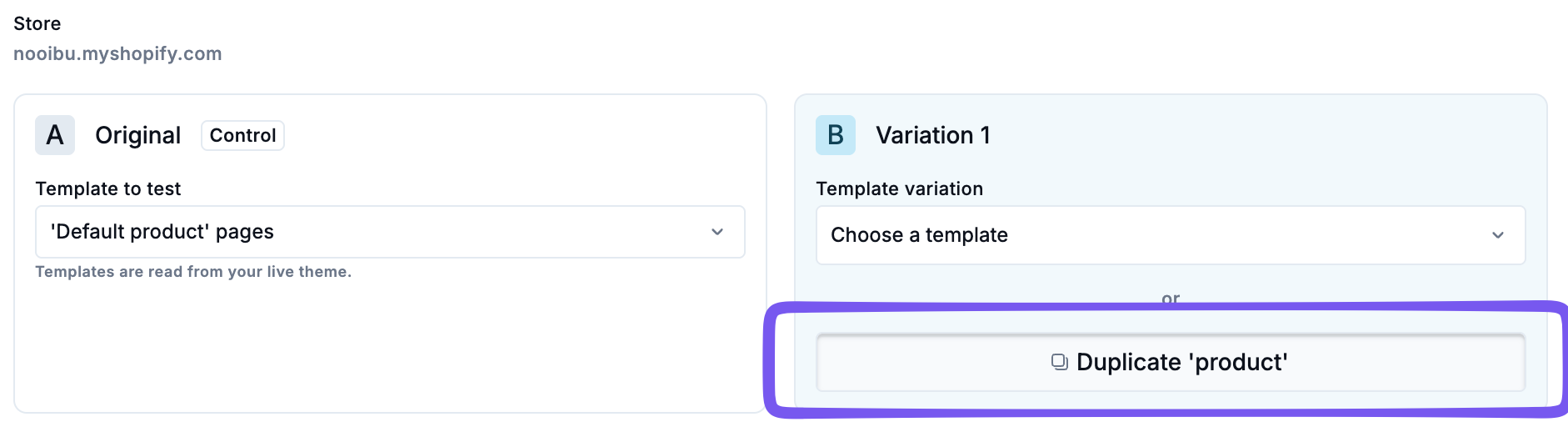
Choose from an existing template variation from the dropdown or click the duplicate button to have Noibu create a variation of that template in Shopify.
For a template test, each variation gets its own copy of the template, saved in your published theme. The copy is named after the test and the variation letter, for example
product.noibu-ab.2083-newsletter-add-to-cart-button-position.var-B.json. The file name is shown on the variation’s card.For an entire-theme test, the variation gets an unpublished copy of your theme, named Noibu A/B · followed by your test title. The copy appears in your Shopify theme library under Online Store › Themes. Don’t publish it.
Each variation card shows:
Template or Theme: which file or theme this variation uses. The control shows your current template or theme (for example Default product (product.json) or Dawn · version 16.0.0).
Status: when the template or theme was last saved in Shopify. A new copy shows Copied from ‘Original’ with a No changes yet label until you save a change to it.
Edit in Shopify: opens that variation’s copy in the Shopify theme editor, in a new tab. The control has no edit button, because the control is your store as it is.
To design a variation:
On the variation’s card, click Edit in Shopify. The Shopify theme editor opens on that variation’s copy.
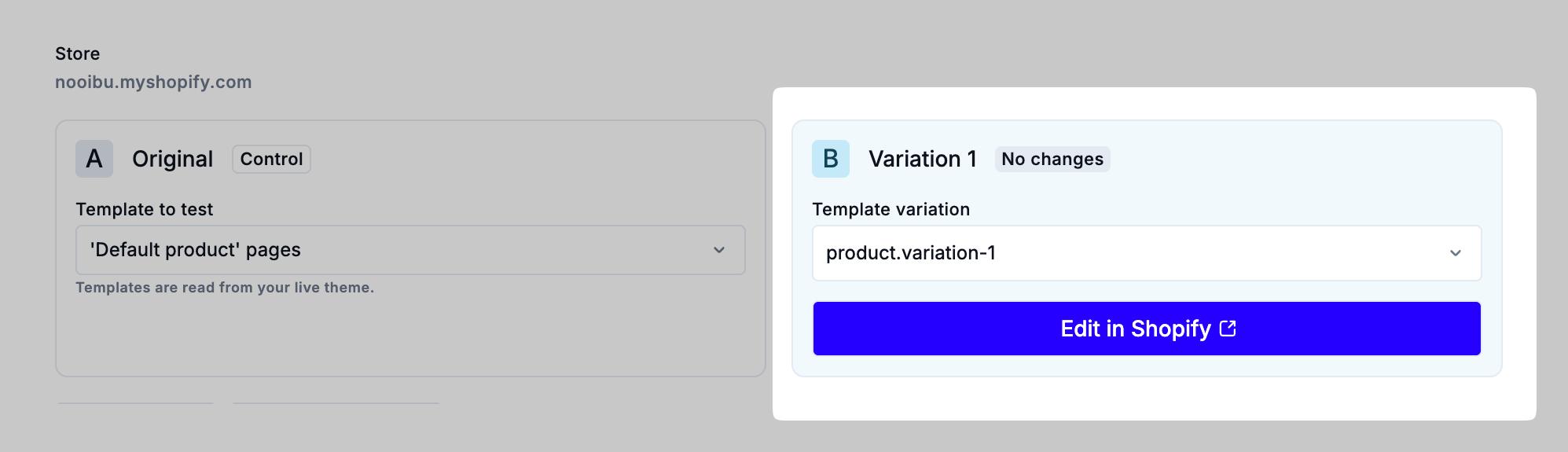
Make your changes the way you normally would: add, remove, reorder or edit sections and blocks, and change their settings.
Click Save in the theme editor.
Return to the test page in Noibu. Noibu refreshes the card, and Status changes to Last saved with the time of your save. If it hasn’t updated, click Sync with Shopify at the top of the panel.
Repeat for each variation.
Important: Only change the variation’s copy. The theme editor shows which template or theme you’re editing at the top of the page. If you edit your live template or published theme instead, every shopper sees the change, including those in the control.
Starting the test
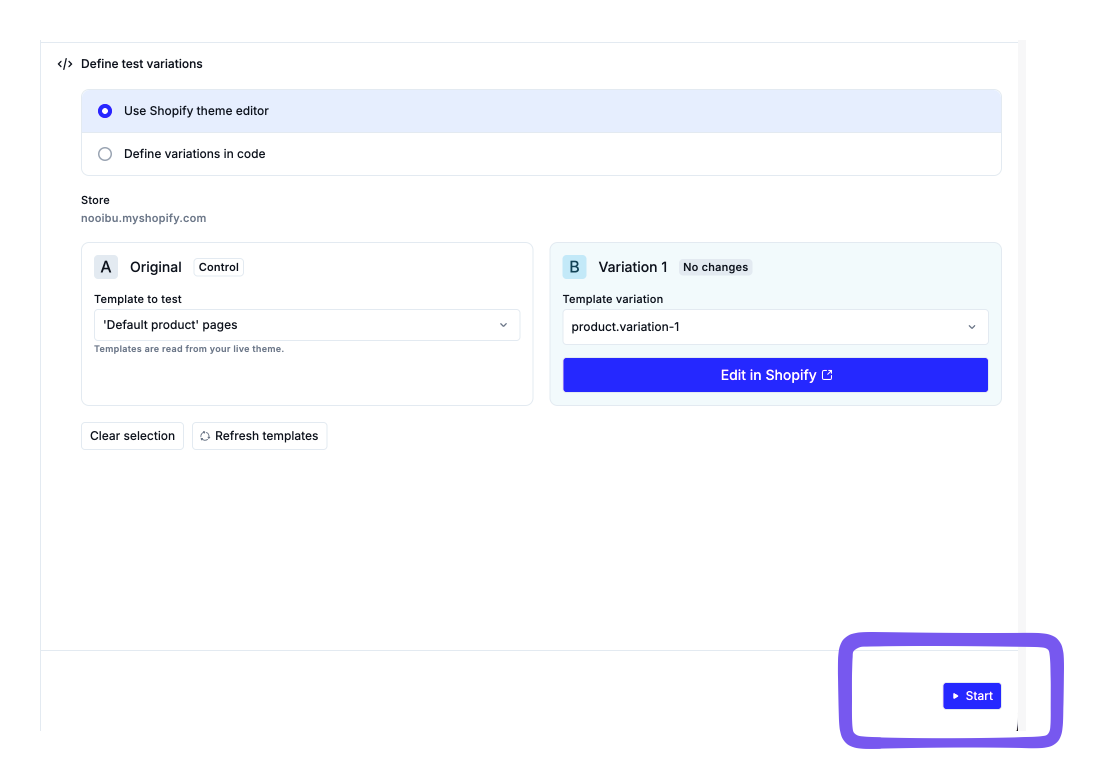
When you have edited and saved every variation, click Start on the test page. Noibu asks you to confirm that your variations are correct, because once the test starts you can change only the hypothesis and secondary metrics. For an entire-theme test, the confirmation also reminds you that it must be the only test running.
While the test is running
Noibu locks the variations, traffic split, targeting rules, primary success metric, and area of store. Health checks, results, and verdicts work the same way as for any test. See Measuring A/B test results.
The Variation design tab stays available. Click View in Shopify on a card to open that variation in the Shopify Theme Editor and preview it as visitors currently see it.
Important: While the test is running, do not edit, delete, or publish a variation copy in Shopify. Noibu locks the test definition, but it cannot lock the Theme Editor:
If you edit a variation copy, visitors in that variation see two different experiences, and the results cannot separate them. To change a variation, stop the test and create a new one.
If you delete a variation copy, visitors assigned to that variation see the control instead.
If you publish the entire-theme variation copy, your whole store changes for every visitor.
Shipping a winner and cleaning up
When you stop a test, Noibu stops assigning visitors, and every visitor sees the control: your store as it is. Noibu does not change your live theme. The variation copies stay in Shopify, unchanged, so you can ship a winner and remove the copies when you are ready.
Shipping a winning template test
In Shopify, go to Online Store › Themes and open the theme editor for your published theme.
Open a page that uses the winning variation’s template (the file name is on the variation’s card in Noibu, for example
product.noibu-ab.….var-B.json). Note the changes you made: which sections and blocks were added, removed, moved or edited.Switch to the original template (for example Default product) and make the same changes there. Save.
Preview a few pages that use the original template to confirm they match the winner.
Delete the variation templates you no longer need: in the theme editor’s template menu, or in Edit code › Templates.
Shipping a winning entire-theme test
In Shopify, go to Online Store › Themes. The variation theme is in your theme library, named Noibu A/B · followed by your test title.
Open your published theme in the theme editor and make the same changes you made in the variation theme. Save.
Once your published theme matches, delete the variation theme from the library (Actions › Remove).
To ship a winner, copy its changes into your published theme. Do not publish the variation copy instead: Noibu and other apps rely on your published theme remaining the same theme.
Cleaning up when the control wins or there is no clear winner
Delete the variation copies as described above, so they do not accumulate in your theme and nobody mistakes them for live templates.
Running another test on the same template or theme
Once you stop a test, its template or theme is free for a new test. You cannot restart a stopped test. To run a similar test, select Duplicate from the test’s menu to create a new draft with the same setup.
Troubleshooting
Symptom: The card shows “Couldn’t copy template from ‘Original’”.
What it means: Noibu could not create the variation copy in Shopify.
How to fix it: Click Retry on the card. If it keeps failing, confirm that the Noibu Shopify app is up to date, then contact your Noibu CSM.
Symptom: The card shows “Template not found” or “Theme not found” while the test is in draft.
What it means: The variation copy no longer exists in Shopify, usually because someone deleted or renamed it. The card shows the file name Noibu expected.
How to fix it: Choose one of the options on the card:
Start over from ‘Original’ creates a fresh variation copy from the control. You lose any changes you made to the missing copy.
Copy file name copies the expected file name, so you can rename the file back in Shopify’s code editor if it was only renamed. This option is available for template tests only.
Symptom: A red banner on a running test reads “A Shopify theme template required for this test is missing”.
What it means: Someone deleted or renamed a variation copy after the test started. That variation is not receiving traffic, which skews the results. The Variation design tab shows which variation is affected.
How to fix it: Restore the file in Shopify if you can. Otherwise, stop the test, because you cannot rely on its results.