Investigating User-Reported Incidents or Complaints
Last updated: November 16, 2026
When shoppers report bugs, complaints, or problems to support teams, it can be hard to reproduce the problem without seeing it. Noibu’s Live Session Replay lets support and engineering teams trace a report back to the shopper’s session, using whatever information is available.
Noibu’s permissions settings let customer support and adjacent teams access sessions for this workflow without exposing business metrics or technical error details.
Workflow
Option 1: Help Code
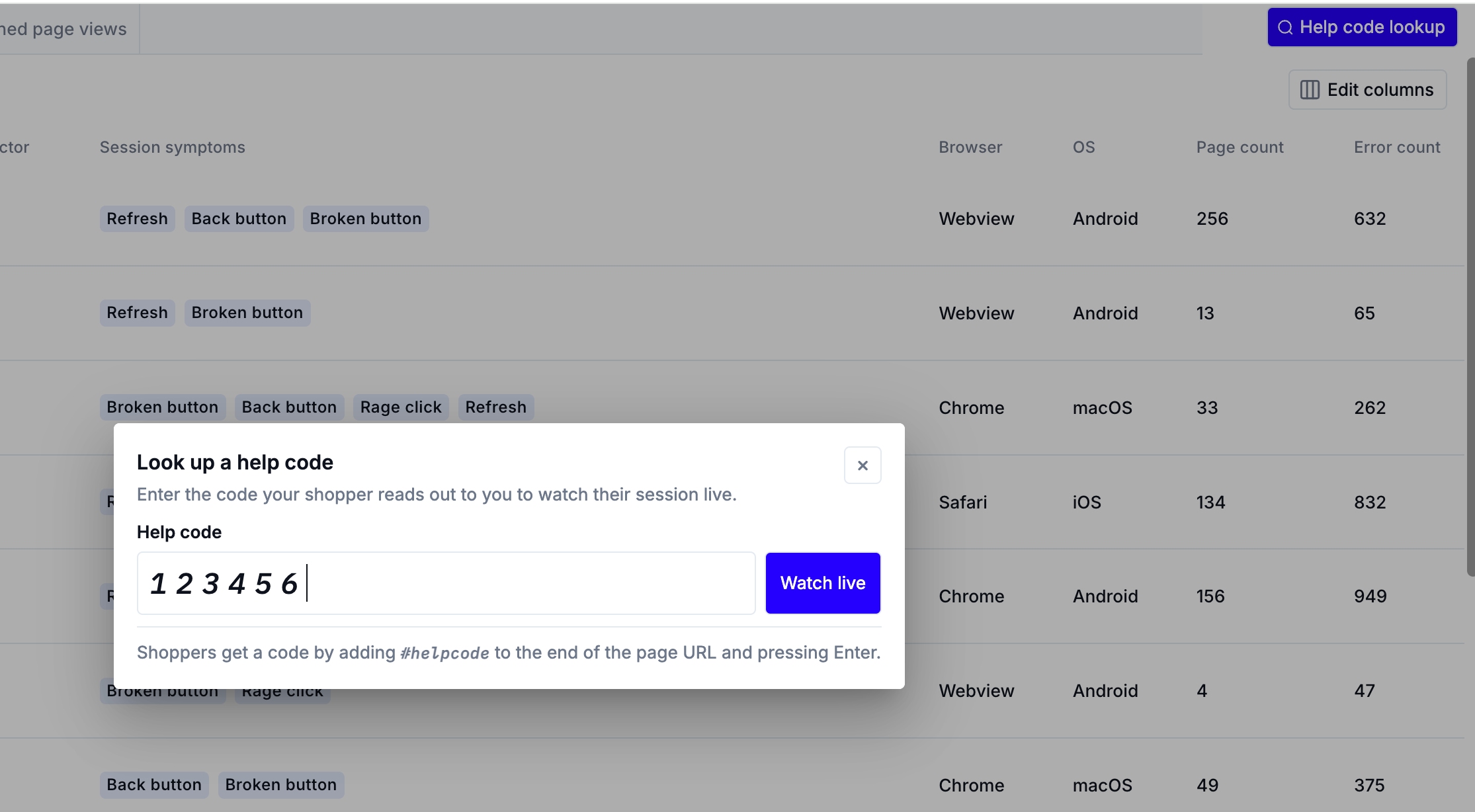
A Help Code is a six-digit code that identifies a shopper’s session. If a shopper contacts support while they’re still on your site, a Help Code lets you see their session right away.
Ask the shopper to generate a Help Code by adding
#helpcodeto the URL of the page they’re on, or through another method your site offers. Learn more about implementing Help Codes.On the Session replays page, click Help code lookup at the top right and enter the code. Noibu opens the shopper’s session for Help Code co-browsing, so you can see what they see in real time.
Watch the shopper reproduce the problem, and help them on the spot if you can.
If the problem needs escalating, add the Help Code to the support ticket. Once the session ends and finishes processing, technical teams can find it on the Completed sessions tab by filtering by Help Code.
Option 2: Custom attributes
If your site uses Noibu’s SDK (software development kit) to track custom data, you can find sessions by values like customer ID, order ID, or email address.
Collect any available identifier tracked with Noibu’s SDK, such as customer ID, order ID, or email address. Learn more about custom attributes.
Filter the Completed sessions tab by the relevant custom attribute.
Play back the session to review the shopper’s behaviour and symptoms.
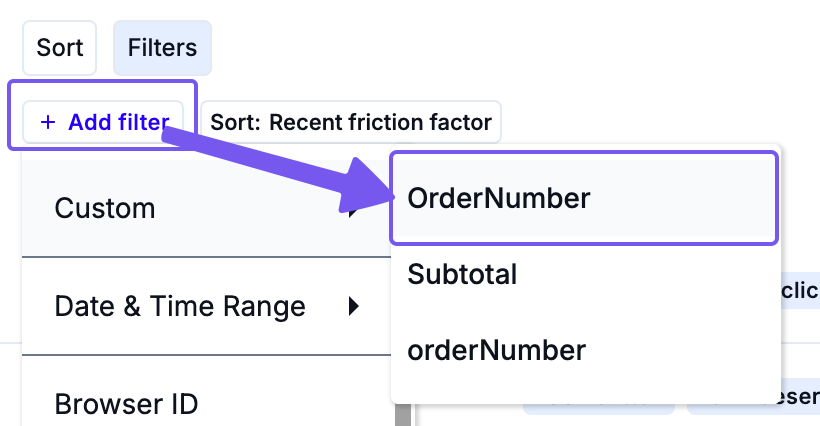
Note: Custom attribute filters are available only on the Completed sessions tab.
Option 3: Indicative filters
If you don’t have a Help Code or custom attribute, you can still narrow the search using what you know about the session.
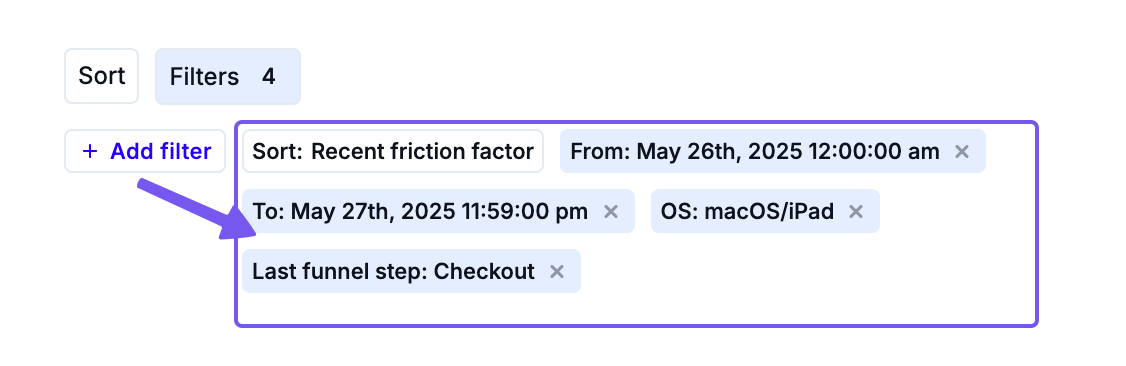
Gather all available details: - Approximate date and time of the problem - Browser and operating system - URL where the problem happened - Last funnel step completed
Apply these filters to narrow the results until you find the session. If the shopper is still on your site, start with the Live sessions tab; otherwise, use Completed sessions.
Play back the session to confirm the reported problem.
Next steps
If a session needs escalating to technical teams, add the Help Code (if available) to any open tickets about the complaint, then share the session with product or developer teams.