Deploying Noibu to Shopify
Last updated: October 1, 2026
Noibu supports error detection, performance monitoring and session replay across the customer journey on Shopify storefront pages. Additionally, Noibu supports session replay from Shopify checkout pages.
Shopify customers can easily deploy Noibu’s eCommerce monitoring platform via the Shopify App Marketplace. This installation requires no coding or manual script deployment, and takes just a few minutes.
Installing the Noibu App for Shopify
Note: if you’re an existing Noibu customer who has previously deployed Shopify using our collect-core.js script or custom pixel, you’ll need to remove these settings first. Learn how here.
Note: if you’re reinstalling the Shopify app, you will need to uninstall it first. Learn how here.
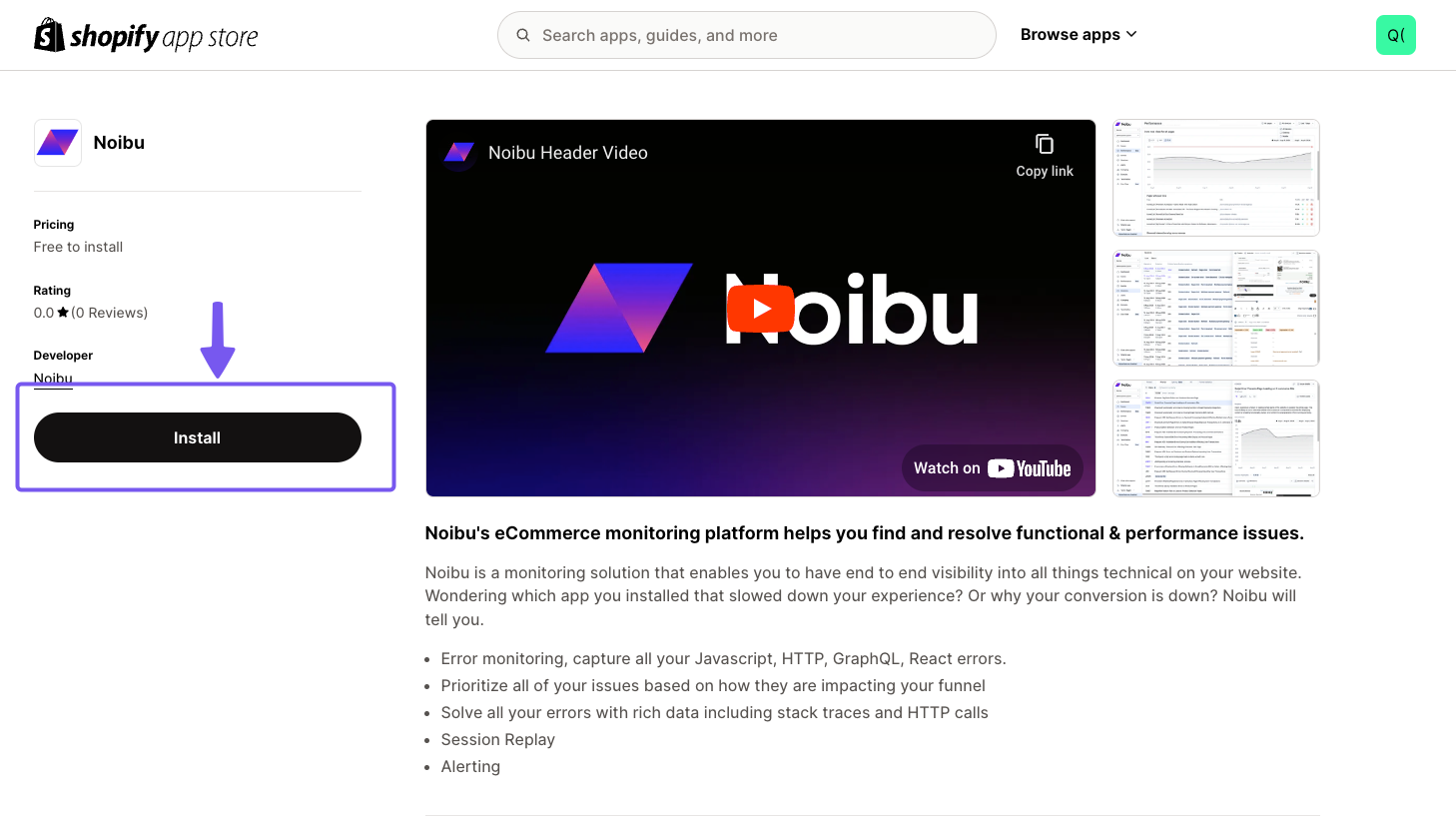
1. Go to Noibu’s app listing on the Shopify App Store and click ‘Install’. Log in if required.
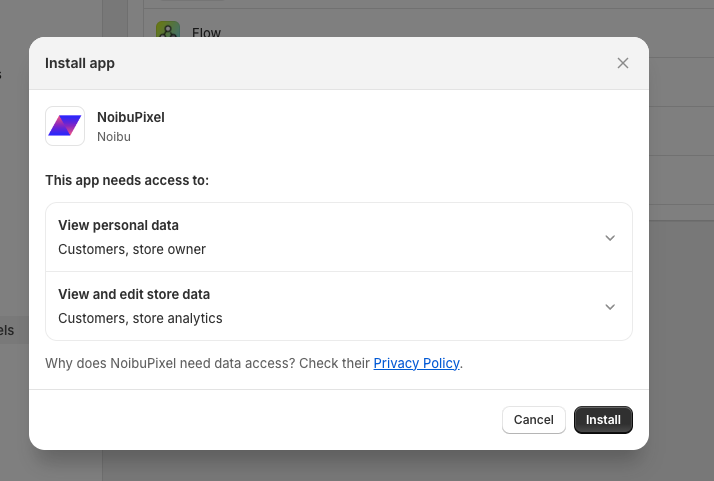
2. You’ll be redirected to the Noibu app installation page within Shopify. Click the ‘Install’ button to confirm your installation.
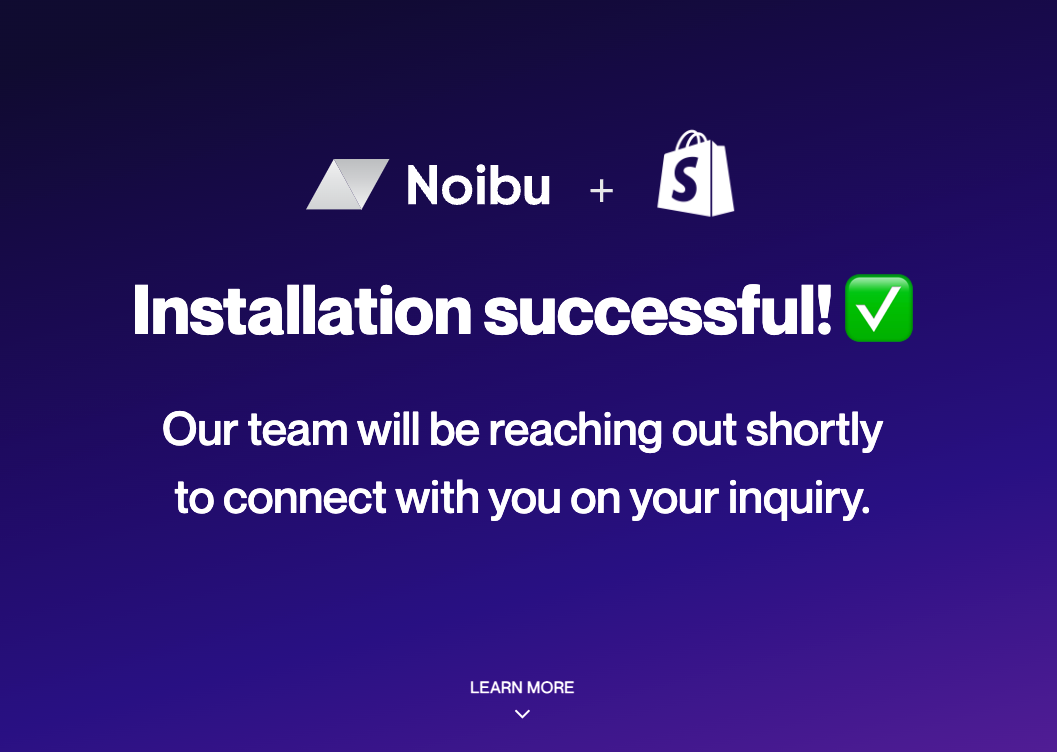
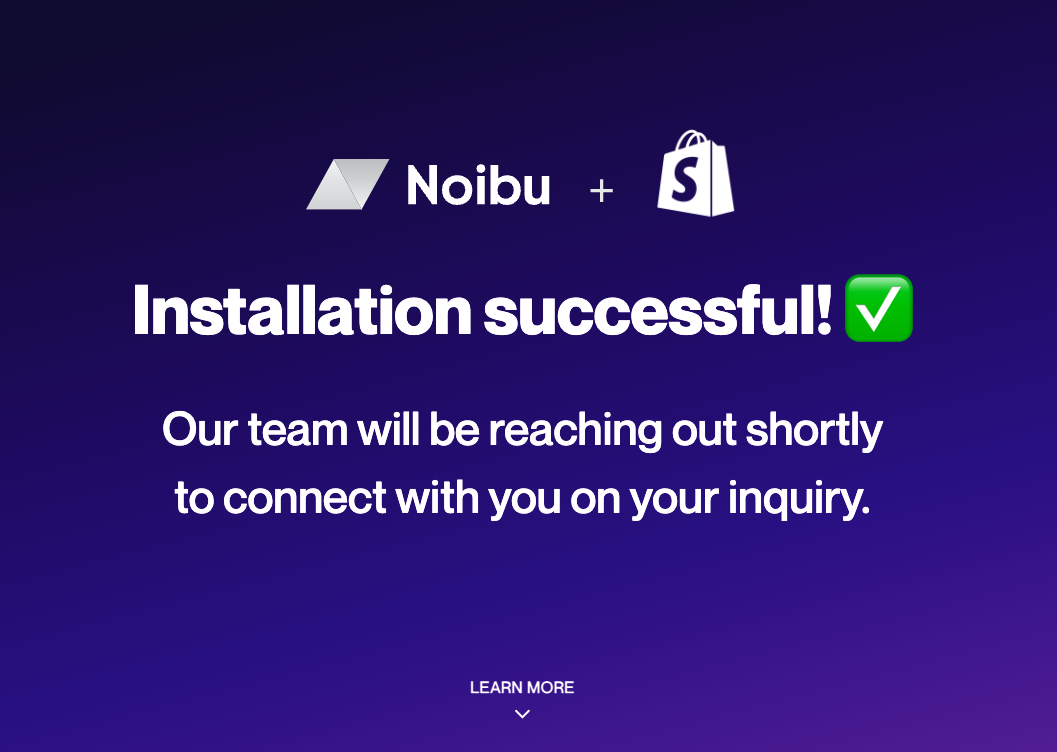
3. A confirmation screen will indicate Noibu has been successfully installed.
4. Turn on the Noibu Script App Embed in your Shopify Theme
Shortcut: open this link with your store's domain in place of your-store. It opens the theme editor with the embed already switched on, so you only need to click Save.
https://{your-store.myshopify.com}/admin/themes/current/editor?context=apps&activateAppId=099491d834609d850e17ac570a25d2ef/noibu-core
In Shopify admin, go to Online Store → Themes.
Next to your live theme, click Customize.
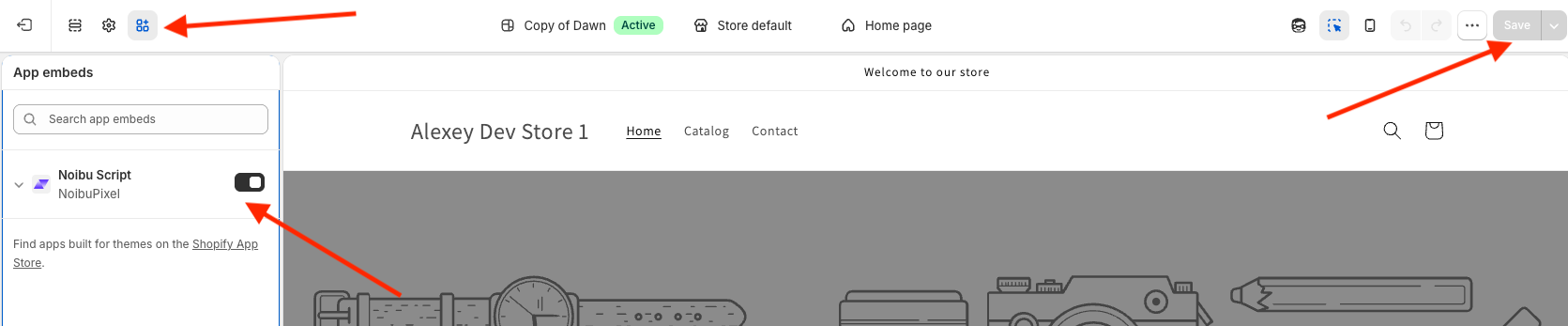
In the toolbar at the top left, click the App embeds icon (the third icon, four small squares).
Find Noibu Script (listed under NoibuPixel) and switch the toggle on.
Click Save in the top right.
Check it worked
Open any page of your storefront in a browser.
View the page source (right-click → View page source).
Search for
data-noibu-sourceortheme-app-embed.If it's there, the embed is live. If not, go back to App embeds, confirm Noibu Script is on, and make sure you clicked Save on the published theme.

The embed is set per theme. If you publish a different theme later, repeat these steps on it. Leave the embed off on unpublished themes you don't use.
5. Our team will reach out soon afterwards to help you complete your domain configuration and Noibu deployment.
If you are deploying Noibu to a Shopify Headless or Hydrogen storefront, additional setup is required. While the Noibu app provides error monitoring for your Shopify checkout, you will need to separately deploy Noibu's script to the rest of your shop via Google Tag Manager.
Next Steps
Once Noibu has been deployed successfully, visit the Platform Overview to see how Noibu turns these technical events into insights for ecommerce teams.
Viewing Shopify events in session replays
As Noibu collects session recordings from users on your Shopify store, it also automatically tracks several relevant events.
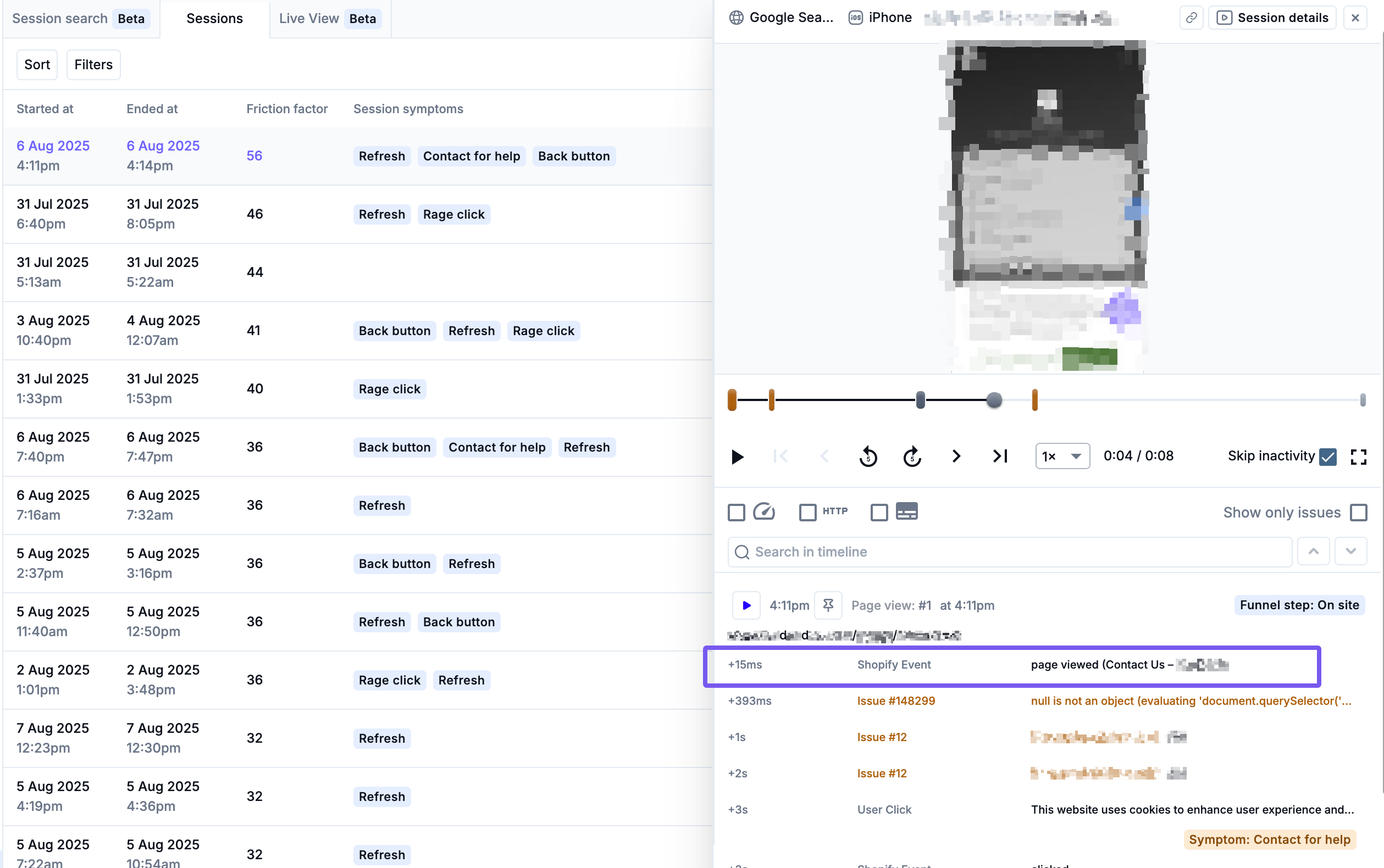
Within the session playback timeline, Noibu will display key Shopify events to indicate key shopper interactions – such as viewing a product page, beginning checkout, and more. This helps you gain deeper context into the customer’s journey across your storefront.