Working with Noibu and AI
Last updated: October 14, 2026
Noibu provides pre-built AI agents – or "skills" – which are packaged instructions that produce a specific kind of workflow or analysis, such as a checkout funnel breakdown, a ranked list of underperforming products, or the root cause of a priority error.
Alongside the skills, you can ask your AI tool any ad-hoc question about your store and it will query Noibu directly.
This article covers what each skill does and links to a full guide for each one. It also outlines the workflows merchants commonly use, and options for saving, sharing, and scheduling any result.
Skills included in the plugin
Skill | Use it to | Full guide |
|---|---|---|
| Teach your AI tool how your business works, so its analysis reflects your goals and your data's quirks | |
| Get an read on overall store health, and turn it into a live dashboard or a recurring report | |
| Find where shoppers drop out of checkout, and what changed | |
| Compare how devices, countries, and marketing channels convert | |
| Find which products and collections are winning or losing, and why | |
| Investigate a technical error or page performance problem, and stage a fix | |
| Find pages and segments where an A/B test could improve conversion | |
| Audit accessibility issues that may block shoppers from completing key journeys |
Note: Running the Business Context skill is the recommended first step. The other skills interpret your ecommerce data more accurately once it has run. See Building your business context.
What merchants use AI skills for
Skills are most useful when you want a deeper, more structured analysis than a single question would produce, or when you want a result you can save, schedule, or share with your team. They can be triggered in three main ways:
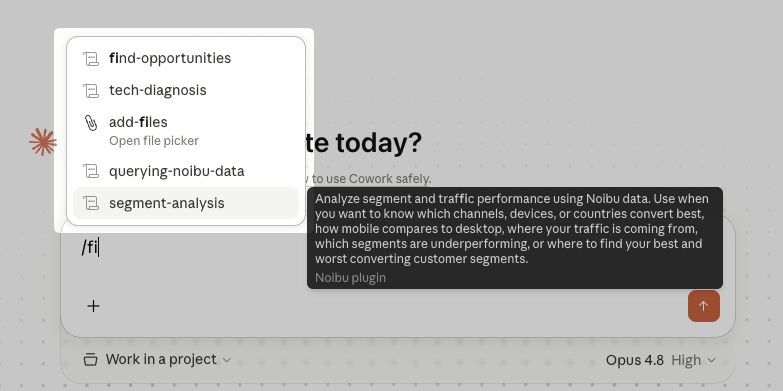
Ask a question that matches the skill's purpose. Your AI tool detects and runs the appropriate skill. For example, "where are people dropping off in checkout?" triggers Checkout Analysis.
Type the skill name as a slash command. For example,
/store-pulse.Ask your AI tool to run a specific skill. For example, "run a full segment analysis."
The use-cases below are drawn from how merchants work with Noibu's AI plugin today. Each maps to a skill, an ad-hoc query pattern, or both.
➡ Investigating an error and confirming the fix landed.
An error is affecting shoppers and you need the cause, not just the alert. The investigation typically moves from the error detail and Noibu's AI diagnosis of the root cause, to staging a fix for review and approval. Session replay in Noibu provides contextual evidence of the exact failure, and a post-release query can be used to check error trends after the fix ships to confirm it worked. Learn how it works.
➡ Finding where the checkout funnel leaks.
Conversion has moved and you need to know which checkout step is responsible. The analysis opens with the full funnel by depth alongside your cart value baseline and payment and delivery method mix, then compares each step against the equivalent prior period to separate a real regression from normal variation. Learn how it works.
➡ Standing up a live dashboard the whole team can open.
Your team needs current store numbers without going through you to get them. A saved dashboard re-runs its queries each time it is opened, so it reflects the store now rather than the state it was in when it was built. Learn how it works.
➡ Getting a daily brief pushed to you.
You want to be told when something needs attention, instead of checking a dashboard. Store Pulse can be scheduled as a recurring brief delivered to Slack or email, so the read on store health arrives before you go looking for it. Where you want more than the standard blocks — new priority errors in the last 24 hours, or a Core Web Vitals check against your baseline. Learn how it works.
➡ Deciding which products deserve more attention.
Some product pages get traffic without moving shoppers, and you need to know which ones and why. The analysis runs across products, collections, and product types — views, add-to-carts, purchases, and conversion rate — then drills into exit rate, scroll depth, and what non-converters click instead on the pages worth investigating. Learn how it works.
➡ Understanding which traffic actually converts.
Traffic volume tells you nothing about traffic quality, and channel-level reporting may hide where the gap actually is. Breaking traffic down by source and medium separates a shift in traffic mix from a real decline within a channel, and shows whether paid traffic bounces on the same landing pages organic traffic converts on. Learn how it works.
➡ Auditing page speed and verifying a performance fix.
A page is slow, or a layout-shift problem appeared after an app or theme change. Core Web Vitals are audited sitewide, broken down per URL and by device, and scored to surface the pages where traffic volume and severity overlap. Running the same check before and after a deployment date confirms whether the fix landed in the data rather than only in staging. Learn how it works.
➡ Watching a session replay to confirm a hypothesis.
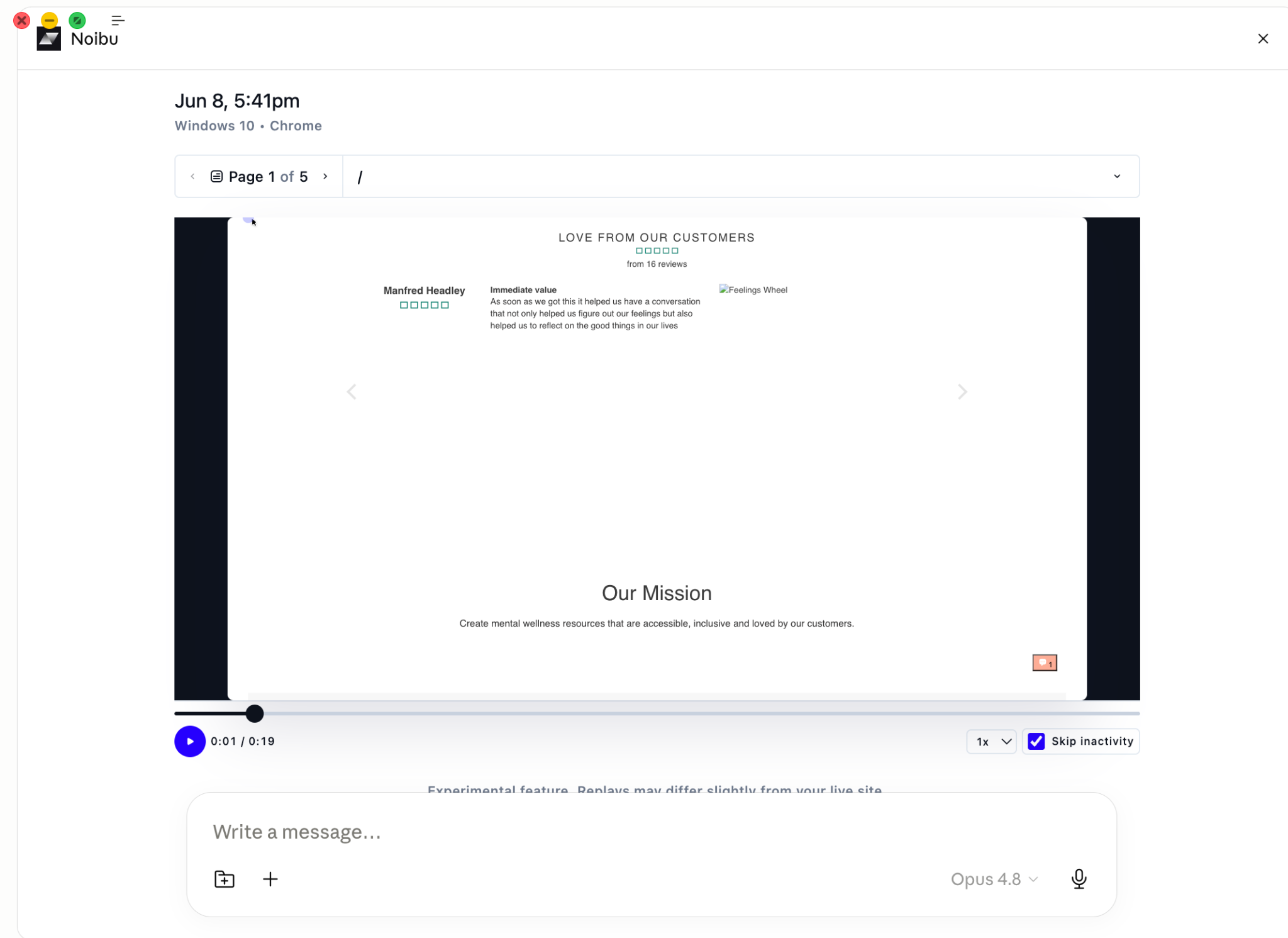
Aggregate data tells you something is wrong but not what the shopper experienced, and that is usually what you need to explain the problem to the rest of the team. Rage-click sessions and highest-friction sessions are the most direct route to it, and merchants most often arrive here from an error investigation or a conversion failure. Replays render inline in the conversation, and deeper visual playback opens in the Noibu console.
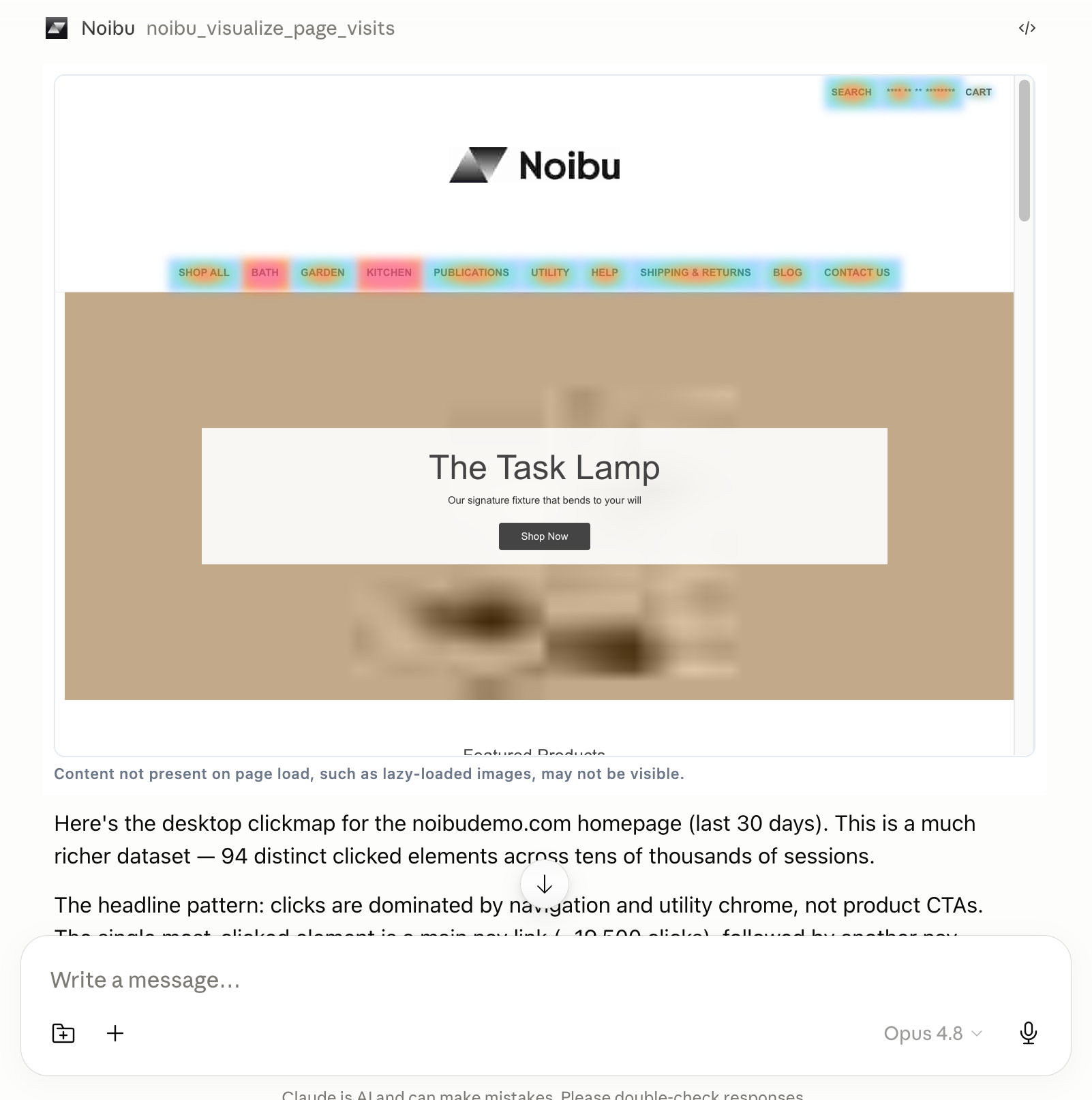
➡ Mapping click and tap behaviour to inform design decisions.
A redesign decision rests on where shoppers actually click, which is rarely where the team assumes. Click-text analysis on a specific page, dead-click and rage-click identification, and page-group journey shapes ground the decision in observed behaviour. Pop-up interaction rates and the downstream effect of a navigation change are common follow-ups.
Saving, sharing, and scheduling
After an analysis runs, your AI tool offers a few ways to keep the result.
Live dashboard. A persistent artifact you can reopen at any time. It re-runs the underlying queries each time you open it, so the data stays current.
Downloadable report. A static export of the analysis as it was when generated. Useful for filing or sharing outside your team.
Slack or email. Some skills offer to send the result directly.
Other ways merchants use Noibu with AI
Some of the most valuable workflows are not tied to a pre-built skill. They combine ad-hoc questions with the visualizations that render inline in the conversation — session replay, click maps, and journey paths.
You can ask your AI tool anything your Noibu data can answer. The skills exist because certain questions come up often enough to be worth standardizing, not because they are the only questions worth asking.