Investigating Issues from 'Peek' View
Last updated: March 31, 2026
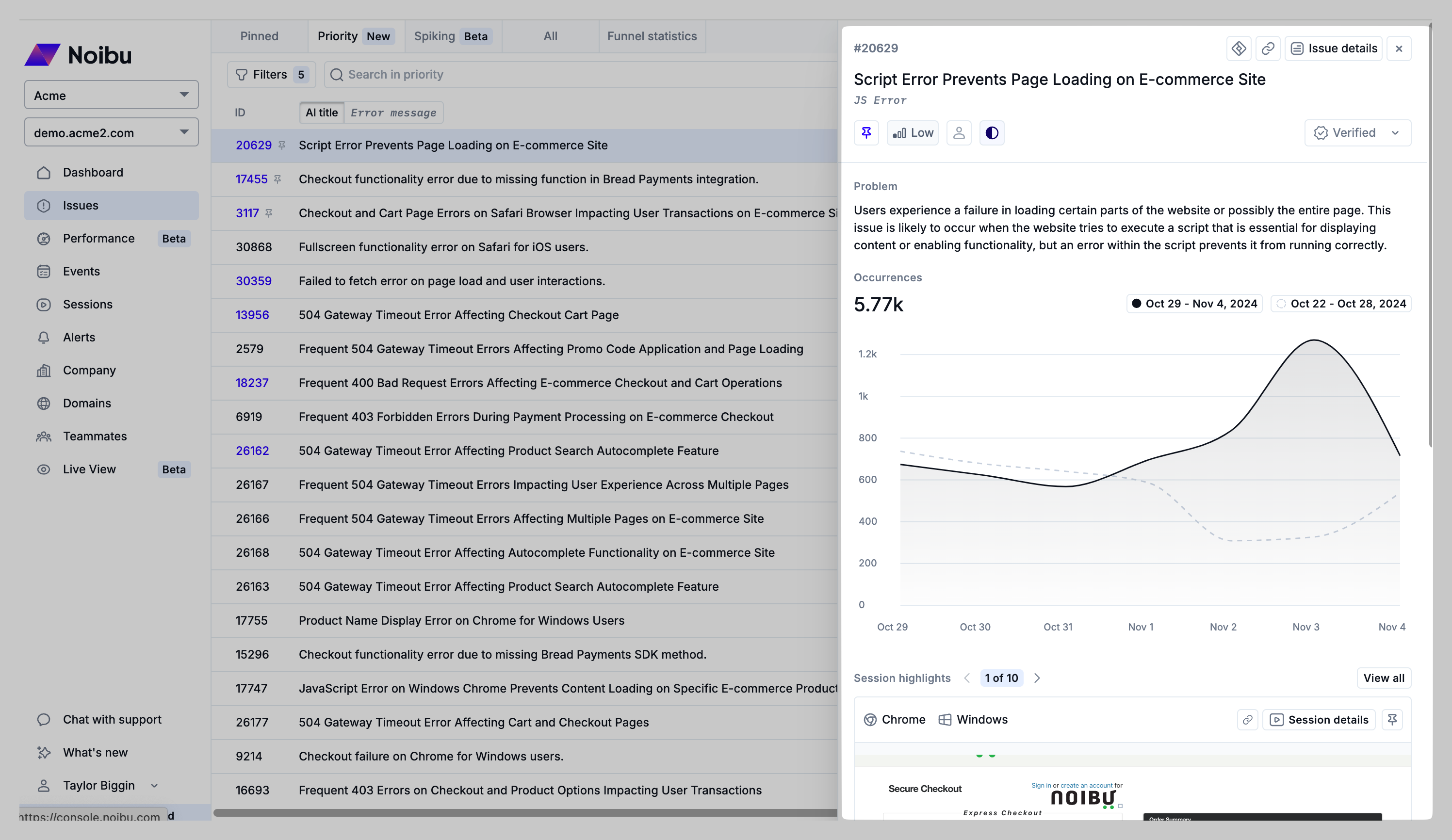
Clicking any row in the Pinned Issues, Priority Issues or All Issues tabs will pull up a panel with the key details you need to understand the nature of the problem, frequency of occurrence, and a selection of Session Highlights demonstrating the impact to customers.
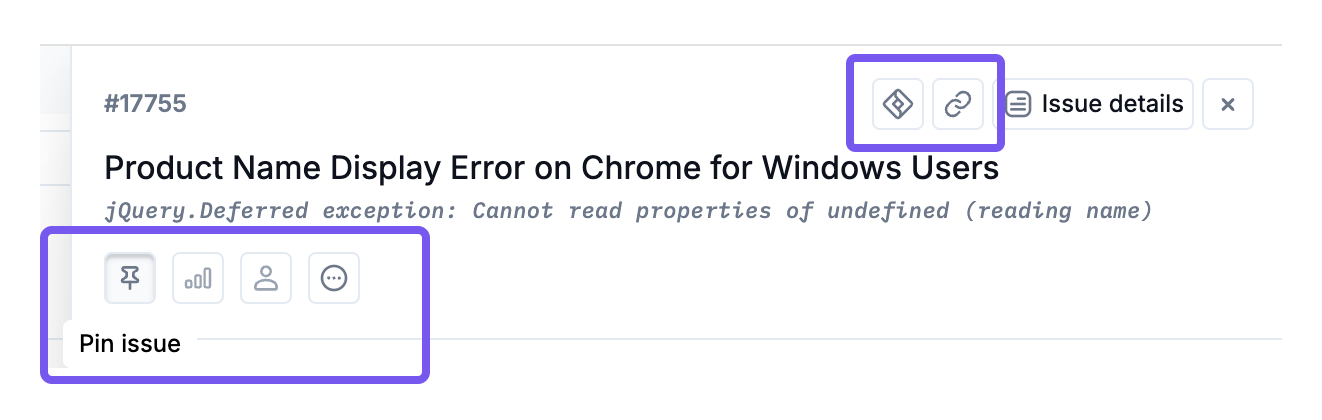
Issue Management
Directly from this view you can pin, prioritize, assign and set the status of an issue. You can also sync the issue to Jira, or copy a link to share with teammates. Learn more about pinning, issue management, and Jira sync.
Problem
Based on the context and technical details of an error, Noibu creates an AI-generated summary of the problem. This can help provide quick context for how the issue impacts users.
Occurrences
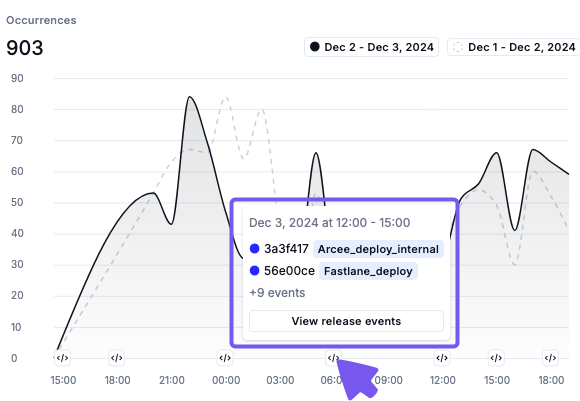
The occurrences chart shows the trajectory of an issue over time. If applicable, release events will be indicated along the horizontal axis of this chart via a icon. Clicking the icon will show you a preview of release events that occurred on that date. Learn more about release events.
Session Highlights
Reviewing Session Highlights helps you understand the impact of an issue on users' experience. When you discover a Session Highlight that demonstrates clear impact to a user, you can pin it for future reference.
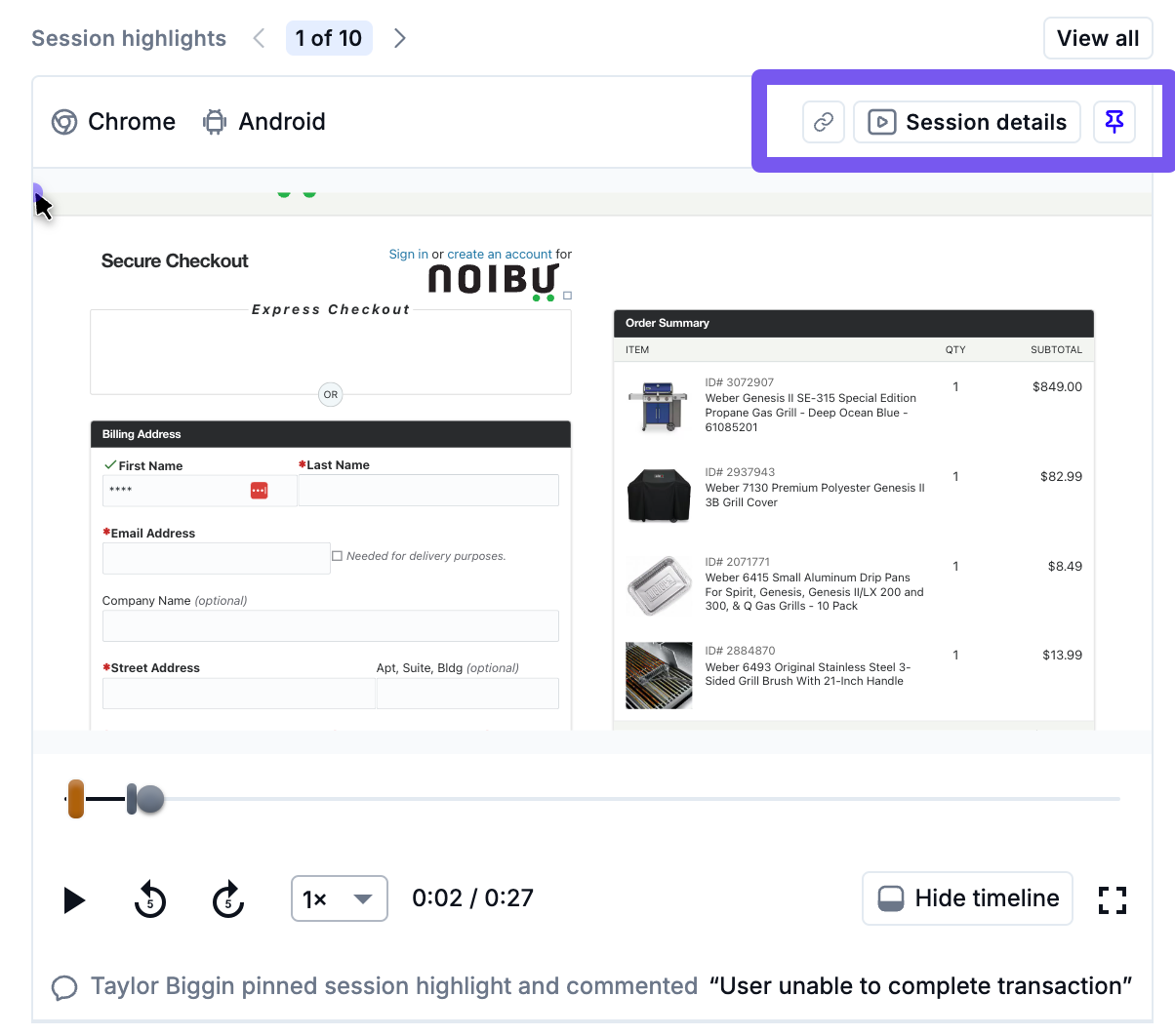
Pinned session highlights and associated comments will be shown first in this 'peek' view, making it easy to review issues that have already been triaged. Learn more about Pinning a Session Highlight.
Click the Session details button to review a session replay in more detail.
Issue Details
If further details are needed to understand the issue, clicking the “Issue Details” button will take you to a full overview of the individual issue. Learn more about Issue Details.
💡 Tip: For more structured guidance on how to effectively investigate issues in Noibu, check out our Investigator's Handbook: https://info.noibu.com/investigator-handbook |