Connecting Noibu to Claude Cowork
Last updated: September 14, 2026
This guide walks you through the one-time setup for the Noibu plugin for Claude. By the end, Noibu will be set up and collecting data, the plugin will be installed in Claude Cowork, and your ecommerce data will be connected and ready to query.
Prerequisites
Before installing the Noibu plugin for Claude, you will need to have completed these prerequisite steps:
Set up your account with Noibu. After Noibu sets up your company and domain, you will receive a welcome email with a link to finish setting up your account with Noibu.
Deploy Noibu to your ecommerce website. You will need to deploy Noibu’s script on your website to collect session and page visit data from your store. Install it as early as possible so Noibu has data to work with by the time you start using the plugin in Claude. For full details, see this article.
Install Claude desktop app. The Noibu plugin runs inside Claude Cowork, which is available through Claude's desktop app. If you don't already have a Claude account, you'll need to create one before continuing. A Claude Pro, Max, Team, or Enterprise account is required.
(Teams & Enterprise plans only) Enable Cowork access and Skills for your organization. If on a Claude Team or Enterprise plan, you may also need to ensure that skills are enabled for your organization.
Noibu plugin setup for Claude
By installing and using the Noibu Plugin for Claude, you agree to Noibu’s MCP Terms and Privacy Policy.
Step 1 — Install the Noibu plugin in Claude
Noibu is listed in Claude's Plugin directory.
Search for the Noibu plugin on the Plugins page as described in Anthropic's documentation, or go straight to Noibu's listing in Anthropic's directory. Click Add.
A confirmation message will let you know the plugin is installed. Continue to install and activate the Connector as described in Step 2.
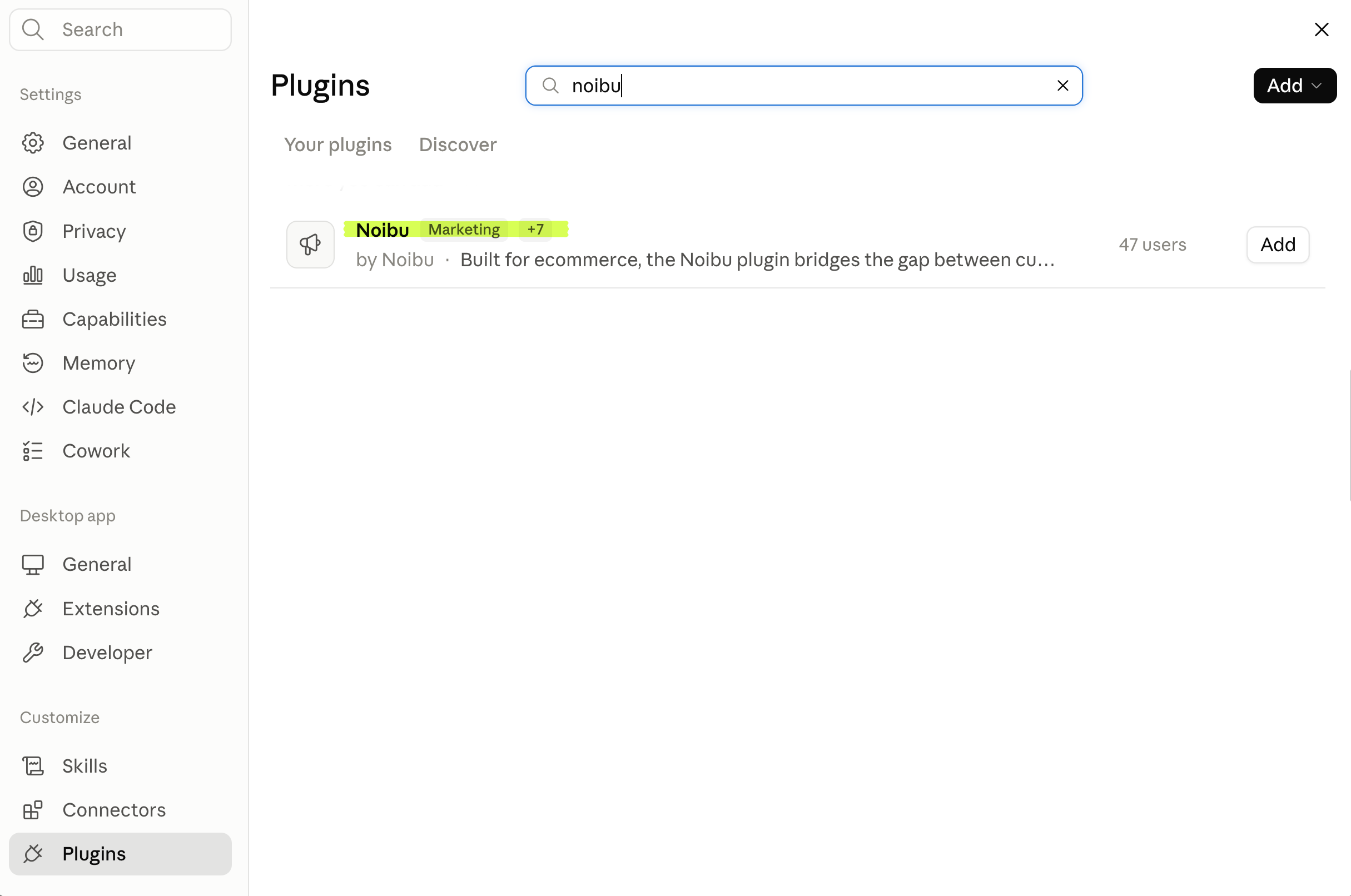
Note that if on a Teams or Enterprise plan for Claude, you may need admin access to install the plugin.
Step 2 – Activate the Noibu MCP server in Claude
Noibu is listed in Claude's connector directory.
➡ If on a Pro or Max plan for Claude:
Search for the Noibu connector on the Conncetors page as described in Anthropic's documentation, or go straight to the Noibu listing in Claude's directory.
Select Noibu, then click Connect.
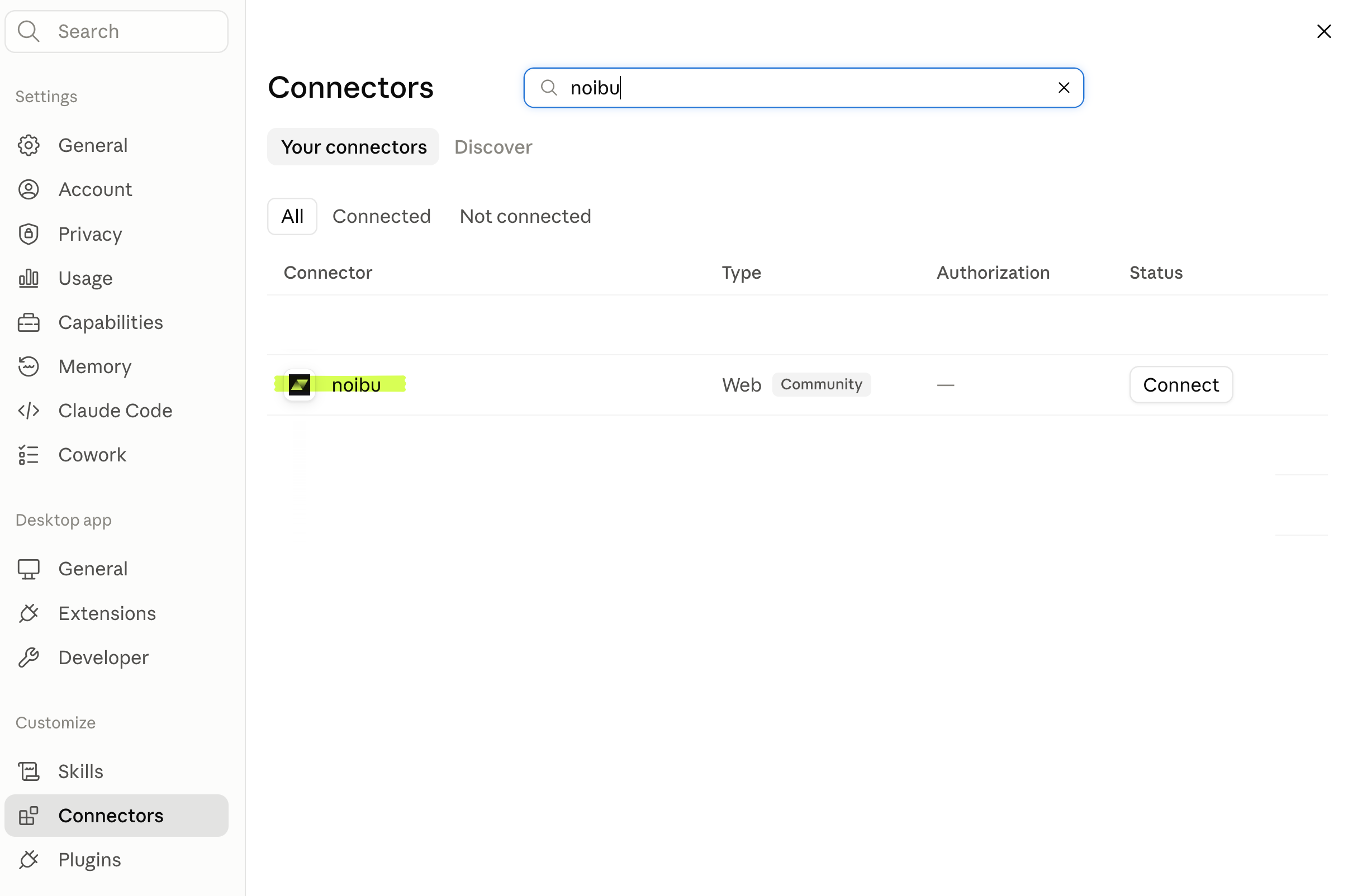
Authenticate to your Noibu account when prompted.
➡ If on a Teams or Enterprise plan for Claude:
An Owner or Primary Owner must first enable the Noibu connector for your organization in Admin Settings → Connectors.
If you don't have permission to enable connectors, the Noibu listing shows a Request button instead — selecting it sends the request to your organization's admins for approval.
Once Noibu is enabled for your organization, each user clicks Connect on the Noibu connector and authenticates to their own Noibu account.
Note: Noibu appears as a Community connector. Community connectors pass Anthropic's automated checks; verified and community connectors work identically once connected. The label only reflects the depth of Anthropic's review.
Next steps — Begin analysis with Claude and Noibu
Once Claude is successfully connected, you can ask it to explore and analyze data about conversions, journey drop-offs, acquisition, funnel progression, user experience, technical errors, and more.
The plugin includes pre-built skills for common ecommerce analysis: store health checks, checkout funnel analysis, and segment & product deep-dives. Trigger any of them with the + button below a chat, a slash-command, or by asking a question that matches their purpose.
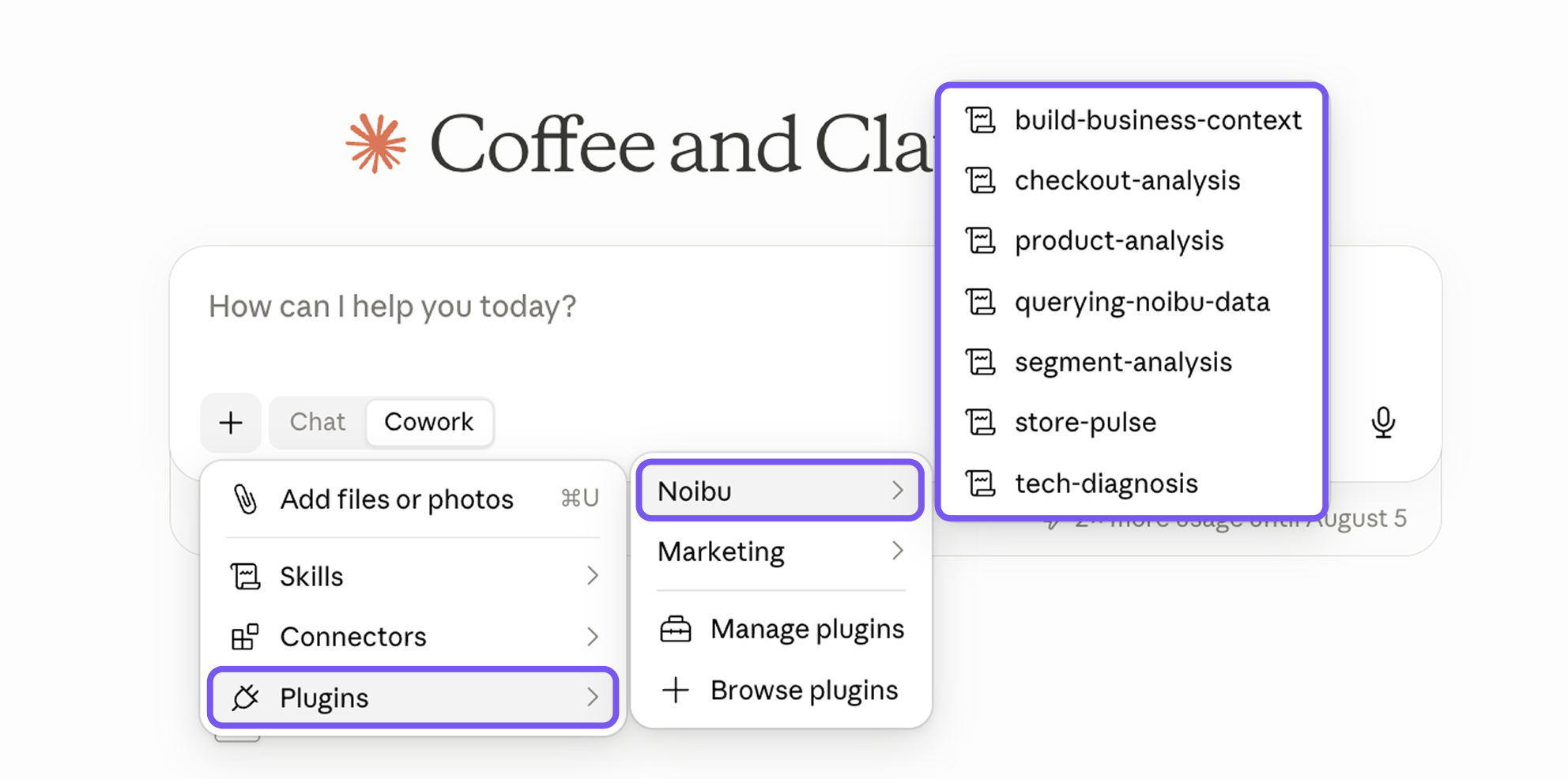
To see a list of all available Skills and their descriptions, go to the "Customize" menu, then select the Noibu plugin, after it has been installed.
It is highly recommended to run the Build Business Context skill to tell Claude how your business works, so analyses are grounded in your reality rather than generic ecommerce assumptions. Learn more here.
Updating the plugin
As we continue to iterate and improve on our Claude plugin, new and updated Skills may become available.
➡ If you installed the Noibu plugin through the Anthropic directory
Your plugin updates automatically. No action is needed to keep it updated.
➡ If you manually uploaded the Noibu plugin and configured a custom connector
You should reinstall the plugin following the steps for installing the Noibu plugin above to ensure you're always on the latest version.
Your existing custom connector will keep working; no action is needed.