Filtering and Sorting the Issues table
Last updated: March 20, 2026
Use filters and customize your column configuration to discover high-impact issues worth investigating. For each of the Pinned, Priority, and All Issues tabs on the Issues Page, users can set up views optimized for their own workflows in Noibu.
Note: Noibu remembers your column configuration, filtering, and sorting preferences. The order and display is set on a per-tab and a per-user basis, meaning each Noibu user can set up views optimized for their own workflows on each of the Pinned Issues, Priority Issues, and All Issues tabs. Column and filtering preferences are forgotten if you clear your local cache.
By combining filters and column visibility, order, and sorting, you can easily identify high-impact issues worth investigating. For some suggested combinations of columns and filters, check out these recommend column and filter configurations.
Filtering Issues
Filtering the list of Issues can help you find a specific type of issue, or uncover several issues with similar characteristics. Clicking the Filters toggle will show the Add Filters button.
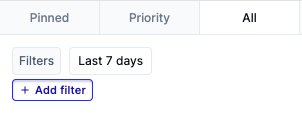
Issues can be filtered on any of the following:
Field | Description |
Urgency | Filter issues by urgency–Low, Medium, High, or Unprioritized |
Assignee | Filter issues by assignee. Select a user or show unassigned issues |
State | Filter issues by state–Open, In Progress, or Unset Note: Closed-Fixed and Closed-Ignore issues are always exempt from Priority view, but you can pull issues of all states in All Issues view. |
Label | Filter the table to show issues with a specific label. You can apply multiple label filters to pull issues that meet multiple criteria. |
Operating System | Filter the table to show issues with >80% of occurrences on a given operating system |
Browser | Filter the table to show issues with >80% of occurrences on a given browser |
Device | Filter the table to show issues affecting primarily Desktop or Mobile devices |
Conversion Impact | The likelihood this issue impacts conversions, as evaluated by AI and Noibu experts. Learn more about Conversion Impact. |
Insight | Filter the table to show issues with a specific insight. An insight is an attribute that describes the nature of the issue, like Has Stacktrace, No Conversion, or Invalid Coupon. Note that Insight filters can also use “Is Not” logic. Learn more about Insights |
Top Symptoms | Filter the table to show issues with a specific Top Symptoms. A Symptom is an indicator of user frustration in their session recording, like rage clicks and on-screen errors. Learn more about Symptoms |
Pin | Filter issues by the whether they are Pinned or Unpinned. Note that Classification filters can also use “Is Not” logic. Note: Benign issues are always exempt from Priority View, but you can pull issues of all states in All Issues view. |
Occurrences | Filter issues by the number of times the error occurred during the selected period. You can apply a high or low limit, or set a range. For example, you can apply a filter to show issues where Occurrences > 1000, or where Occurrences is 1000-10,000. |
Occurrences Change | Filter issues by the relative change in occurrences compared to the previous timeframe. Note that this filter only works for the Last Day and Last 7 days timeframes. |
Revenue Loss | Filter issues by the revenue loss within the selected time period. You can set a high and/or low limit. For example, you can apply a filter to show issues where Revenue Loss > $100, or where Revenue Loss is $100-$5000. |
Annual Revenue Loss | Filter issues by the annualized revenue loss. You can set a high and/or low limit. For example, you can apply a filter to show issues where Annual Revenue Loss > $10,000, or where Annual Revenue Loss is $10,000-$50,000. |
Sessions Lost | Filter issues by number of sessions lost during the selected period. You can apply a high or low limit, or set a range. For example, you can apply a filter to show issues where Sessions Lost > 1000, or where Sessions Lost is 1000-10,000. |
Sessions | Filter issues by number of sessions impacted during the selected period. You can apply a high or low limit, or set a range. For example, you can apply a filter to show issues where Sessions Impacted > 1000, or where Sessions Impacted is 1000-5000. |
Created At | Filter issues by creation date. Select a timezone, and set a timeframe to examine. For example, you can apply a filter to show issues created before July 19th at 9:00 AM, or issues created between July 19th at 9:00AM and July 20th at 9:00AM. |
Last Seen | Filter issues by the date and time it was last seen. Select a timezone, and set a timeframe to examine. For example, you can apply a filter to show issues last seen between July 19th at 9:00AM and July 20th at 9:00AM. |
Closed Fixed At | Filter issues by the Closed-Fixed date. This refers to the date on which an issue was moved to the Closed-Fixed state. |
Error Type | Filter the table to show a specific error type: HTTP, JavaScript, GQL, or Image issues Learn more about Error Detection. |
Error Source | Filter the table to show errors with a specific origin Learn more about Error Sources. |
Page Type | Filter the table to show errors that occur one one or more types of pages on your website. Page Type is determined by the top URLs on which the error occurred and classified into: Checkout, Collection, Home, Login, Product, Search, or Other. Learn more about Page Types. |
Managing Columns in Issue Table
The Issues table can also be customized to display the columns most relevant to the way work in Noibu, and disable those columns that you don’t use regularly.
By default, the following columns are displayed in order (columns denoted with ** are sortable):
Field | Description |
ID** | Unique numerical identifier for each issue |
Error message / AI title | AI-generated issue description, or the backend error message |
Occurrences** | The number of times the issue has occurred within the selected timeframe |
Occurrences Change** | The relative change in occurrences compared to the previous timeframe. Note that Occurrences Change percentages are only displayed for the Last Day and Last 7 days timeframes. |
Sessions** | The number of sessions in which the issue occurred during the selected timeframe |
Revenue Loss** | An estimate of the revenue impact of the issue over the selected timeframe Learn more about Revenue Loss estimates. |
Error type** | The type of error detected Learn more about Error Detection. |
Conversion Impact** | The likelihood this issue impacts conversions as evaluated by AI and Noibu experts. Learn more about Conversion Impact. |
Page type | The types of pages the issue occurs on Learn more about Page Types. |
Insights | Attributes that describe the nature of the issue Learn more about Insights |
Created** | The date Noibu first identified the issue occurring |
Last seen** | The date Noibu last identified the issue occurring |
Click the “Manage columns” button to configure the visibility and order of columns displayed in the Issues table.
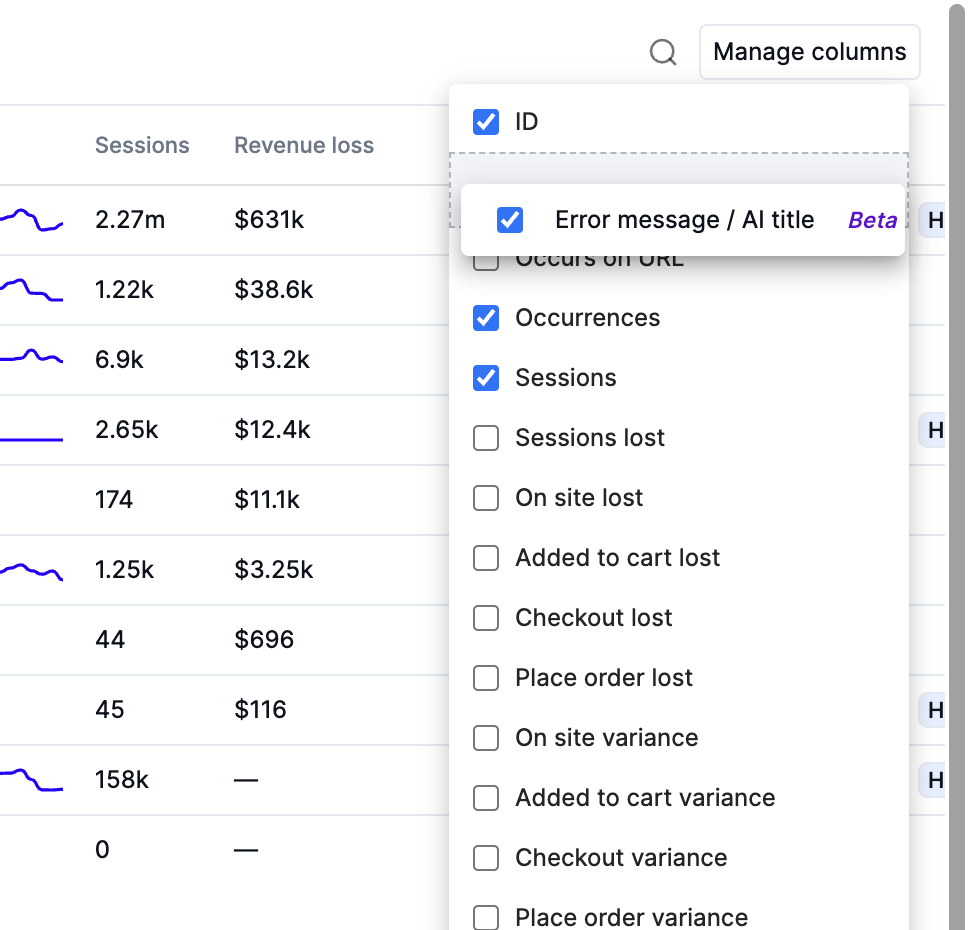
Any or all of the following additional columns can be displayed (columns denoted with a ** are sortable):
Field | Description |
Occurs on URL | The URL where the issue has occurred |
Sessions lost** | The number of sessions lost due to an issue’s presence |
On site lost** Added to cart lost** Checkout lost** Place order lost** | The number of sessions lost due to an issue’s presence at specific stages of the funnel |
On site variance** Added to cart variance** Checkout variance** Place order variance** | The proportional difference in conversion rates due to an issue’s presence at specific stages of the funnel |
Annual revenue loss** | An estimate of the annualized revenue impact of the issue over the selected timeframe Learn more about Revenue Loss estimates. |
Top symptoms | The most common indicators of user frustration associated with the issue Learn more about Symptoms. |
Assignee** | The user to whom the issue is currently assigned |
Urgency** | The specified urgency for an issue — Low, Medium, High, or Unprioritized |
State** | The specified state for an issue — Open, In Progress, Unset, Closed-Fixed, or Closed-Ignore |
Labels | The custom label(s) applied to the issue Learn more about Custom Labels. |
Click on any sortable column header to change the sorting order for issues in the table. To reset your column layout to defaults, click “Reset all changes” at the bottom of the list.
Adding Search Filters
In addition to the above filters, you can search within an Issues Tab to further narrow your search. The search field on the Issues page looks for the specified text in any of the following fields:
Issue ID
State
Assignee
Error type
Error message
Search results will also include issues where the text is found on:
Issue Description
Error Source
Error Signature
Note that the search field returns partial matches for the term. For example, searching "50" will return Issue ID #50, Issue ID #12505, and any issue with a '500' error signature.
By combining filters and column visibility, order, and sorting, you can easily identify high-impact issues worth investigating. For some suggested combinations of columns and filters, check out these recommended columns and filters configurations.