Using the A/B Testing skill
Last updated: November 3, 2026
The A/B Testing skill (/ab-testing) finds, builds and launches A/B tests on your store. It recommends tests from 30 days of your Noibu data and a check of your live site, then takes the test you pick as far as you want: a draft in Noibu, the variation code, a pull request or a Shopify preview theme, automated QA, and a running test.
You pick the test and how much to automate, and you merge the pull request yourself. Nothing is merged, published or started without you.
Note: A/B Testing replaces the A/B Test Opportunity Finder skill (/ab-test-opportunity-finder), which has been removed from the Noibu plugin. Finding test ideas is now the first part of A/B Testing.
A/B Testing ships with the Noibu plugin for Claude, so there is nothing to download or install separately.
At a glance
Use A/B Testing when you want to know what to test, or when you already know the change you want and need it checked and built. It's a good fit:
When you need to decide what to test first
When a metric you care about, such as add to cart rate, has stalled and you want testable ideas rather than a list of best practices
After a peak season or a major campaign, to turn what you learned into tests for the next one
When your testing backlog is built from opinions, and you want each test tied to a measured gap
When you want to see a proposed change on your own site before anyone builds it
When you want the variation code written, previewed and launched for you
What it never does without you:
It never merges a pull request. You merge it yourself.
It never publishes a theme without your approval.
It never starts a test until you have merged the code and it has confirmed the code is live.
The short version
Type
/ab-testingand choose Look for new A/B test opportunities.Pick the goal you want the tests to improve.
Read the ranked tests on the findings card. Click Learn why and preview variation to open a test's full report.
Click Create A/B test in Noibu to create the test as a draft.
Click Automate the implementation, then choose how much Claude should automate.
For an end-to-end run, review and merge the pull request. Claude confirms the code is live and starts the test.
What you need
Finding test ideas only needs Noibu. A browser lets the skill check your live site and show previews. Building a test also needs access to your store's code.
For | You need |
|---|---|
Every run | The Noibu plugin for Claude, with the Noibu connector connected. See Connecting Noibu to Claude Cowork. |
Checking your live site and previews | Claude's built-in browser, which is available in a Cowork task linked to your computer with the Claude desktop app open. It reads your site and takes the mobile previews. The Claude in Chrome extension takes the desktop previews. Each one covers for the other when it is missing. |
Opening a pull request | Access to your store's code repository on GitHub, GitLab, Bitbucket or Azure DevOps. Claude uses your git host's connector when you have one (GitHub, or Bitbucket through the Atlassian connector), otherwise the git tools already signed in on your computer. With plain git, Claude pushes the branch and gives you the link to open the pull request. If nothing can push, Claude gives you a patch file and the pull request text to paste. |
Previewing on a Shopify theme | The Shopify connector, with permission to write themes, and the Store Preview QA skill from the Skill Store in the Noibu console. Shopify must also allow the connector to edit theme files. If it doesn't, Claude uses another preview method. Preview themes aren't available on the Shopify Starter plan. |
Reading the test's implementation code | Claude in Chrome, signed in to the Noibu console. If it isn't connected, Claude asks you to connect it or to paste the code from the test's Implementation panel. |
Without either browser, the skill still runs on your Noibu data. Statements about your site are marked as inferred rather than observed, previews are described in words instead of shown, and the report says what was not checked.
Note: If you have built your business context with /build-business-context, the skill uses it to write hypotheses and variation names in your brand's voice. If you have not, the skill still runs and suggests building it.
How to start it
Ask “what should we A/B test?”, “find test ideas to increase add to cart rate”, or “build an A/B test for a sticky add to cart bar”. You can also type /ab-testing. In some apps the skill is listed as /noibu:ab-testing.
The skill first asks what you'd like to do for your domain:
Look for new A/B test opportunities: analyzes the last 30 days of data and your live site for fresh, ranked test ideas.
Create a specific A/B test: you describe the change you want to test, and the skill checks it and builds it.
Implement an existing A/B test: lets you pick from the tests found earlier in the same chat. This option only appears once the chat has found tests.
Tests stay in the chat that found them. To build a test from an earlier run, go back to that chat. A new chat runs a fresh search against your current data and site.
Choosing a goal
Before it pulls any data, the skill asks what you want the tests to improve:
Increase add to cart rate
Increase checkout completes
Increase checkout starts
Increase page views, on product pages, collection pages, or one specific page
Not sure / show me everything, for tests across every goal
The goals come from the metrics Noibu A/B tests support, so new ones appear as Noibu adds metrics. If your request already names a goal, such as “get more shoppers into checkout”, the skill uses it and does not ask.
Describing your own test
Tell the skill the change, which page it's on, and, if you know, what it should improve. The skill checks the change against your Noibu data and your live site, previews it, and prepares it as one test.
If the change can't be built safely on your platform, the skill explains why and offers the nearest version that can. If a test with the same title is already running or stopped in Noibu, it tells you rather than building it again.
How it finds opportunities
Readiness check
Before running the full analysis, the skill confirms your domain has enough data to test against. If the domain is not receiving data, or has very little traffic in the window, the skill stops and tells you. If a related domain carries the traffic instead, it names that domain and offers to run against it.
If your domain does not record add-to-cart or checkout events (see Ecommerce event data), the skill cannot measure add to cart or checkout goals there. It offers to switch to page-view goals, and the report notes that the events need to be set up before any cart or checkout test.
If your checkout runs on a separate domain that Noibu tracks as its own site, checkout goals and checkout tests are switched off for the run, because sessions don't carry across domains. The skill tells you. If you picked a checkout goal, it asks you to choose another. With Not sure / show me everything, it leaves checkout out.
The data
The skill reads the last 30 full days of your Noibu data, but for lower-traffic stores it reads 90 days so the numbers are reliable. It looks at conversion and funnel progression by device, how far shoppers scroll on your top pages, and where shoppers who added to cart leave. It also looks at what shoppers click on your homepage and your top collection and product pages (and your cart, for checkout goals), and which traffic sources land on pages that get visits but few add-to-carts.
An idea becomes a candidate only when the data shows a measured gap. Examples are one segment converting well below another, or a page performing below other pages of the same type. The gap must sit on meaningful traffic and act on the goal you chose. General best practice without a gap behind it does not qualify.
The site check
While the data loads, the skill reads your live site. It always reads your homepage and your shipping and returns policies. It then reads the pages your goal depends on, chosen from your data rather than a fixed route: your most-visited collection and product pages for the add to cart goal, your most-visited collection page for page-view goals, and a product page and your cart for checkout goals. For the checkout completes goal, it also observes the first checkout step without entering anything.
For the checkout starts and checkout completes goals, and for Not sure / show me everything, the skill adds one in-stock item to your cart and removes it again. That add shows up in your store's analytics, and the report notes it. On Shopify the skill empties the cart to remove it, so anything already in that browser's cart on your store is removed too. The skill never fills in a checkout field or places an order.
The site check removes ideas for changes your site already has, such as quick add on product cards your collection pages already show. Where something broken sits on a test's own page, the skill flags it on that test with a Fix first note, because it would distort the test's result. The skill also removes ideas your team couldn't ship on your platform (see What the skill won't build below).
Ranking
The remaining ideas are ranked by the strength of the evidence, the traffic each change would reach, and the plausible size of the effect. A typical run produces three to six tests. If only two ideas clear the bar, you get two.
Every test uses the success metric for the goal you chose. A strong idea that moves a different metric is listed separately, as one line under Outside your goal.
What you get
When the search finishes, the chat shows a findings card with one block per test. Each block shows What to change and Why this test, with two buttons:
Learn why and preview variation opens that test's full report in the side panel.
Create A/B test in Noibu creates the test as a draft in your Noibu account.
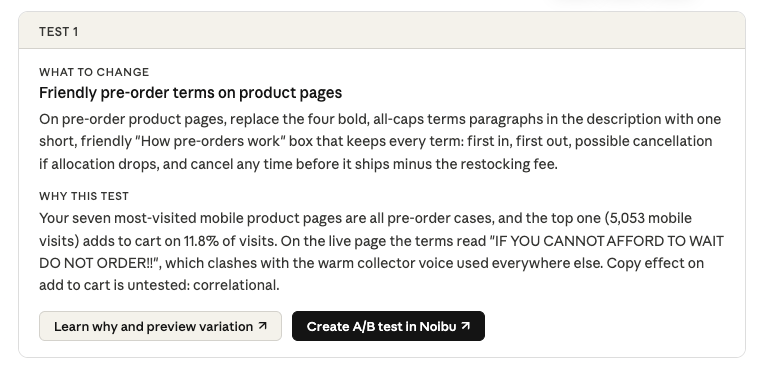
The test report
Each test has its own A/B test recommendation report, published in Claude when you open it. It contains:
What to change, in one or two sentences
Why this test, the measured problem and what the site check found, with no more than three numbers. Evidence from a self-selected group, such as shoppers arriving from email, is labelled as correlational: it justifies running the test, not assuming the result.
Before and after, a capture of your current page next to the same page with the variation applied, at desktop size or at phone size for a mobile test
Set it up in Noibu, the test's Title, Hypothesis, Success metric, Secondary metrics, Targeting and Variations, with the same names as the Create A/B test screen. It also shows Traffic for this metric: how many sessions a week, within the test's targeting, reach the event the success metric counts, such as adding to cart. Noibu shows the estimated days to a verdict when you create the test.
Dev notes, the page and element to change for each variation, what the variation shows instead, and what else the change touches
Fix first, when a verified problem sits inside the test's page, such as an error, a broken element or copy that contradicts your policies
Overlap, when a Noibu test is already running or drafted on the same page, or another testing tool was found on it
Create A/B test in Noibu, the button that creates the test
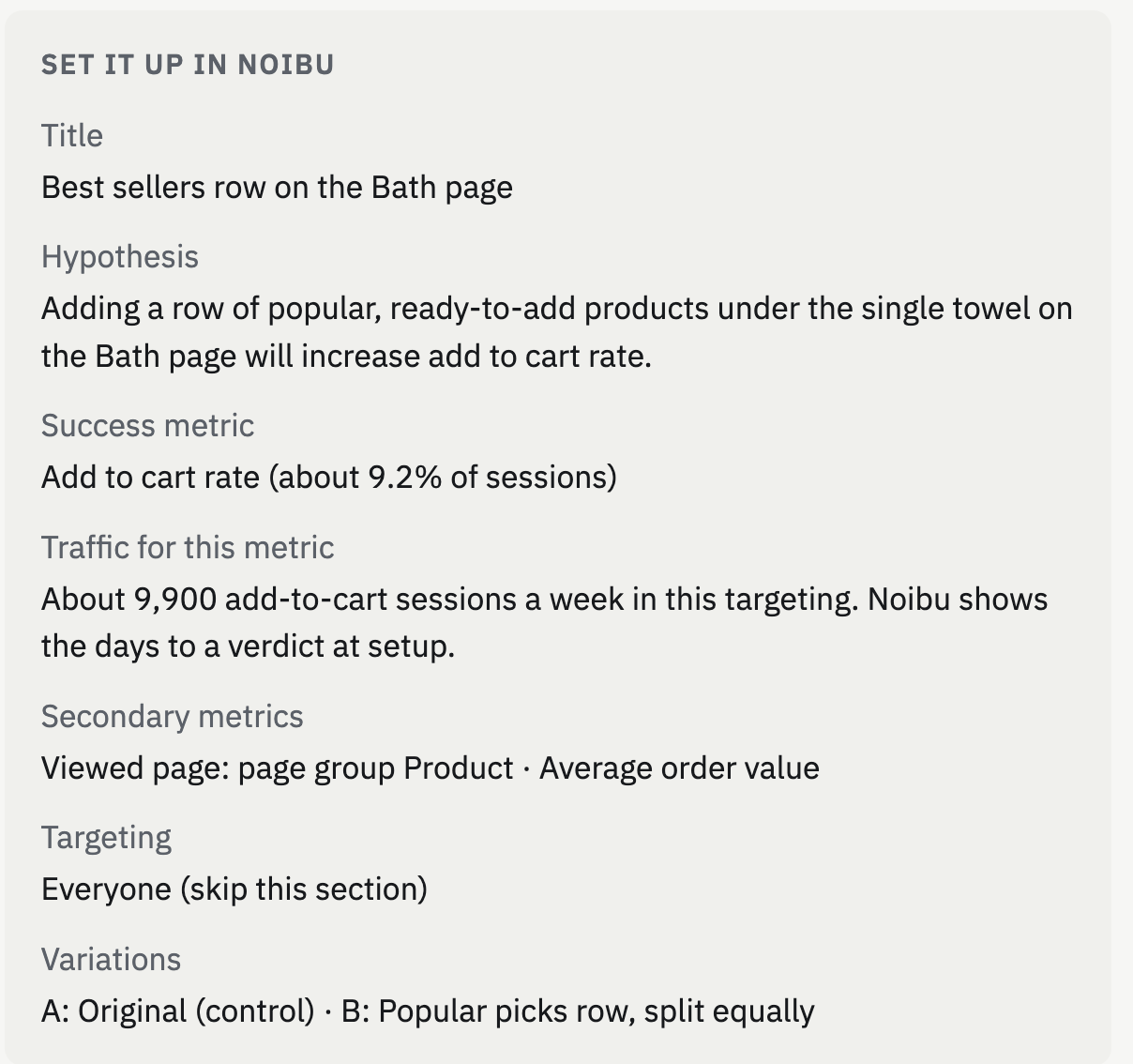
Every report ends with Outside your goal, when there is anything to list, and short notes on the run, such as which browser read your site.
The skill uses only settings the Create A/B test screen offers. It sets the success metric to Add to cart rate, Checkout conversion rate, or Viewed page for a URL or page group, and can add Average order value as a secondary metric. Targeting is by UTM parameters and device type. When a test should target a country, the report says so, and you add that condition in the Noibu console after the draft is created. Where the skill measured a baseline, the success metric shows it. Otherwise it reads “baseline shown at setup”, and Noibu shows the current figure when you pick the metric.
Reading the previews
Each preview applies the variation's visible change to your live page in a browser tab and captures it as a screenshot. Desktop previews are taken in Claude in Chrome at full desktop size, and mobile previews in Claude's built-in browser at phone size. If a size could not be previewed, the report says so.
Note: A browser tab may be left open showing a variation on your live site, so you can look at it directly. The change exists only in that tab. The preview is an approximation, not the code that will ship.
Creating the test in Noibu
Click Create A/B test in Noibu on the findings card or on a report to create the test in your Noibu account as a draft, with the setup shown in the report. A draft serves no traffic and stays fully editable in Noibu, so you can review and adjust it there before anything goes live.
If you create the draft from the findings card, the chat shows its id (linked to the test in the Noibu console), its flag key, and an Automate the implementation button. If you create it from a report, the report shows the id and flag key, and you can ask Claude in the chat to build the test. If a test with the same title already exists on your domain, the skill tells you instead of creating a duplicate, and the report's button reads Already in Noibu.
The skill only creates a test when you ask it to, by clicking a create button or by choosing to build a test.
Building and launching a test
Click Automate the implementation, or ask Claude in the same chat to build one of the tests. Claude works out your platform, where your code lives, and how changes get previewed and shipped. It asks only what it can't find, such as where your code is hosted or a staging URL.
Claude then shows a summary of the test and asks What would you like to automate?
Option | What happens |
|---|---|
Launch an end-to-end test | Claude opens a pull request on your code repository and checks a preview. Once you merge it, Claude confirms the code is live and starts the test. |
Prepare a pull request | Claude opens a pull request on your code repository, then stops. |
Preview on a Shopify theme | Claude builds an unpublished copy of your live theme with the change and checks it. Shoppers never see it. This option appears only for stores on a Shopify Online Store theme. |
Just show me the code | Claude writes the code and shows it in the chat, with a patch file. Nothing is pushed or published. |
To change the test first, reply with the change instead of picking an option. Claude updates the test and shows the summary again.
What every option does
Uses the Noibu draft. Claude uses the draft you created. If there isn't one yet, it creates it. If the draft's settings differ from the recommendation, Claude shows the differences and asks which to keep.
Reads Noibu's implementation code. Claude reads the code from the test's Implementation panel in the Noibu console and includes it with the variation code.
Writes the variation code. Variation B is built from your site's own components, behind the test's flag. Shoppers who aren't in variation B, and anyone whose assignment can't be read, see your site exactly as it is today.
Preview and QA
For Launch an end-to-end test and Preview on a Shopify theme, Claude previews the change and checks it in a browser you can watch. The preview is an unpublished Shopify theme, your repository's own preview deployment, or a staging URL you provide. If none is possible, QA runs on your live site after you merge and before the test starts, while the flag still shows the original to everyone.
Note for Shopify stores: A/B Testing uses the Store Preview QA skill (/store-preview-qa) to build the preview theme and run QA. Get it from the Skill Store in the Noibu console (Connections → Skills) and add it to Claude before you build a test.
Store Preview QA runs when your store uses a Shopify Online Store theme and the Shopify connector can write themes. It copies your live theme into an unpublished preview theme with only the test's changes added. It then checks the preview and your live site side by side: add to cart through to the checkout page, every variant's price, details and image, page loads on mobile and desktop, on-screen error messages, and the change itself. It ends with one verdict: PASS, PASS WITH WARNINGS, FAIL or INCONCLUSIVE. It never pays, publishes the theme or deploys, and it restores your cart afterwards.
On other stores, or when the Shopify connector can't write themes, Claude runs its own checks: add to cart, product options, page loads and on-screen errors, and the change itself on mobile and desktop for both the original and variation B. Claude never types into payment fields or places an order, and removes only the cart items it added.
Merging and starting the test
In Launch an end-to-end test, Claude stops and asks you to confirm when you've merged the pull request. It never merges it itself. Once you have, it checks that the code is live, starts the test, and confirms its status reads Running. Where Claude can't check the live code itself, it asks you to confirm the deploy is live. If the code doesn't go live, Claude stops and tells you rather than starting the test.
From there, read the results in Noibu. See Measuring A/B test results.
Continuing later
The other options end with What would you like to automate next?, so you can move on to a pull request, a theme preview, or the full launch without starting over. Claude reuses the draft, code and preview it already made.
If you choose Stop here, you can pick it up later by asking Claude to continue the test by name. Claude finds the draft and the pull request and carries on from the first step not yet done.
What the skill won't build
Every test is checked twice: can your team ship it on your platform, and can it be built without affecting the rest of your site. A test that fails either check is reframed into a version that can ship, or dropped. The skill works on Shopify, BigCommerce, Salesforce Commerce Cloud, Magento 2, Oracle Commerce Cloud and custom sites.
Part of the site | What the skill does |
|---|---|
Home, collection, search, product, header, footer, cart page and cart drawer | Builds tests on every supported platform. On a custom site, Claude needs to find your code repository or asks where it lives. |
Checkout and order status pages | Not on Shopify, on any plan, because these pages accept no theme code or custom scripts. On other platforms, it depends on how much of the checkout your own code controls. |
Card and payment fields, express payment buttons | Never. Their position, order and nearby copy on a store page can be tested. |
Prices, discounts, shipping rates and payment methods | Never as a front-end test. These are platform settings or server logic that a test can't switch per shopper. |
Third-party apps such as reviews, search, upsells and chat | The container only: moving, showing, hiding or spacing it. The app's own content changes in the app. |
A checkout metric is still fine. On Shopify, for example, a cart or product page change can be measured on checkout completes, as long as Noibu records your checkouts.
Important: If your checkout runs on a separate domain that Noibu tracks as its own site, checkout goals and checkout tests aren't supported yet. The skill tells you and offers tests that don't touch checkout.
Every variation is also built to stay inside the test:
Everything shoppers see in variation B sits behind the test's flag.
One product's details are never hardcoded into templates that every product uses.
If the flag can't be read, shoppers see the original.
No invented urgency, stock counts, reviews or badges, and any copy matches your policy pages.
Running it on a schedule
Ask Claude to run the skill on a schedule, for example “look for new A/B tests every Monday”. It runs the opportunity search for the goal you choose, for example weekly, every two weeks or monthly, publishes the reports, and ends at the findings card. By default, a scheduled run doesn't create a test, a pull request or a preview theme, and it never runs an end-to-end launch.
The scheduled task runs on your computer, so the Claude desktop app has to be open and online at each scheduled time. If it isn't, that run stops and says it couldn't reach the browser.
FAQ
What happened to A/B Test Opportunity Finder?
It was replaced by A/B Testing. Type /ab-testing and choose Look for new A/B test opportunities to find ranked test ideas, now with mobile previews and the option to build the test. If you don't see /ab-testing, make sure you have the latest Noibu plugin (see Connecting Noibu to Claude Cowork).
Does the skill change my live site?
It never merges, publishes or deploys anything itself. While it looks for opportunities, its only change to your store is adding one item to the cart and removing it again, for the checkout goals and Not sure / show me everything. Before you merge, the most it creates is a Noibu draft, a branch and pull request, and an unpublished preview.
What's in the pull request?
Among other things: the test's details from Noibu, the evidence behind it, the before-and-after previews when the report has them, a comparison of the original and variation B, the files changed and why, the launch order (merge, confirm the code is live, then start), and a Blast radius section listing where each changed file appears and confirming shoppers in the original see no change. QA results are posted as a comment on the pull request.
Can I still build the test myself?
Yes. Create the draft, then stop there. Your developers can follow the dev notes in the report and Implementing A/B tests in code, and you start the test in Noibu when the code is live.